









Free worldwide shipping
Free returns
Carbon neutral
Secure payments
| Power Source | OBD II Port |
|---|---|
| Operating System | For iOS & Android (excluding head units) |
| Automotive Fit Type | Universal Fit |
| Item Dimensions L x W x H | 1.61"L x 1.97"W x 0.87"H |
| Manufacturer | Veepeak |
| Included Components | OBD-II Scanner, mini carrying case and user instructions |
| Model Number | BLE |
| Manufacturer Part Number | OBDCheck BLE |
| Manufacturer Warranty Description | 1 year manufacturer replacement warranty |
| Power Source Type | OBD II Port |
| Item Length Width Height | 1.61"L x 1.97"W x 0.87"H |
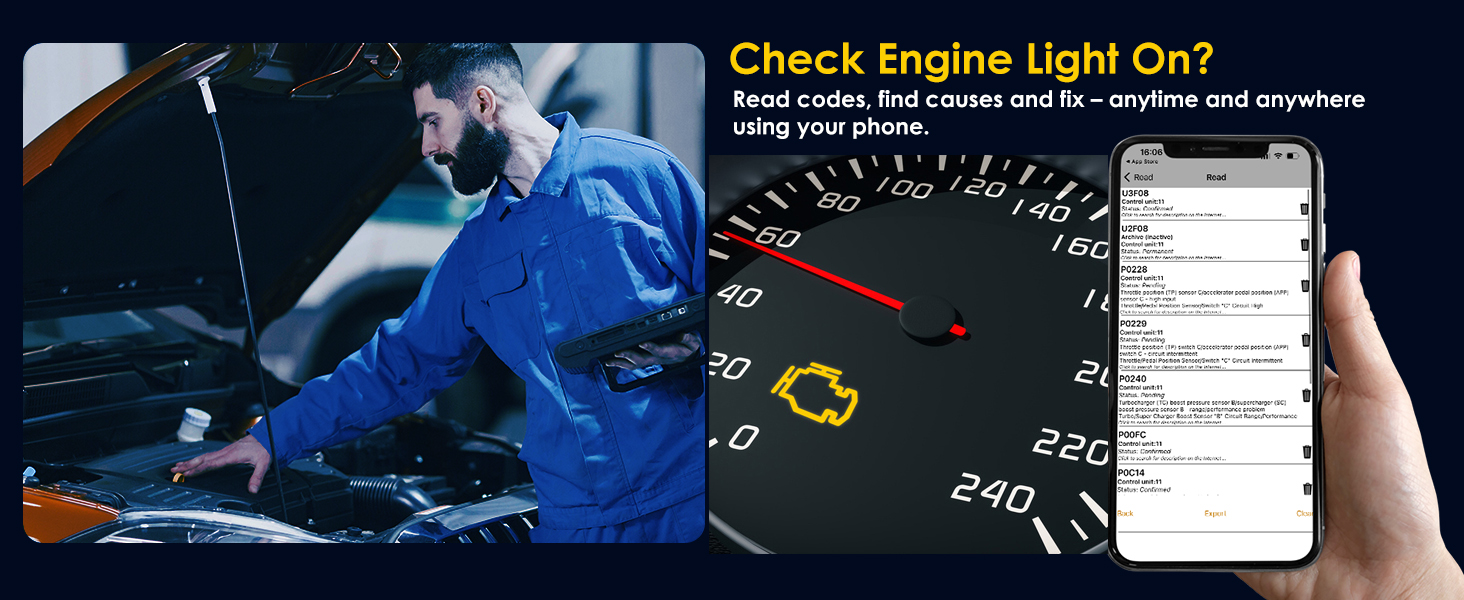
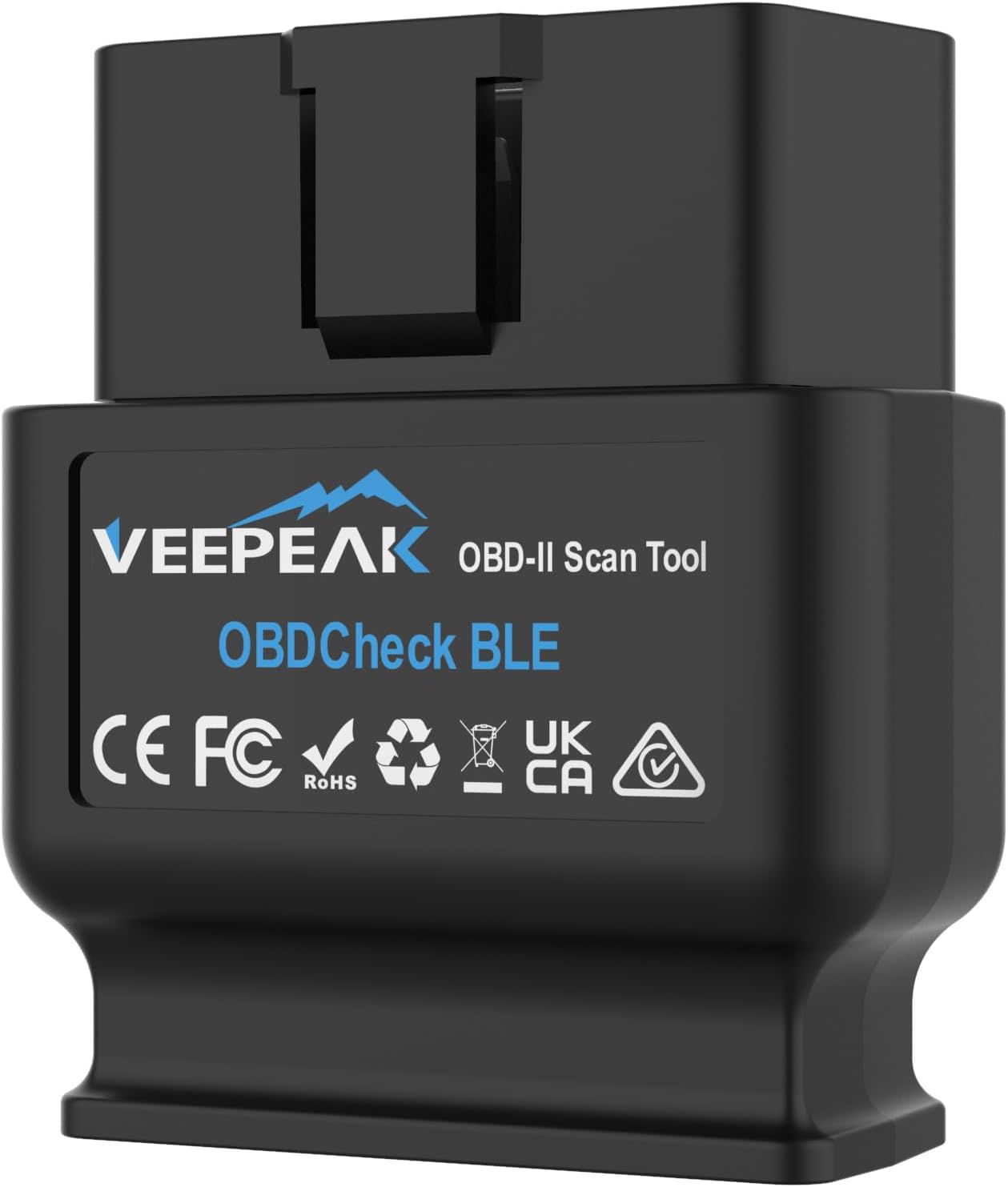
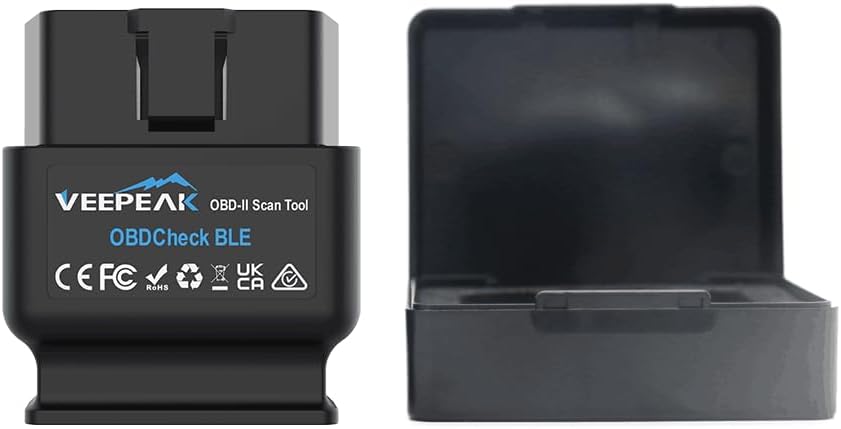
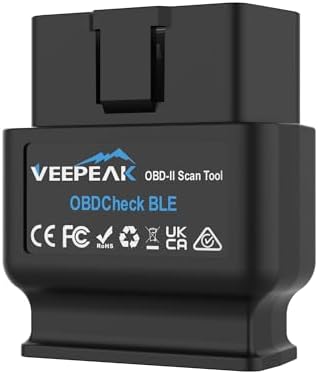
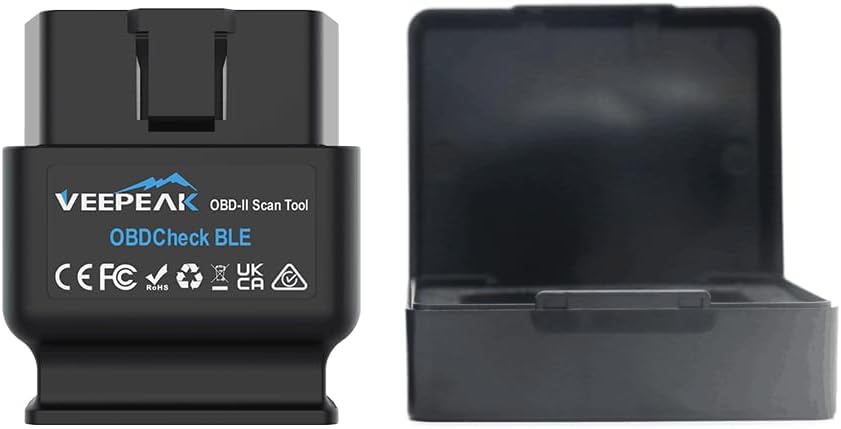
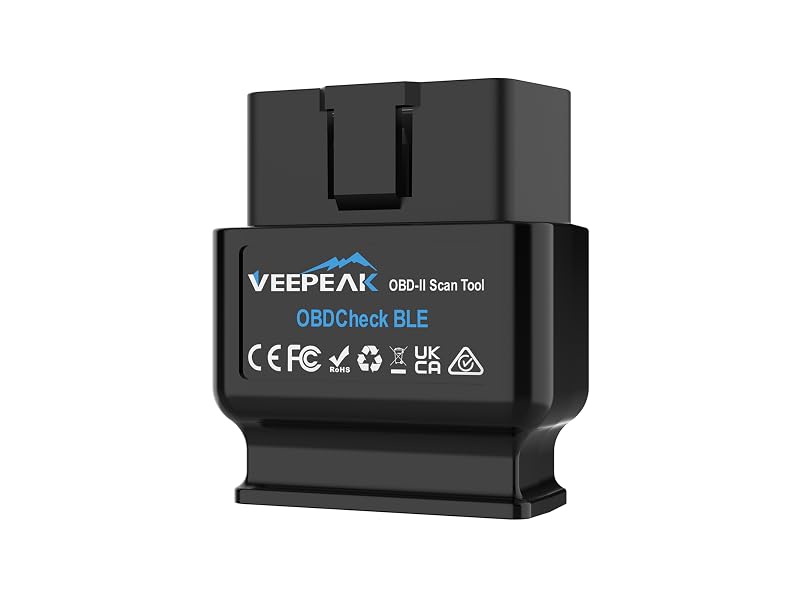
The vehicle in your garage can be as smart as your phone. Turn your iOS or Android phone or tablet into a sophisticated diagnostic scan tool and real-time performance monitor. The OBDCheck BLE directly plugs into your vehicle and connects to an OBD II App on your iOS or Android device via Bluetooth. Whenever you have a check engine light on or want to see how your car is performing, it will be a very useful gadget for you.
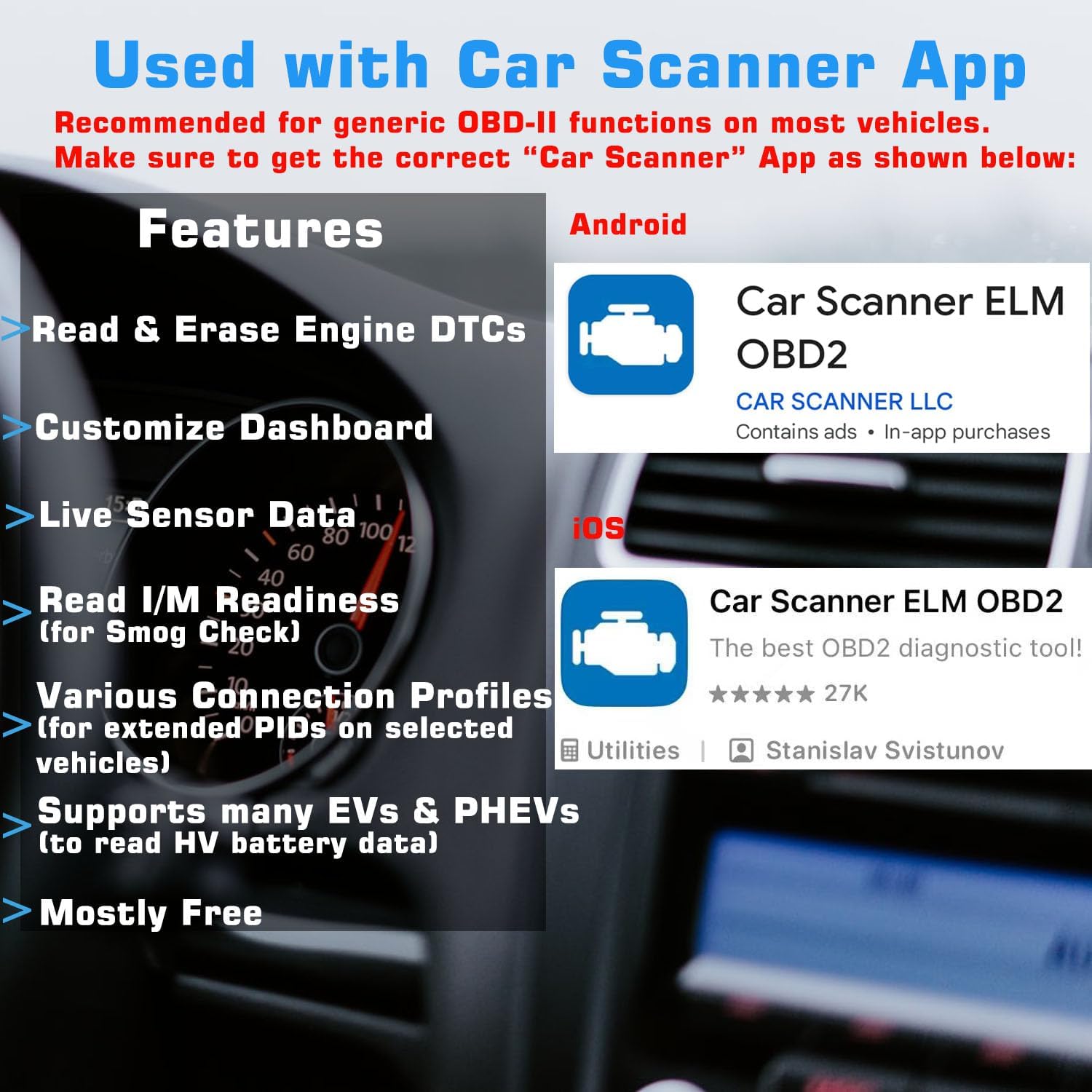
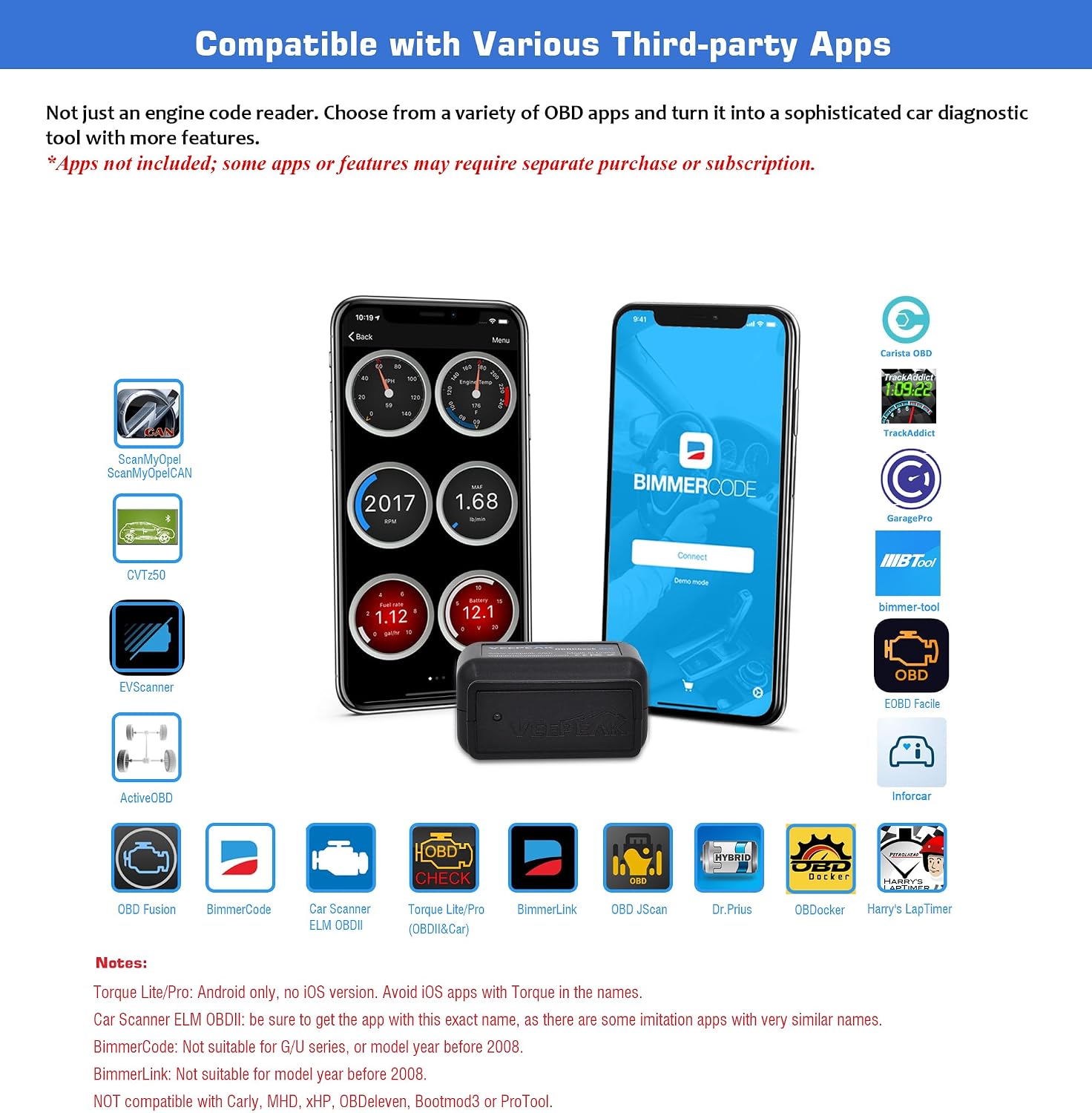
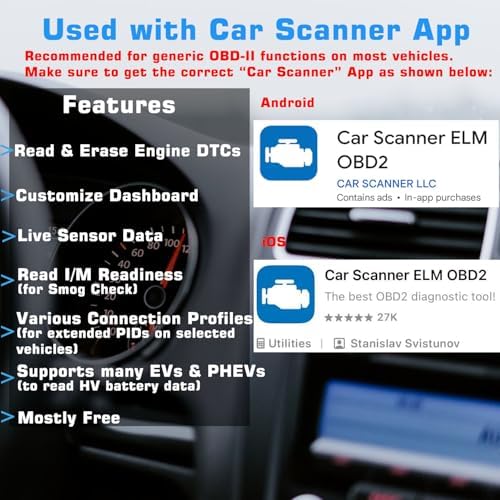
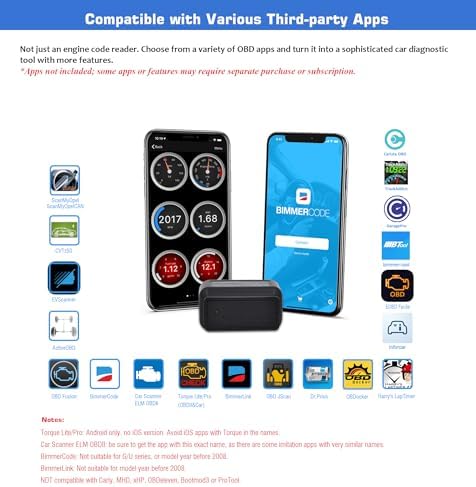
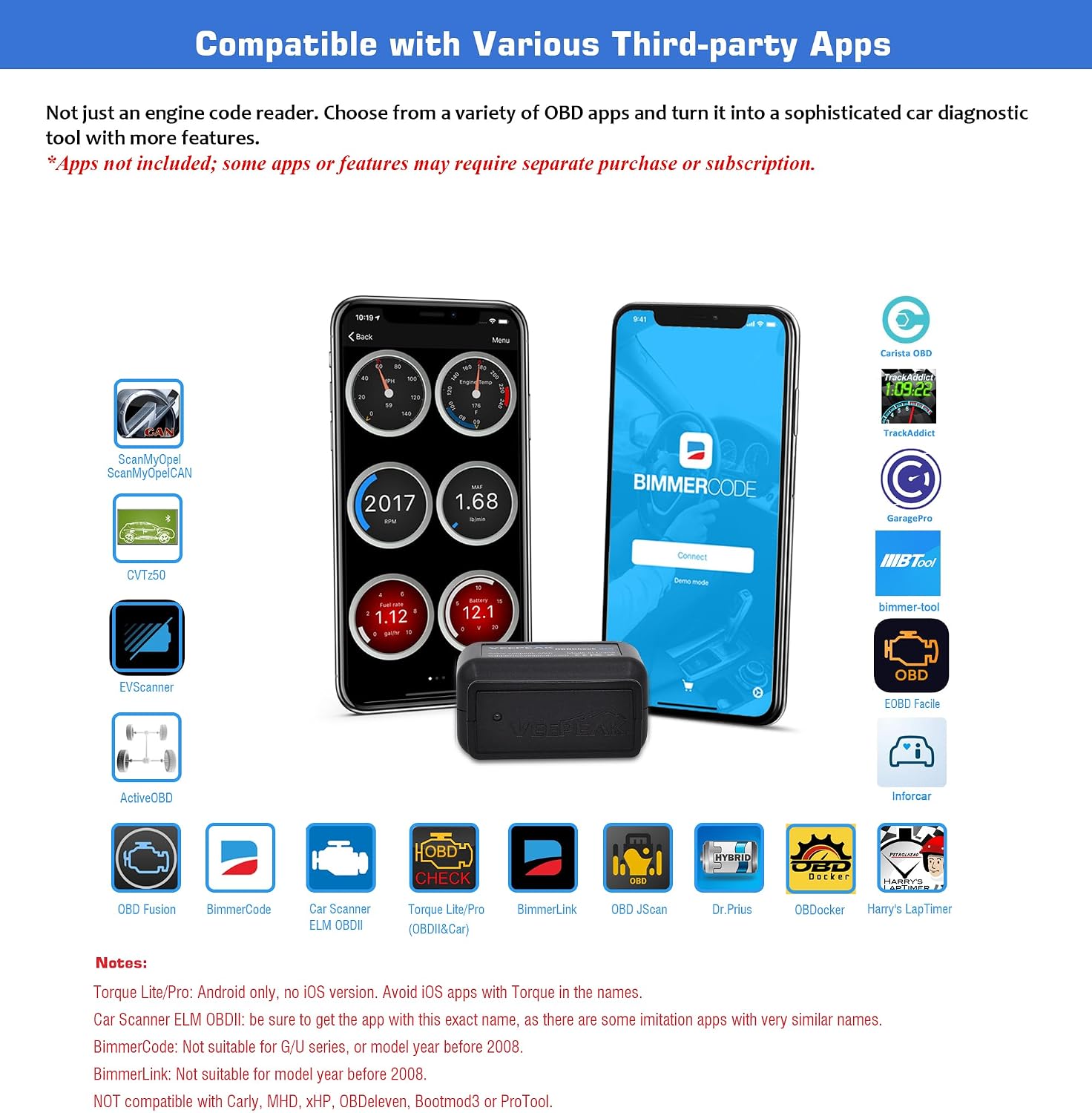
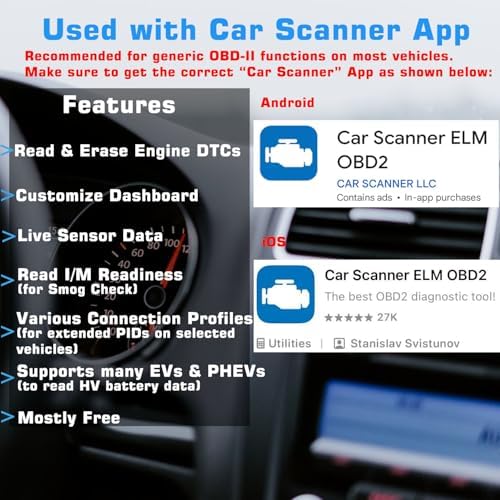
| CAR SCANNER ELM OBD2 | Get OBD fault codes, car performance, sensor data and more! (Recommended for most vehicles for generic OBD-II functions) |
| OBD Fusion | Generic OBD-II functions, plus enhanced diagnostics & sensor data for selected vehicles (paid). |
| Torque (Android) | Popular vehicle performance, sensors and diagnostics tool for Android (No iOS version). |
| BimmerCode | Paid coding App for BMW & Mini (2008+ E, F, I, and 2008+ R series); Not suitable for G series and U series. |
| BimmerLink | Advanced diagnostic App for BMW (MY2008+): Read trouble codes, display real-time sensor values, or register a new battery after replacement. |
| More Advanced Apps | Compatible with Dr. Prius, JScan OBD, Carista, OBDocker, ActiveOBD, AlfaOBD (limited support), FORScan Lite (no MS CAN support) etc. (Please check the app page for detailed features & fees) |
| Incompatible Apps or Software | Carly, MHD, xHP, ProTool, bootmod3, Multiecuscan, Techstream, VCDS, or other software that requires specialized hardware. |
| Important Information | Avoid third-party apps with similar names, as they may require additional subscriptions, or may not work properly with this device. |
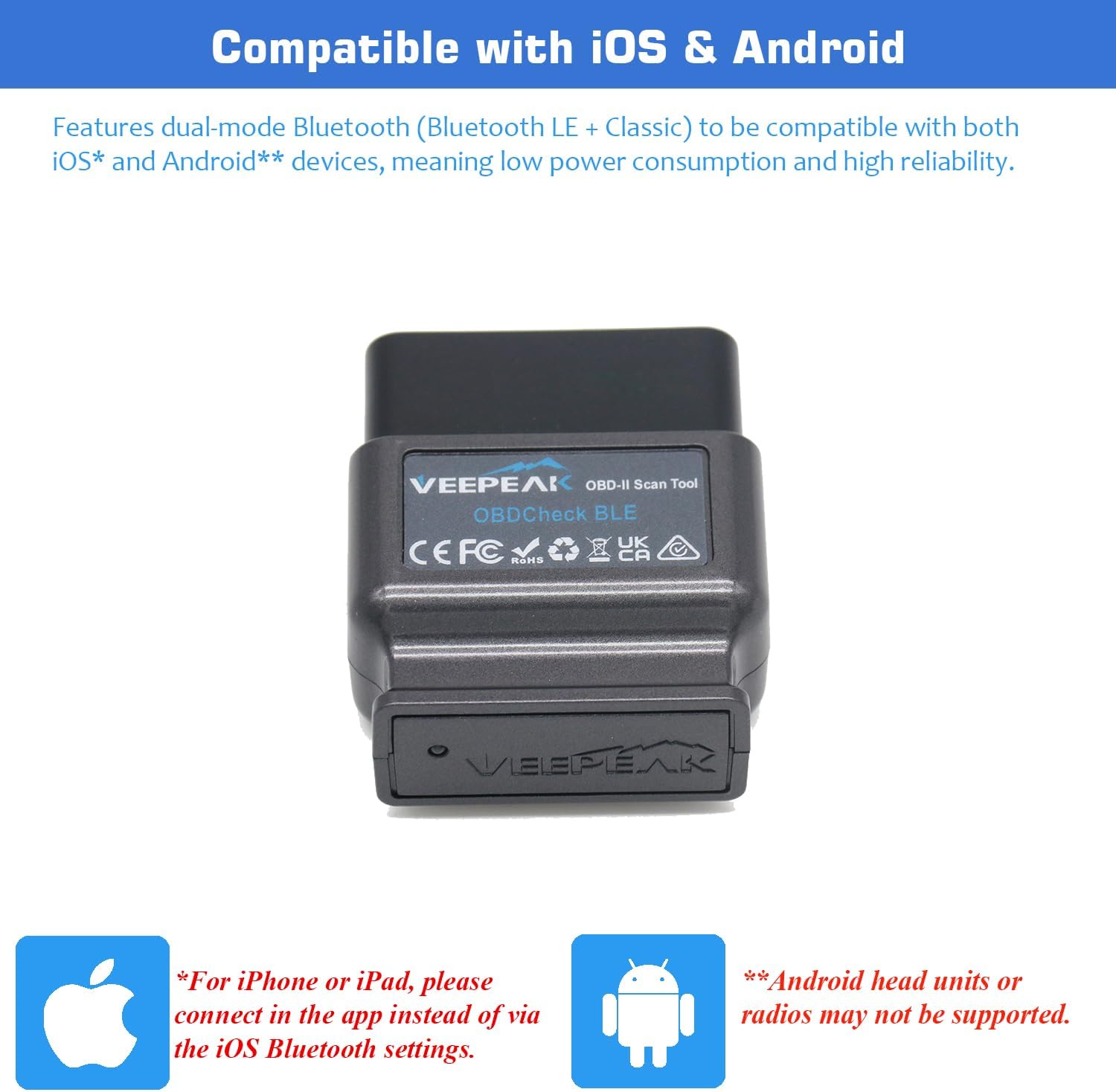
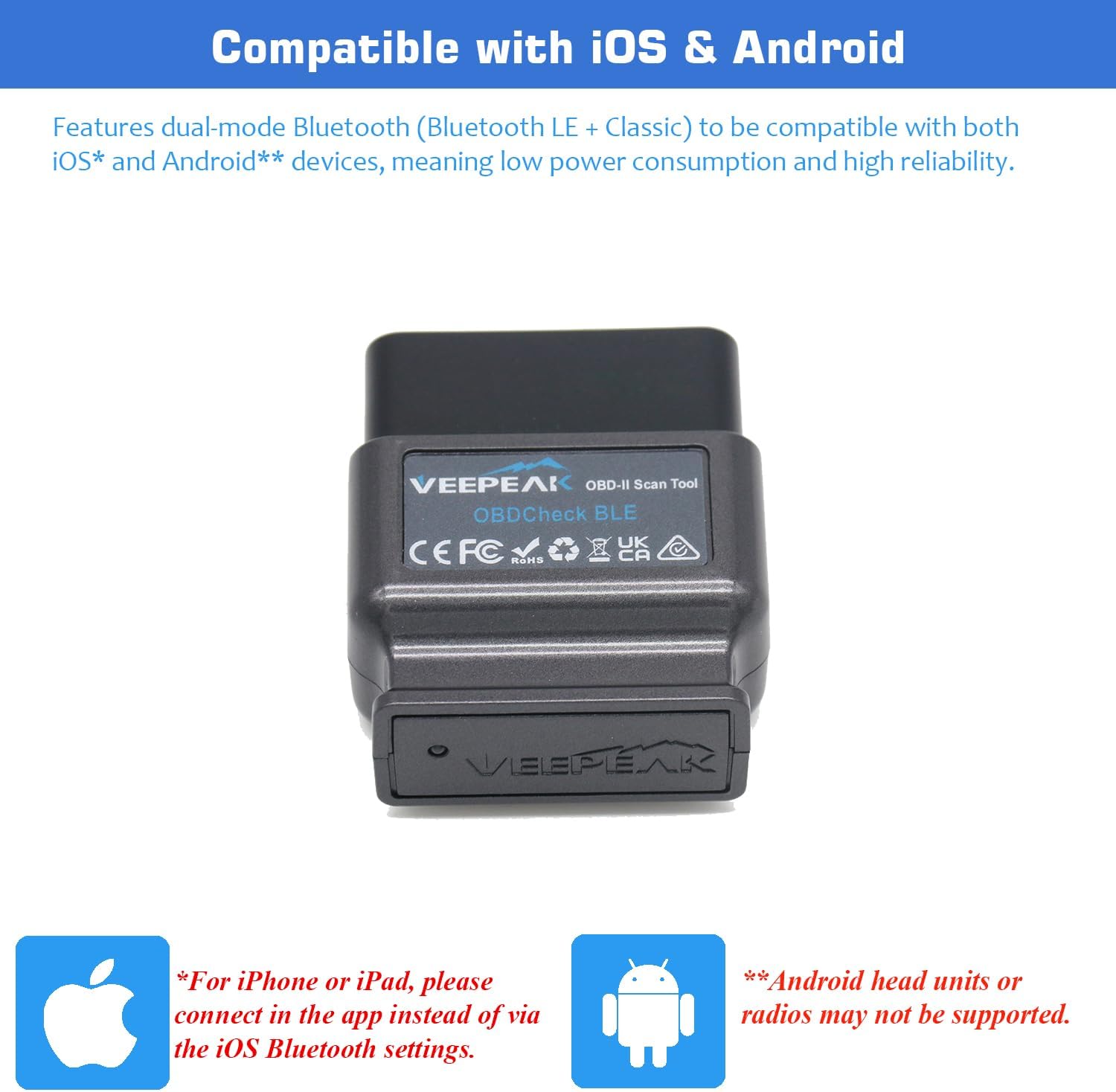
| Connection Method | iOS: Bluetooth LE only. Android: Bluetooth LE or Classic. |
| Operating Voltage/Current | 9V~16V, Max 45mA |
| Dimension | 1.61" x 1.97" x 0.87" (comes with a mini carrying case) |
| Supported OBD II protocols | J1850 PWM, J1850 VPW, ISO9141-2, ISO14230-4 (KWP2000), and ISO 15765-4 (CAN). MS-CAN & SW-CAN are NOT supported. |
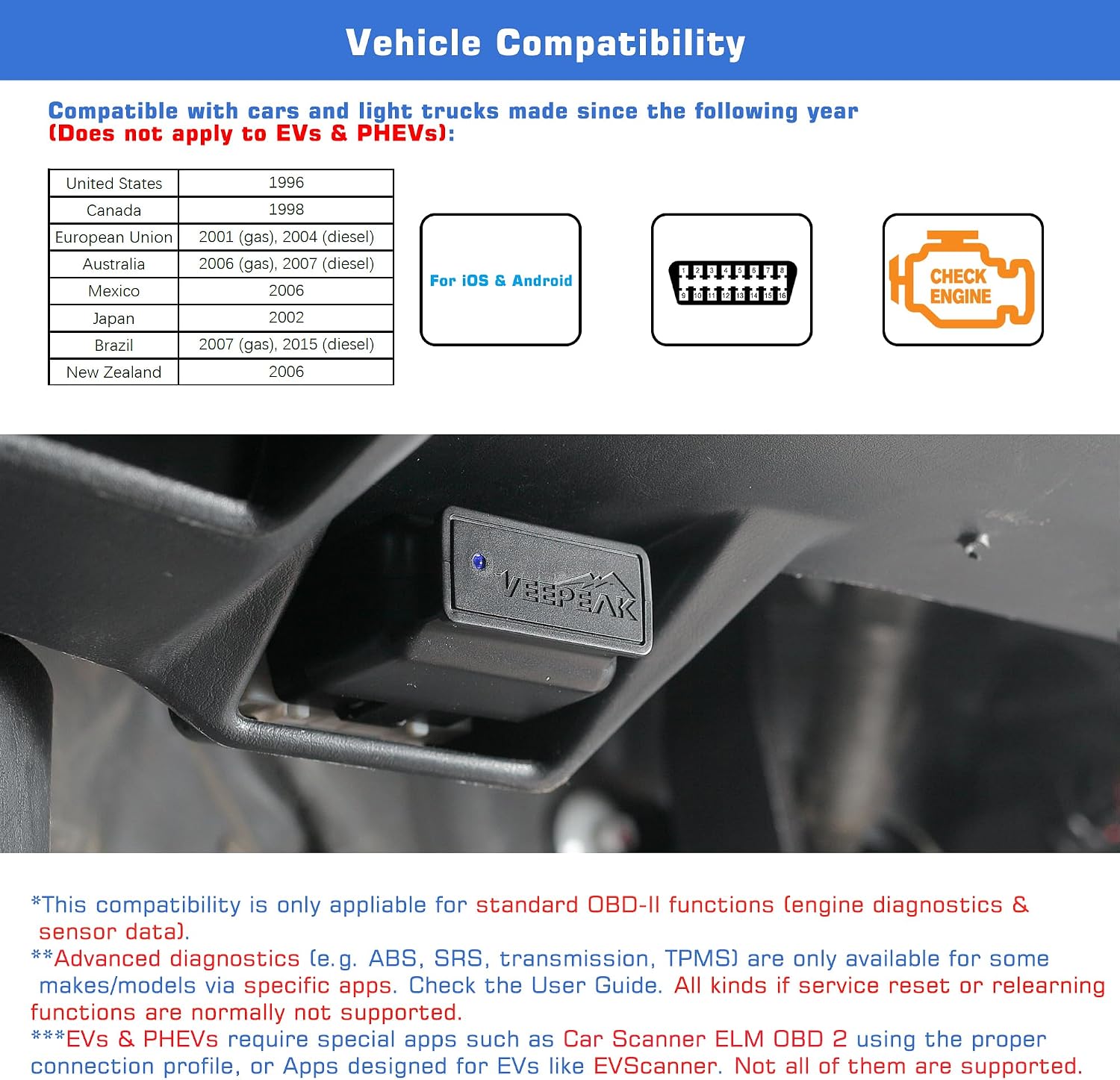
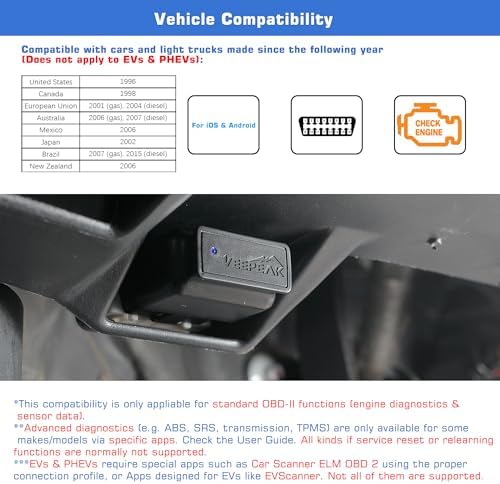
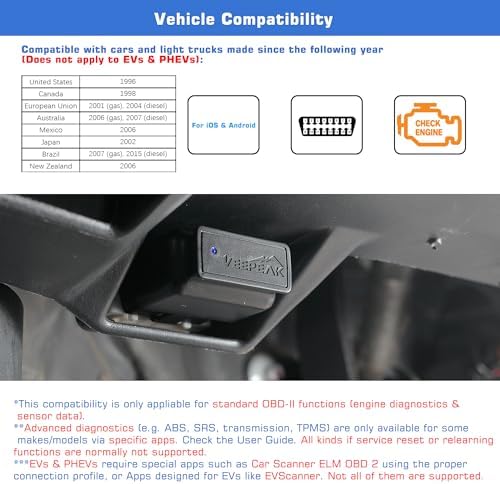
| Compatible Vehicles | OBD-II compliant vehicles including USA (1996+), Canada (1998+), Mexico (2006+), EU (2001+ gasoline / 2004+ diesel). For EV compatibility, check information below. |
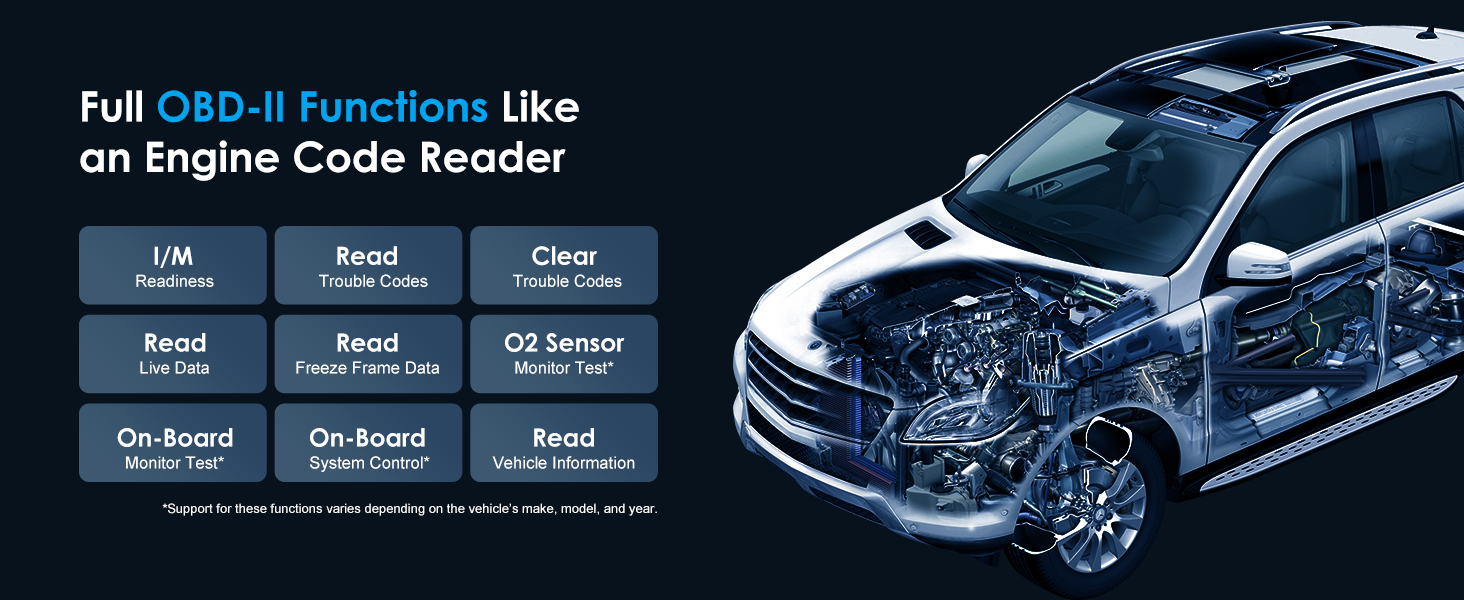
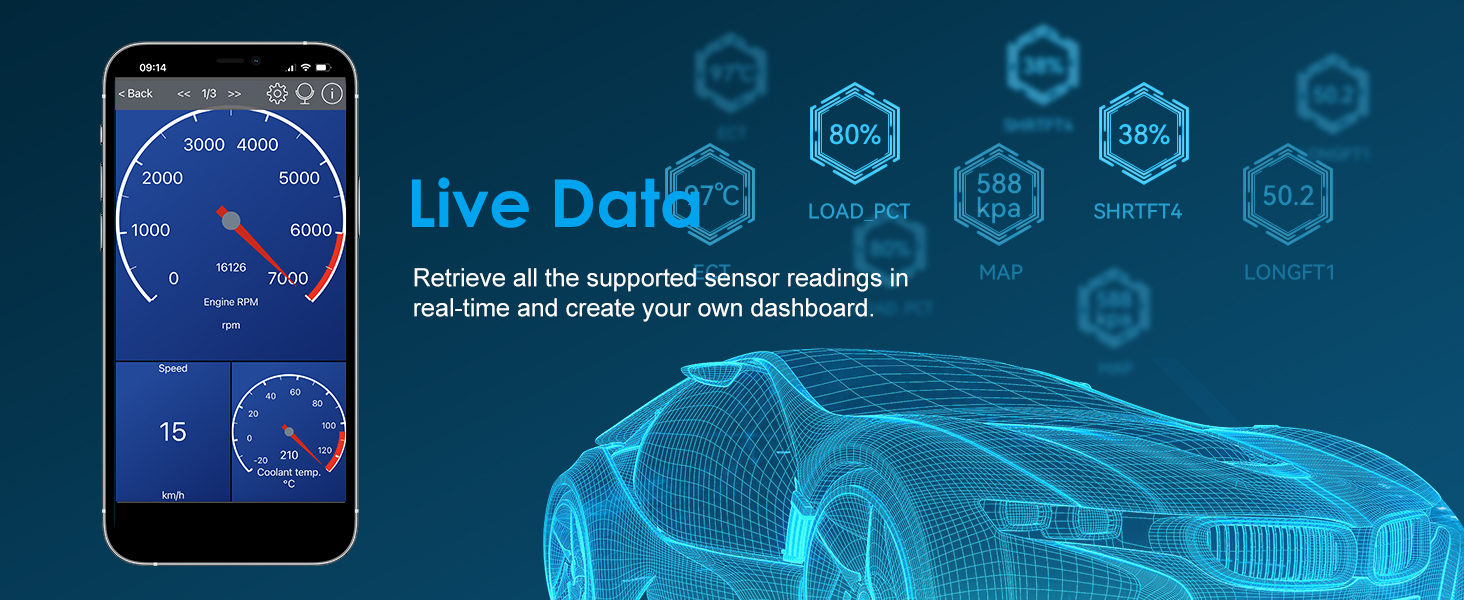
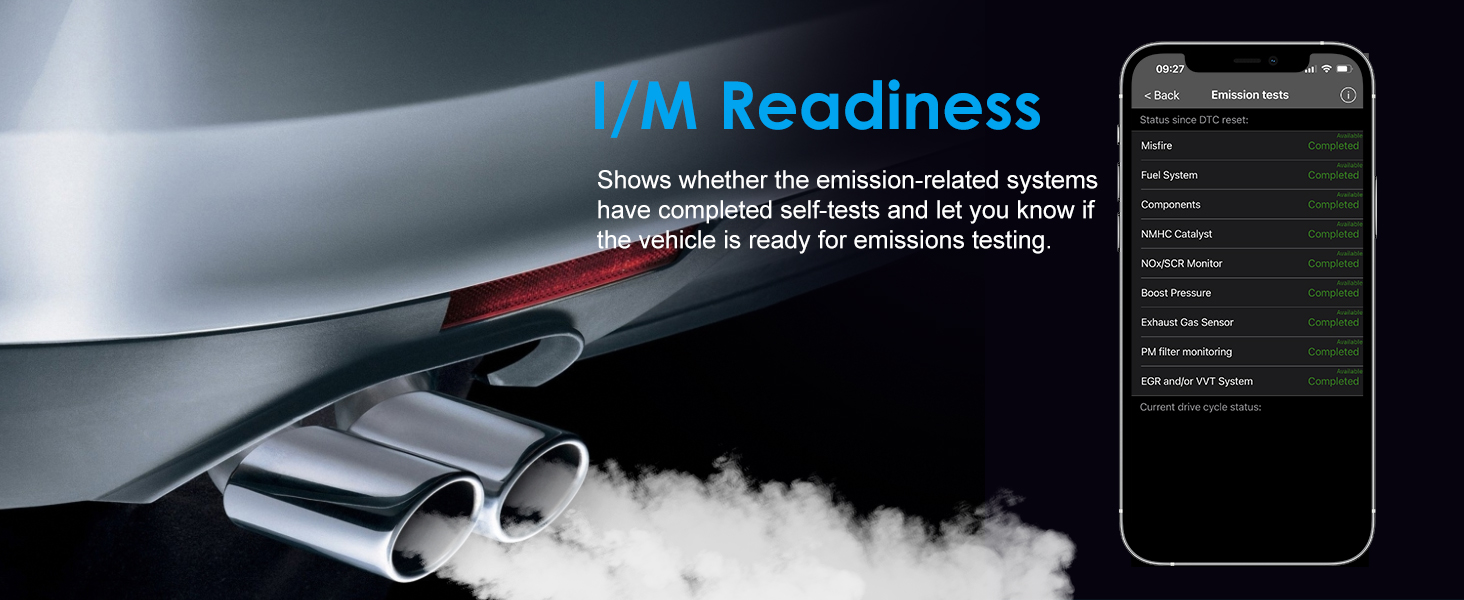
| Supported Functions | Generic OBD-II diagnostics (engine), live sensor data, and I/M readiness. Additional vehicle-specific functions may be available through compatible third-party apps. |
| Not Designed For | Oil or service interval reset, brake/EPB/SAS reset, injector coding, relearning, adaptation, or other bidirectional/service functions. |
| EV Compatibility | Partially supported on electric vehicles when used with specific apps such as Car Scanner ELM OBD2. |
Is there an App included with the item? Do I need a subscription?
You need to get a compatible third-party App from the App Store or Play Store. Be cautious of imitation apps with Torque or Car Scanner in their names. Only use the recommended apps to ensure proper functionality and avoid unnecessary charges.
Which connection method does it use?
It uses Bluetooth LE for iOS, and Bluetooth LE or Classic Bluetooth for Android. It does not support WiFi connection.
How to connect on iOS and Android?
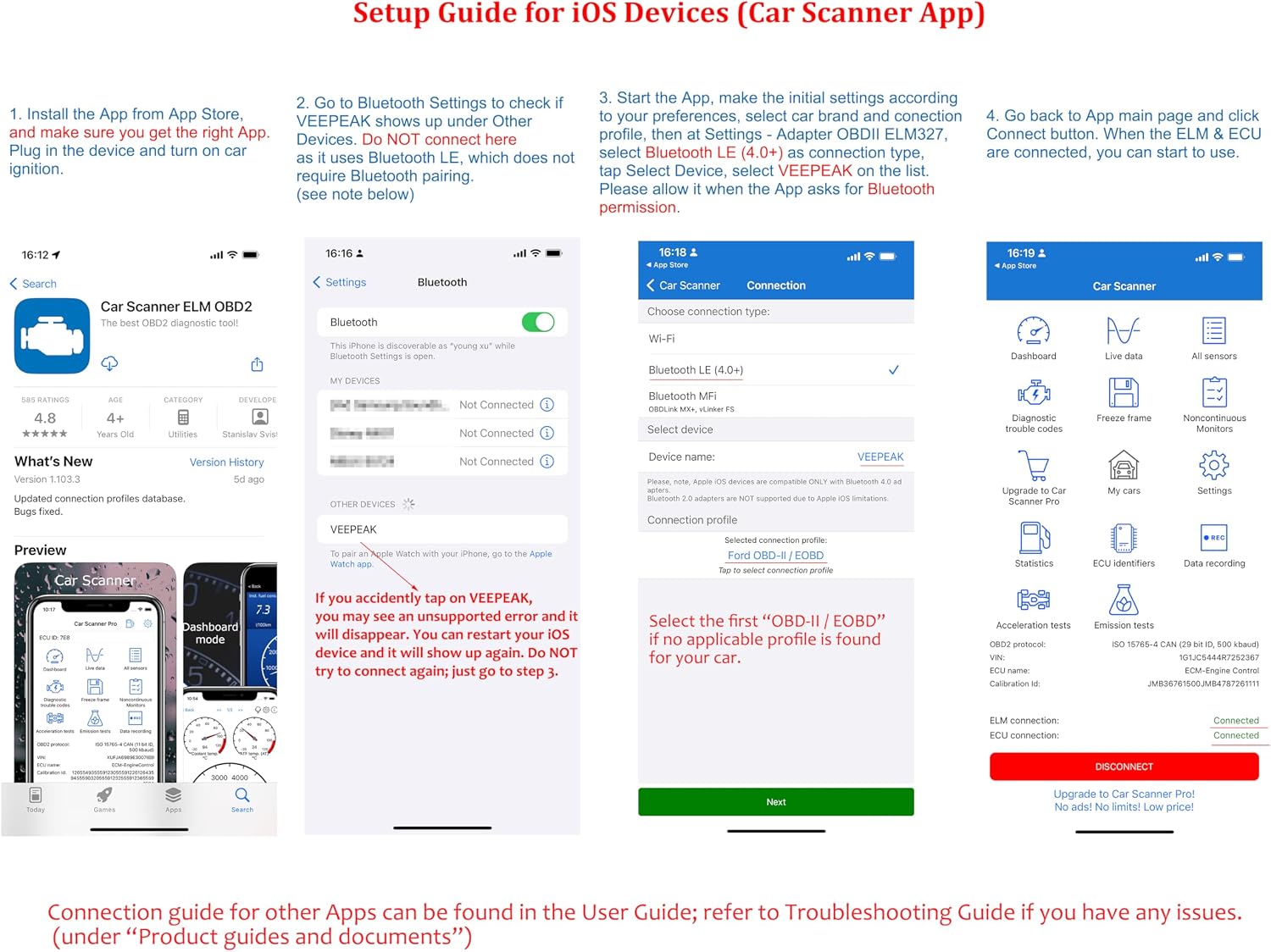
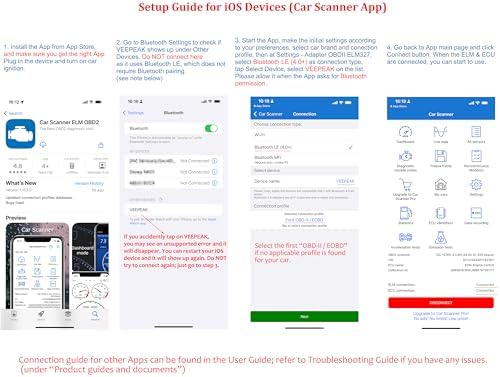
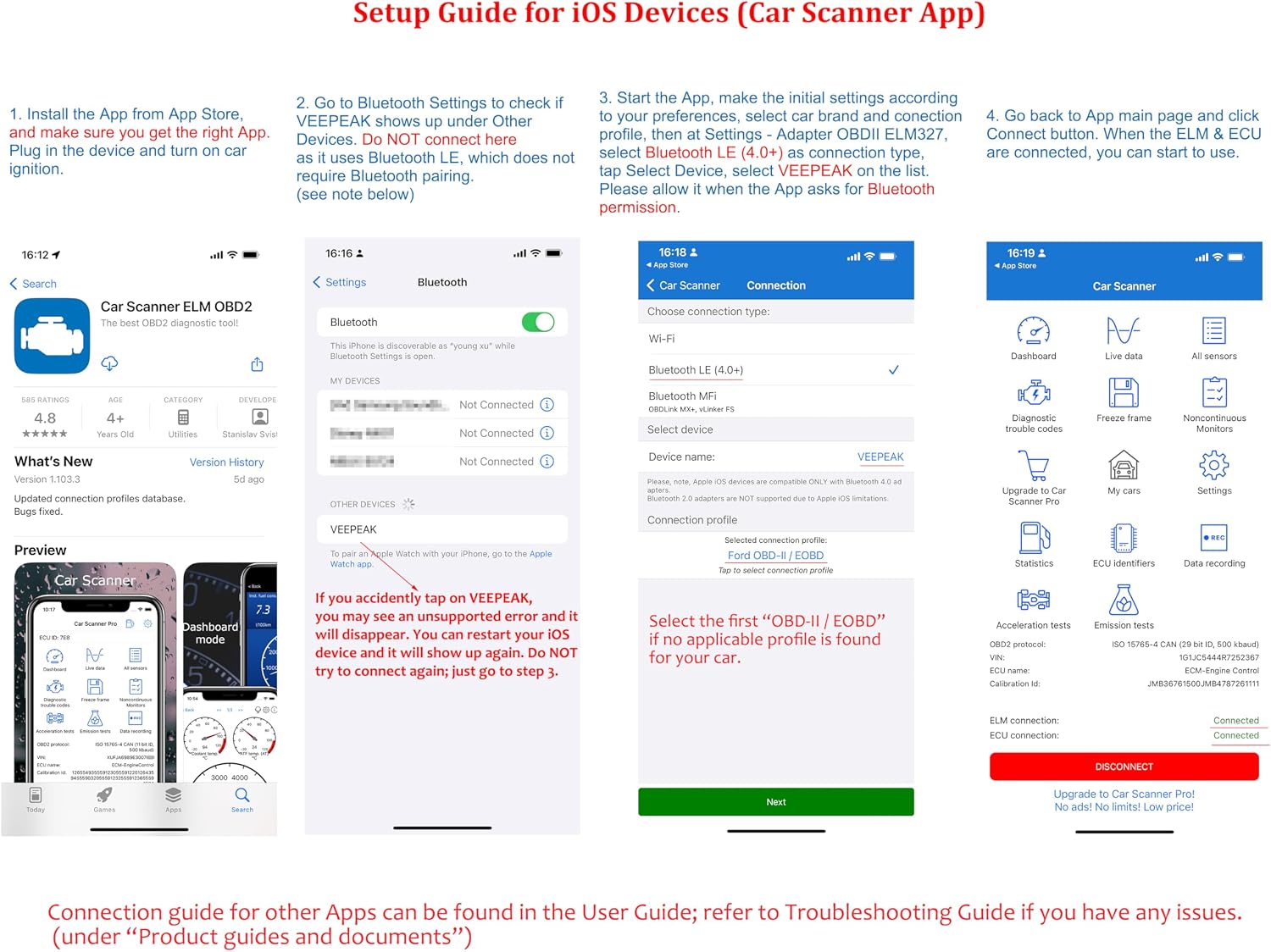
iOS: Do NOT pair in Bluetooth settings. Open the app, set to Bluetooth LE and connect from within the app.
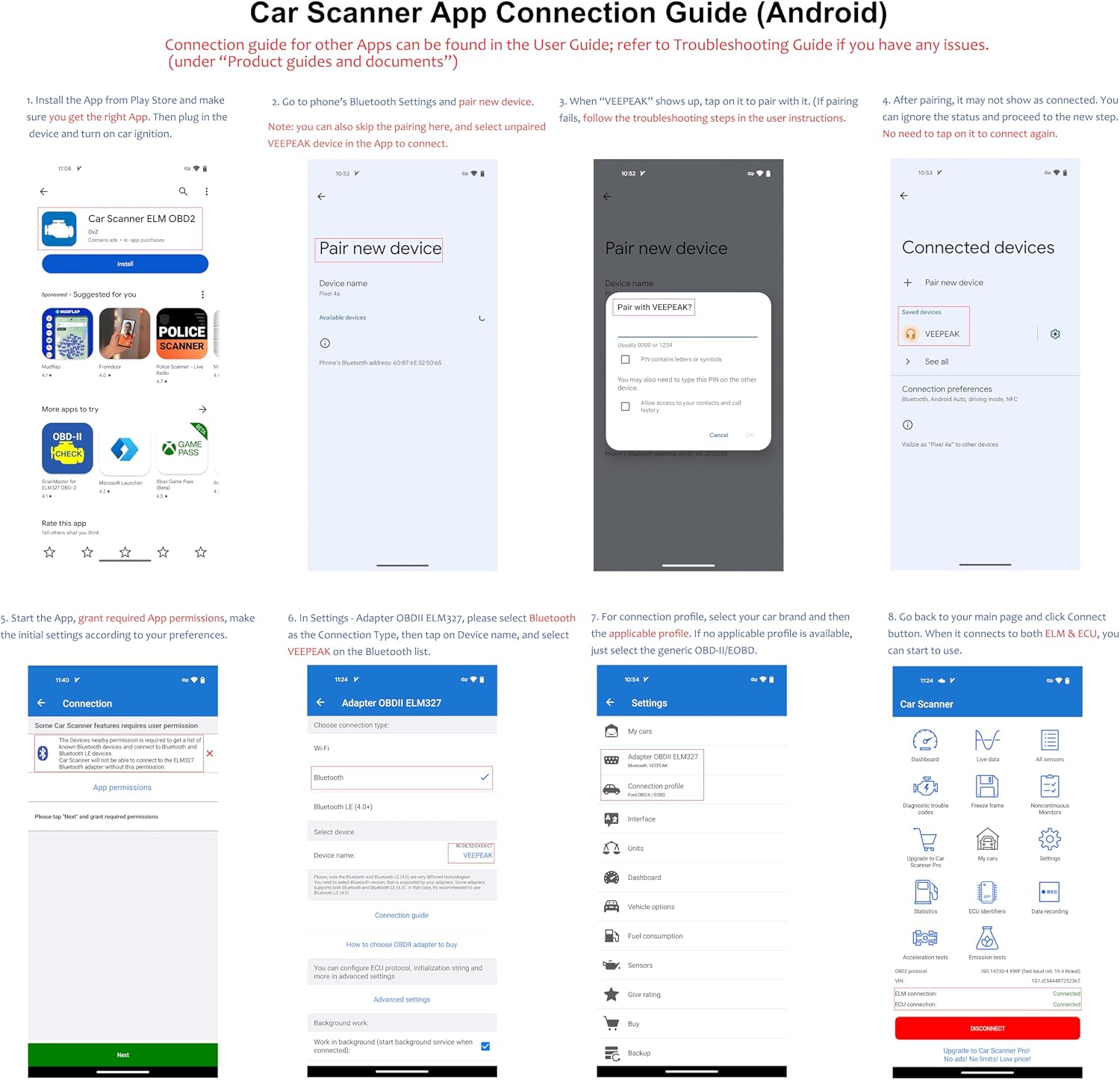
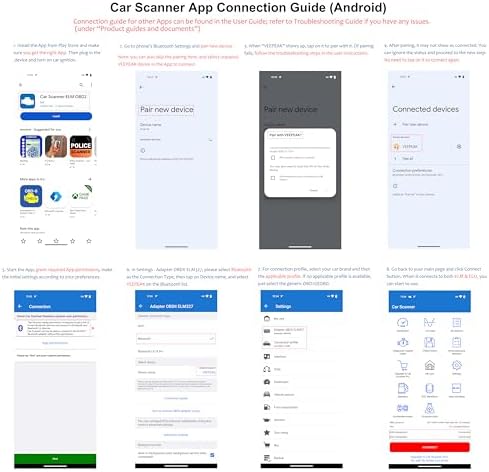
Android: same as iOS if the App supports Bluetooth LE. Otherwise, pair the device in phone Bluetooth, then connect in the App.
Which functions are supported?
Generic OBD-II diagnostics (engine), live sensor data (standard PIDs), and I/M readiness. Additional vehicle-specific functions may be available through compatible third-party apps and vary by vehicle and app support. Please check compatible Apps.
Does it work with electric vehicles?
EVs do not have standard OBD-II systems so they require specific Apps to connect, for example Car Scanner ELM OBD2 (with the appropriate EV connection profiles), EVScanner, and not all of them are compatible (depending on the App support).
1. Device does not power up (no blue light).
First check if the cigar fuse of your vehicle is in good condition to provide power. You can also try with another vehicle to verify.
2. When I try to connect “VEEPEAK” with my iPhone or iPad, it tells me it is not supported.
You will see this error when trying to connect from iOS Bluetooth Settings. This device uses Bluetooth LE for iOS devices and requires connecting in the App. Please restart your iOS device so “VEEPEAK” shows up again, then start the OBD App and connect in the App (refer to the setup guide in product images or user guide).
3. Could not pair my Android device with “VEEPEAK”.
For most Apps like Car Scanner, skip the pairing and select Bluetooth LE in the App to connect. If the App requires Bluetooth pairing,try the following:Turn off Bluetooth and turn it back on. Try pairing a few more times; Turn off WiFi & cellular data and try again; Disconnect other Bluetooth devices; Restart your Android device; Clear Bluetooth data cache.
4. App not connecting to Veepeak device.
Make sure the App is compatible, and you have made the correct App connection settings (especially connection type which should be set to Bluetooth LE) and granted the App permissions; Remove and re-install the app (especially when you have an OS update or the App is not used for some time); Try with a different App.
5. Cannot connect to vehicle/ECU.
Make sure the OBD port is in good condition and the device fits well in it. Try to push it a little harder into the OBD port if the contact is loose as powering up does not always mean a good fit. Make sure your vehicle is OBD II compliant, and ignition is turned ON; Check if your vehicle is supported by the App; Try it on another vehicle.
loading