






Free worldwide shipping
Free returns
Carbon neutral
Secure payments
| Power Source | OBD II Port |
|---|---|
| Operating System | For Android Phones & Tablets (NOT for iOS) |
| Automotive Fit Type | Universal Fit |
| Item Dimensions L x W x H | 1.89"L x 0.98"W x 1.26"H |
| Manufacturer | Veepeak |
| Item Weight | 1.12 ounces |
| Model Number | VP11 |
| Manufacturer Part Number | VP11 |
| Manufacturer Warranty Description | One-Year Hassle-Free Replacement Warranty |
| Price | $14.99 $ 14 . 99 |
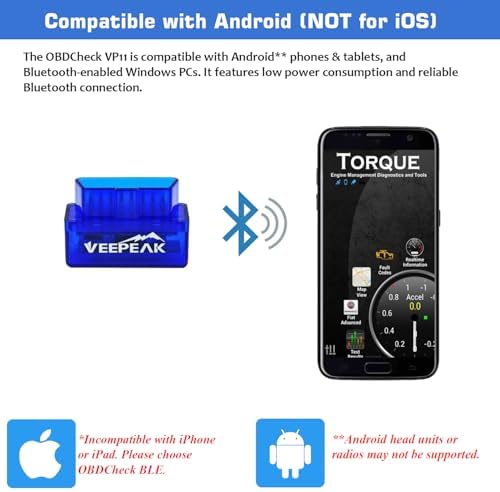
| Connection Method | Classic Bluetooth |
| Android Compatibility | ✓ |
| Is it compatible with iOS? | No |
| Read and clear DTCs | ✓ |
| Show real-time sensor data | ✓ |
| Requires A Third Party App? | ✓ |
| Power Source Type | OBD II Port |
| Item Length Width Height | 1.89"L x 0.98"W x 1.26"H |
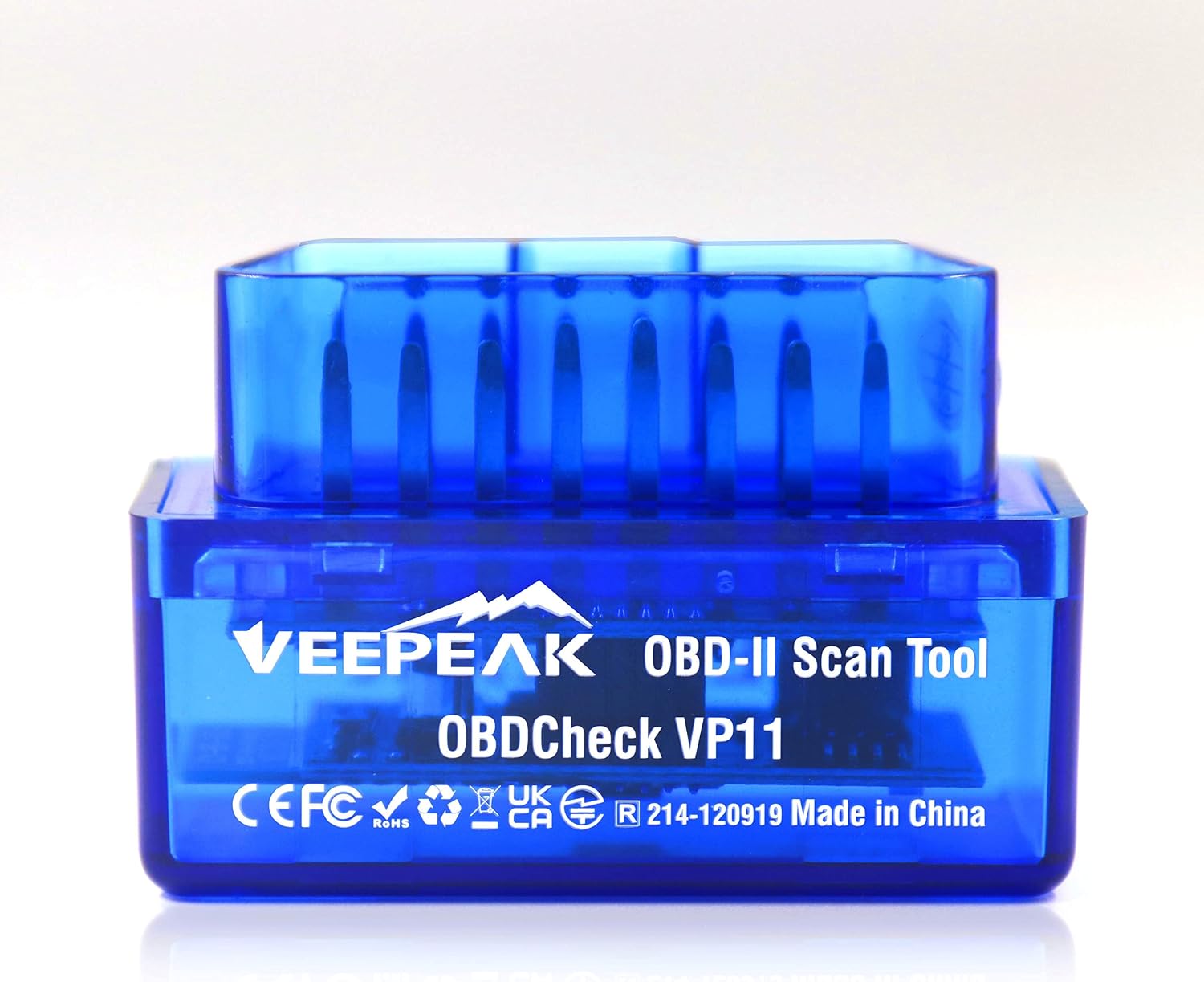
The vehicle in your garage can be as smart as your phone. Turn your Android smartphone or tablet into a sophisticated diagnostic scan tool and real-time parameter monitor. The VP11 directly plugs into your vehicle's OBDII port and connects to an OBD II App on your Android device via Bluetooth. Whenever you have a check engine light on or want to see how your vehicle is performing, this little gadget will help you better understand your vehicle.
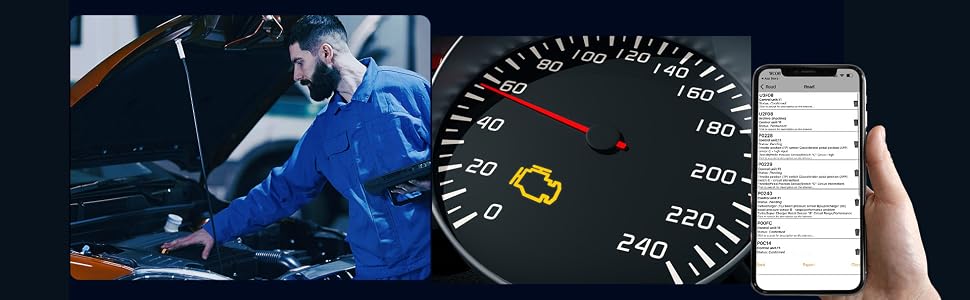
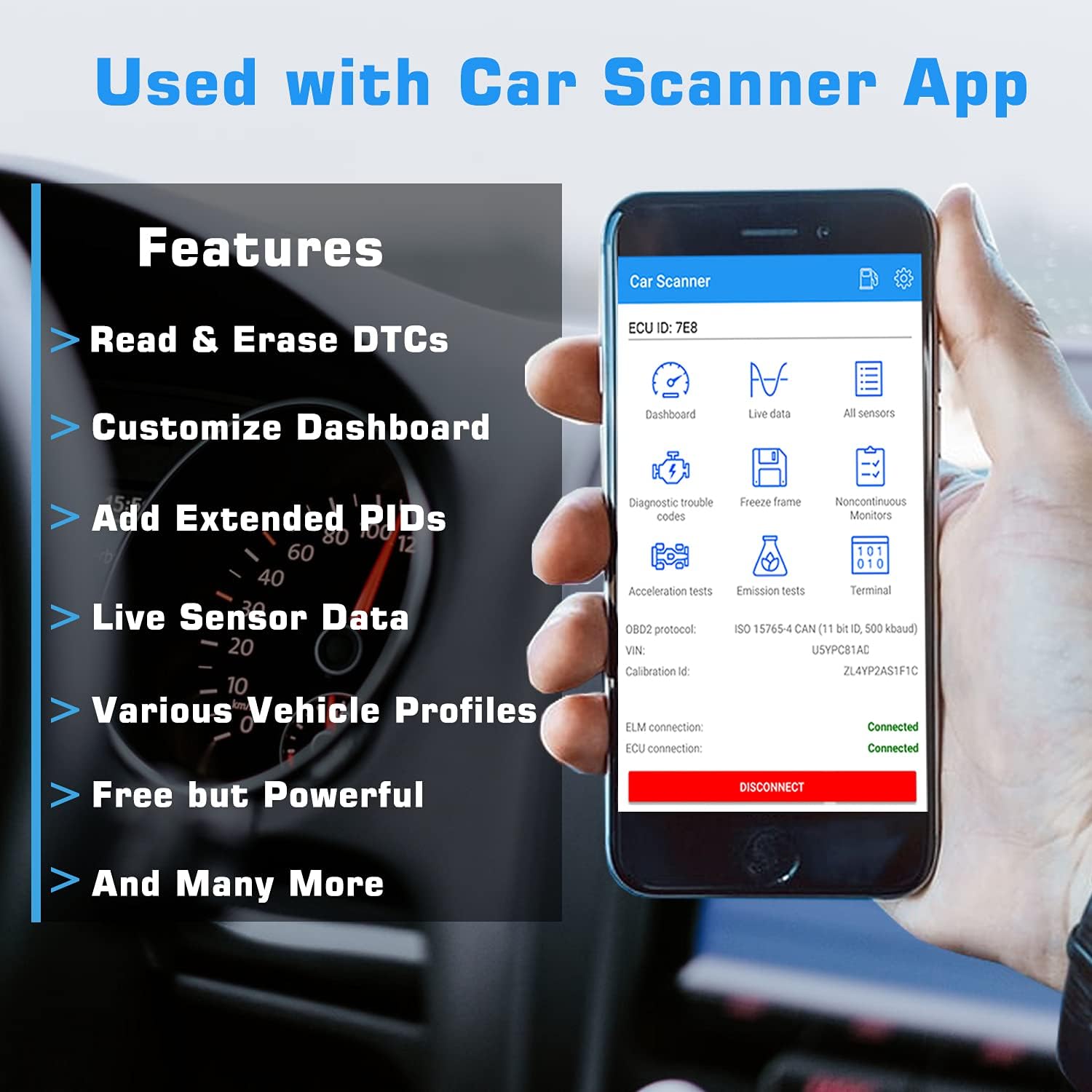
Read trouble codes, find causes and fix it - anytime and anywhere using your smartphone.
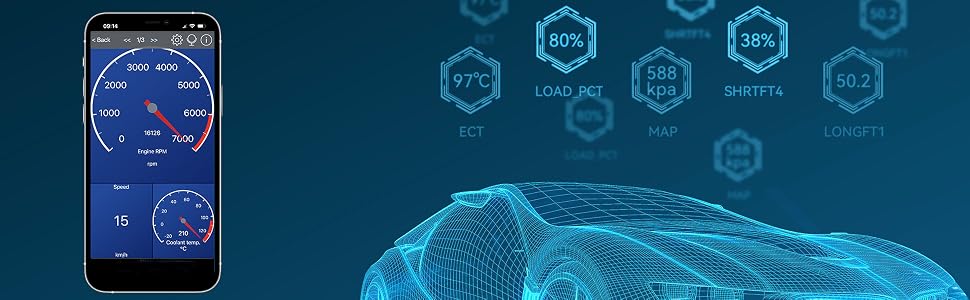
Access a whole new world of information about your vehicle directly on your phone (e.g. engine coolant temperature, RPM, O2 Readings, Mass air flow, Fuel Trim, etc). Create your own dashboard with the gauges you want to monitor.
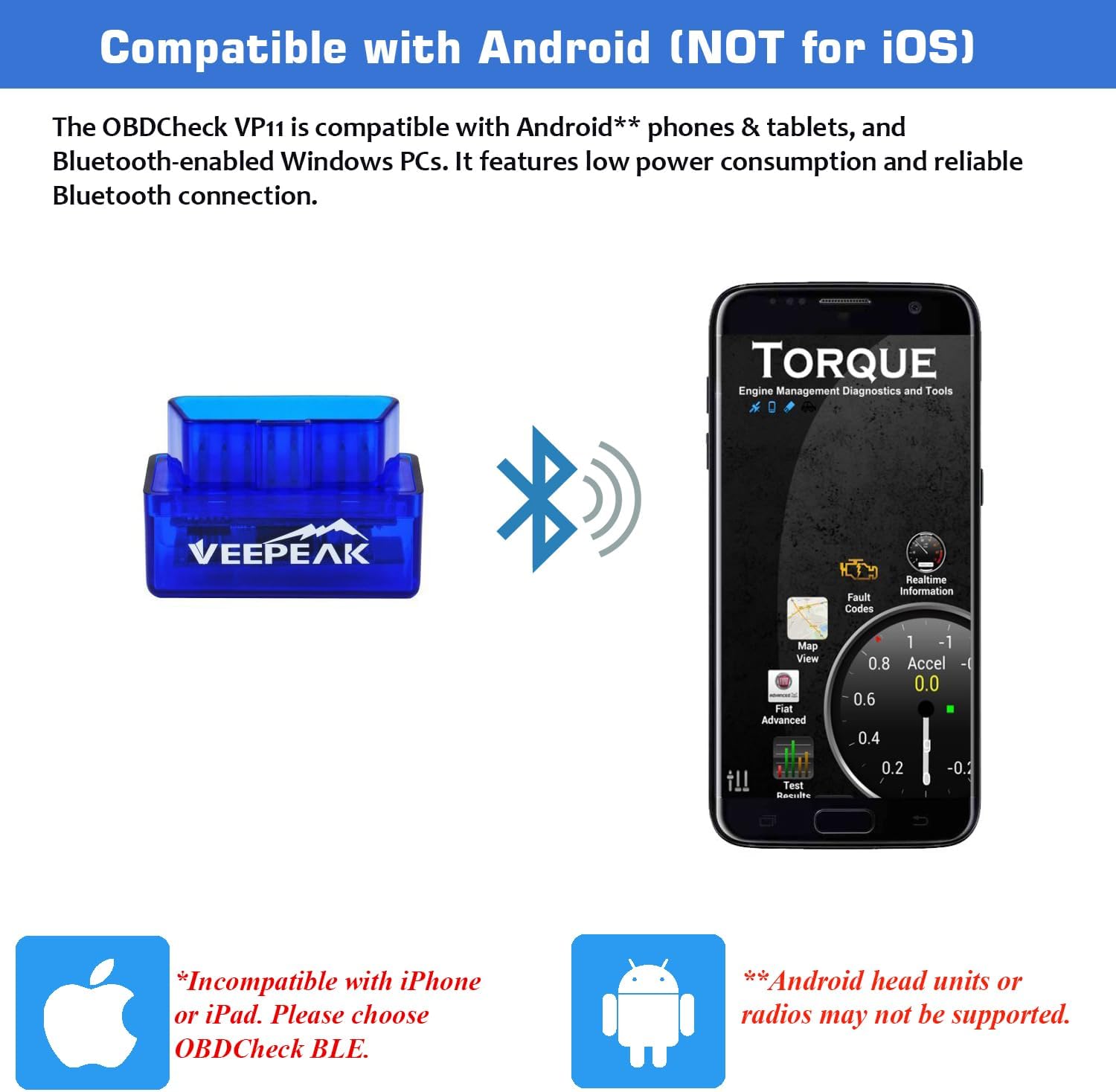
| Connection Method | Bluetooth 3.0 (Classic Bluetooth) |
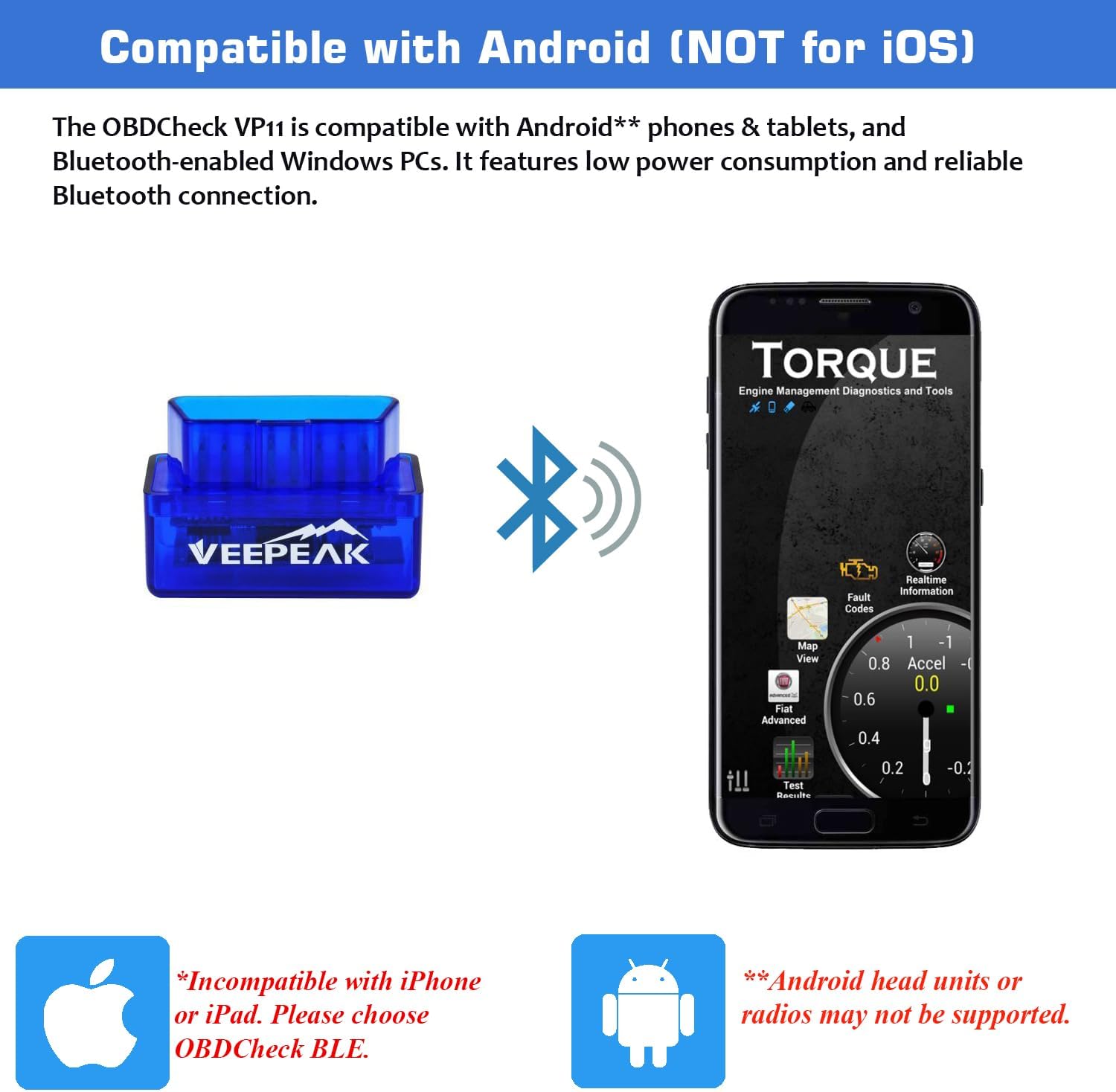
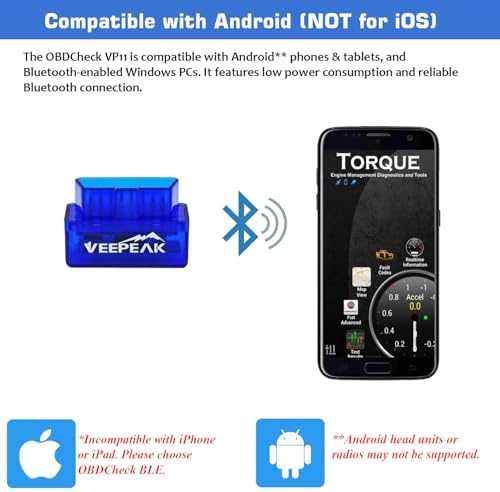
| Compatible Devices | Android phones & tablets (Android radios & head units are not recommended and may not be supported); Not suitable for iOS devices. |
| Supported OBD II protocols | J1850 PWM, J1850 VPW, ISO9141-2, ISO14230-4 (KWP2000), and ISO 15765-4 (CAN). MS-CAN, SW-CAN Not supported. |
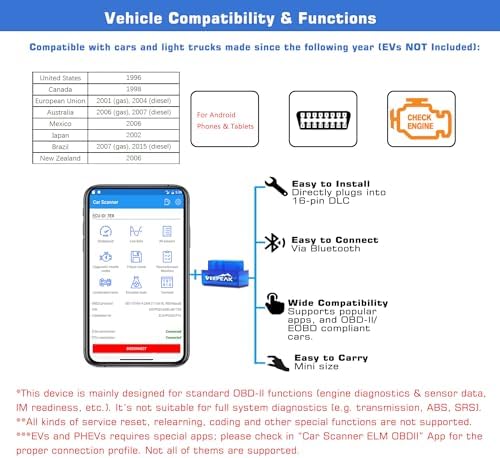
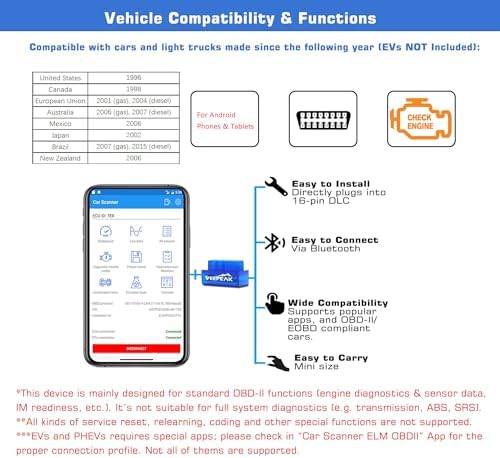
| Compatible Vehicles | USA - 1996+, Canada – 1998+, Mexico – 2006+, EU – 2001+ (gas), 2004+ (diesel): excluding OBD-I vehicles, HD trucks and motorcycles. EV support varies by model—check the Car Scanner app profile. |
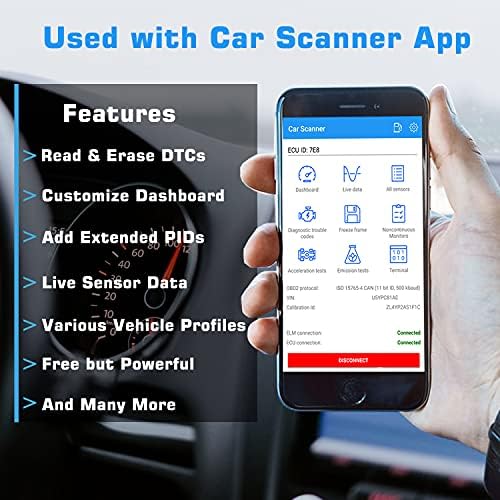
| Supported Functions | Generic OBD-II diagnostics: read & clear error codes for check engine light, read live sensor data and I/M readiness. |
| Unsupported Systems | Transmission, ABS, SRS (airbag), TPMS, Body Control, HVAC, etc. |
| Unsupported Functions | Advanced diagnostics, and manufacturer-specific functions including oil light reset and service performing. |
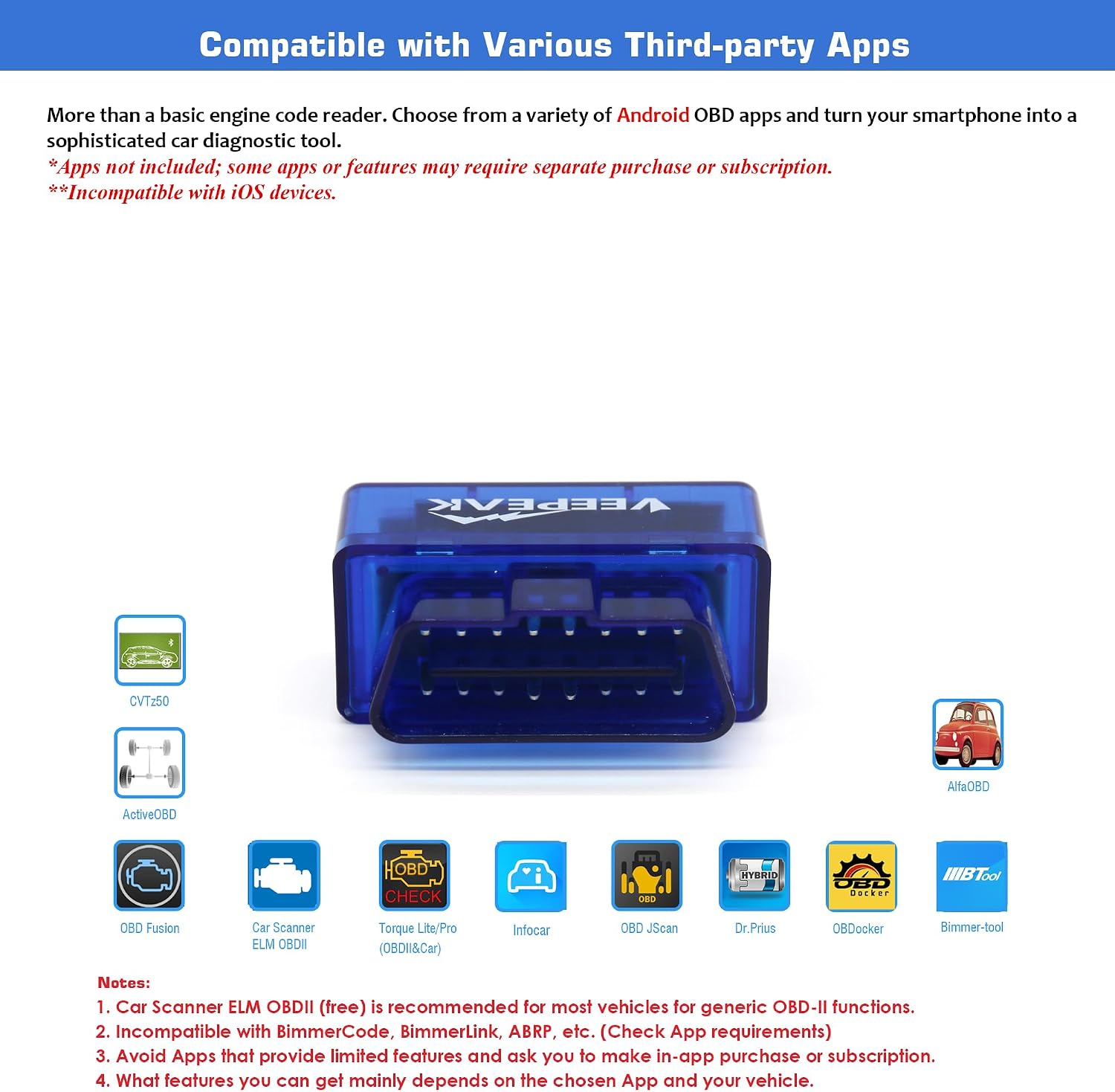
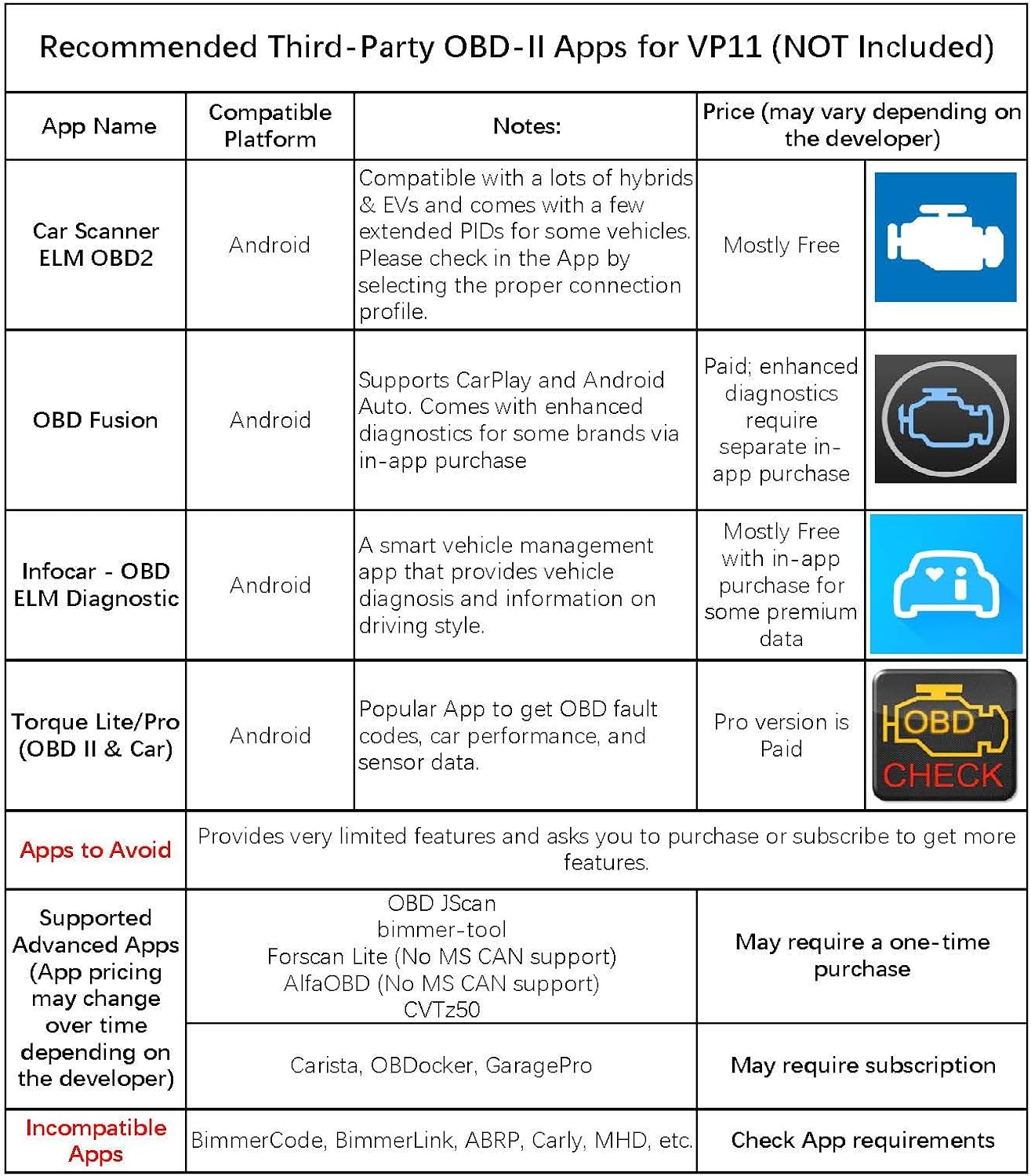
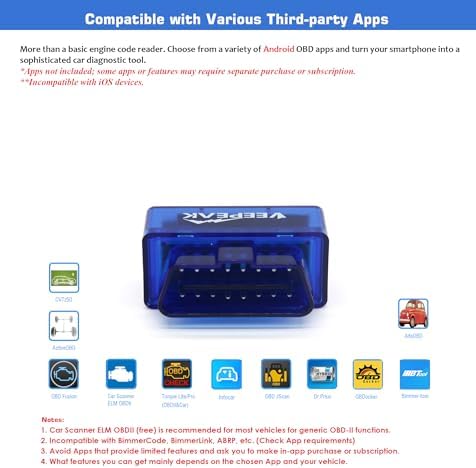
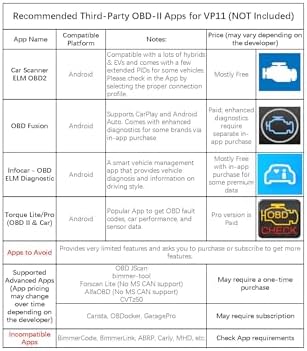
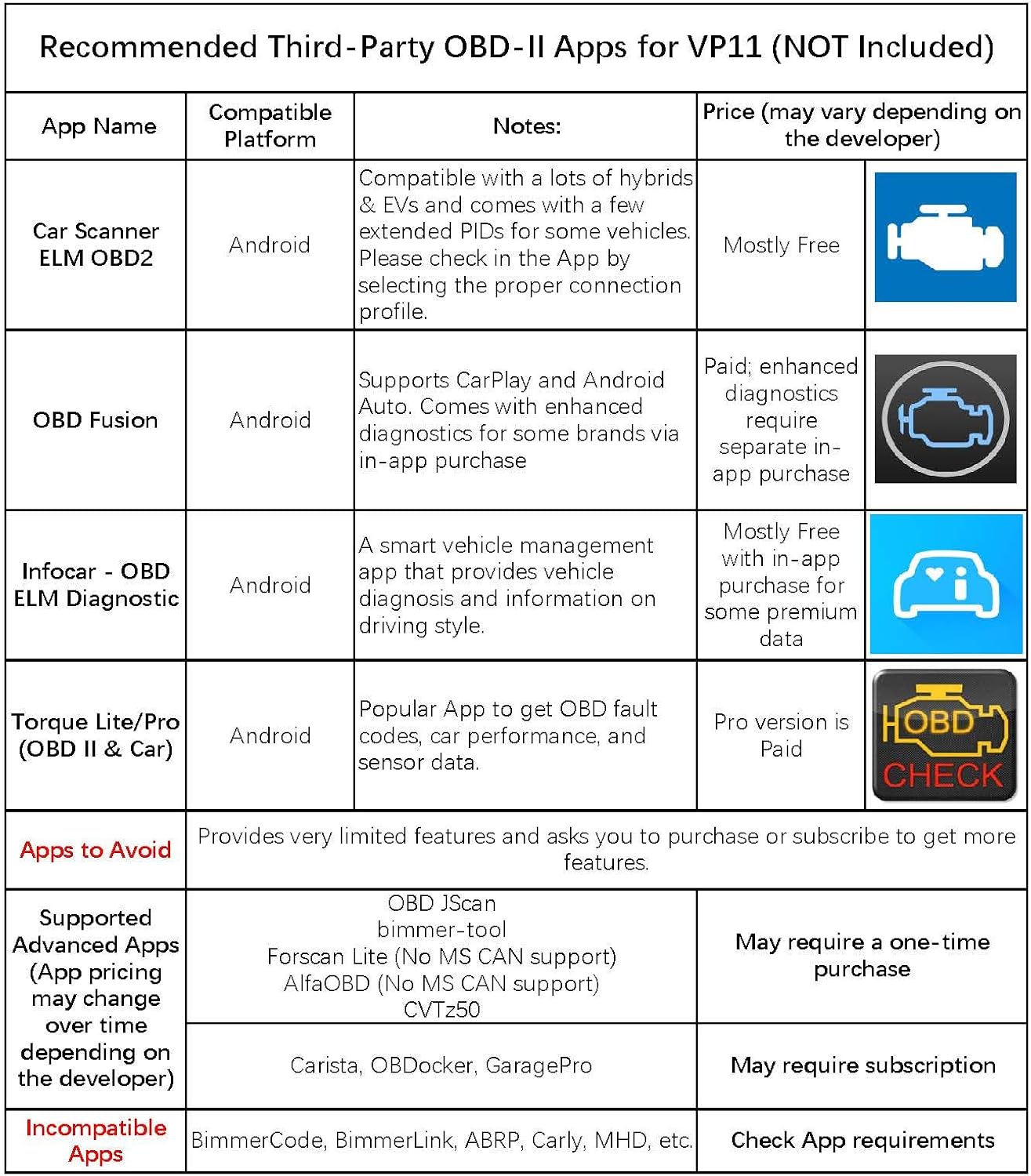
| Car Scanner ELM OBD2 | See what your car is doing in realtime, get OBD fault codes, car performance, sensor data and more! |
| Torque | Popular Android OBD App for vehicle performance, sensors and diagnostics. |
| Dr. Prius | Examine the health of the High Voltage battery for Toyota/Lexus hybrid owners. |
| More Compatible Apps | OBD Fusion, OBD JScan, Leaf Spy Pro, Piston, EOBD Facile, FORScan Lite (no MS-CAN support), etc. (Android version only) |
Common FAQs
1. Is there an App included with the device? Do I need an App subscription?
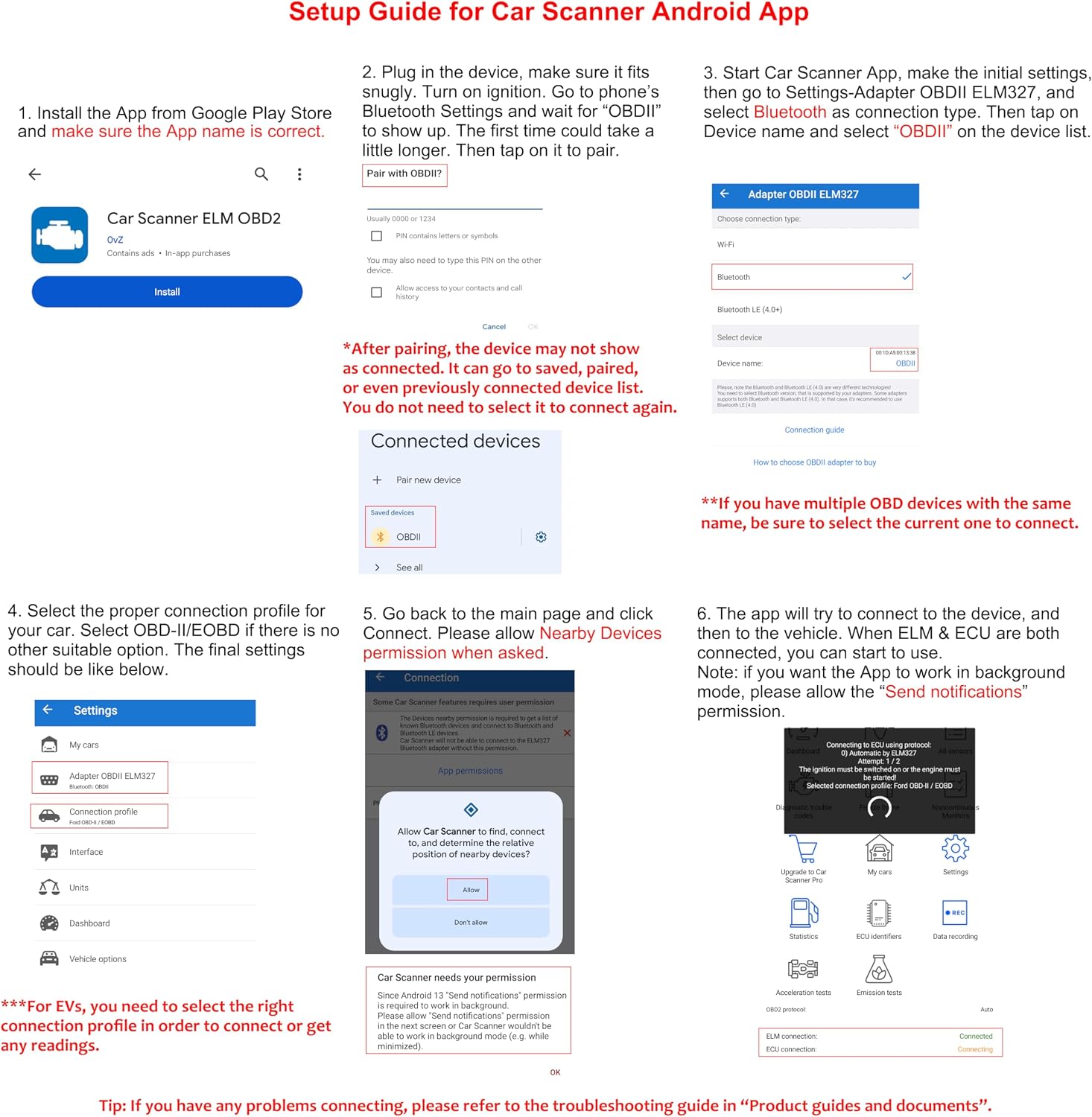
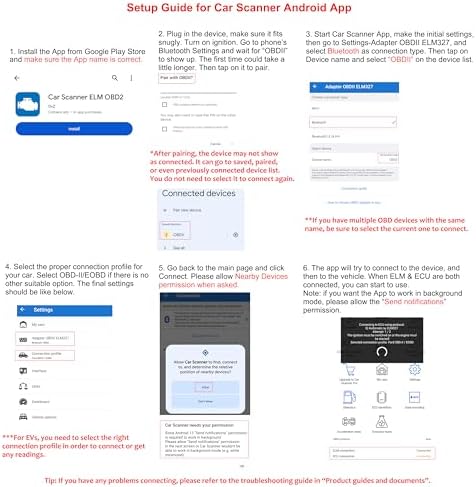
Currently no. You have to get a third-party App from Google Play Store (some may NOT be free). Standard OBD-II diagnostic functions are usually free when using Car Scanner ELM OBD2 App. Be careful with Apps that imitate the names Torque or Car Scanner to ensure proper functionality.
2. Does it work with iOS devices?
No, it is NOT compatible with iPhone or iPad. Please choose OBDCheck BLE for iOS devices.
3. Which vehicles and functions are supported?
The device is compatible with most OBD-II compliant vehicles (MY1996+ in the US). You can get generic OBD2 functions such as reading and clearing engine trouble codes, live data, I/M readiness when using it with apps like Car Scanner ELM OBD2 or Torque. OBD-I and commercial vehicles using J1939 protocols are NOT supported. Most motorcycles are also NOT supported.
Troubleshooting
1. Device does not power up (no red light).
First check if the cigar fuse of your vehicle is in good condition to provide power. You can also try with another vehicle to verify.
2. Device powers up but no Bluetooth signal.
Unplug and re-plug it in; Restart your phone, turn off Bluetooth and turn it back, wait for a few more seconds to check again.
3. Could not pair my Android device with “OBDII”.
Turn off Bluetooth and turn it back on. Try pairing a few more times; Turn off WiFi & cellular data and try again; Disconnect other Bluetooth devices; Restart your Android device; Clear Bluetooth data cache; For Car Scanner ELM OBD2 or Infocar App, you can initiate the Bluetooth pairing in App settings; For Android 13+, go to Settings->Apps->App Battery Usage, Select Show System in the menu, Select Bluetooth, then select Unrestricted; Go back and select Bluetooth Legacy, and select Unrestricted also.
4. App not connecting to OBD device.
Make sure the App is compatible, and you have made the correct App connection settings and granted the App permissions (Bluetooth, or called Nearby Devices); Remove and re-install the app; Try with a different App.
5. Cannot connect to vehicle/ECU.
Make sure the OBD port is in good condition and the device fits well in it. Try to push it a little harder into the OBD port for some vehicles as powering up does not always mean a good contact. Make sure your vehicle is OBD II compliant, and ignition is turned ON; Try it on another vehicle.
More FAQs and troubleshooting tips can be found in "Troubleshooting Guide" under "Safety & product resources".
loading