







Free worldwide shipping
Free returns
Carbon neutral
Secure payments
| Scanner Type | Image Scanner |
|---|---|
| Connection Type | USB |
| Resolution | 3840x2160 |
| Wattage | 30 watts |
| Color Depth | 8 bpp |
| Standard Sheet Capacity | 300 |
| Optical Sensor Technology | CCD |
| Light Source Type | LED |
| Media Type | Paper |
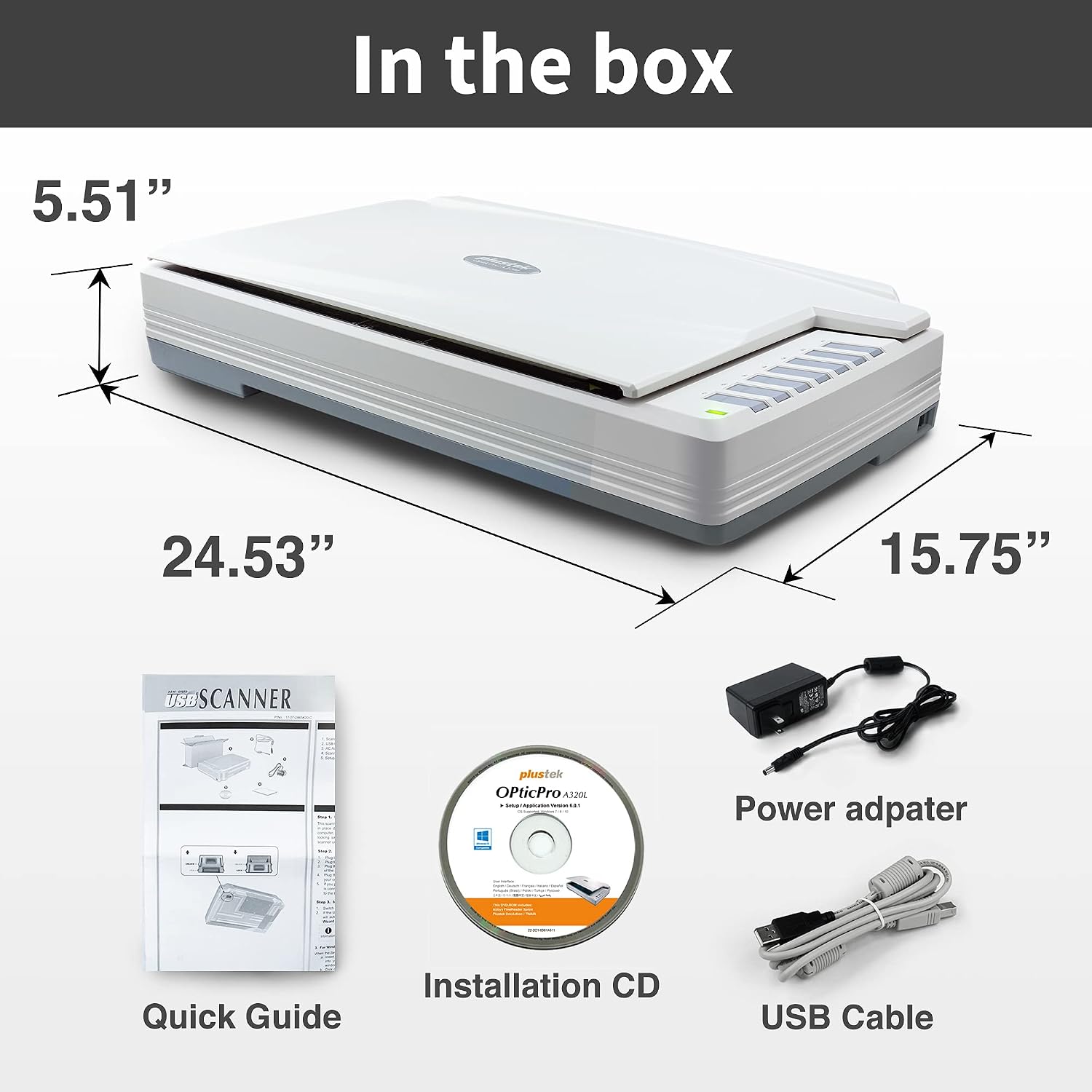
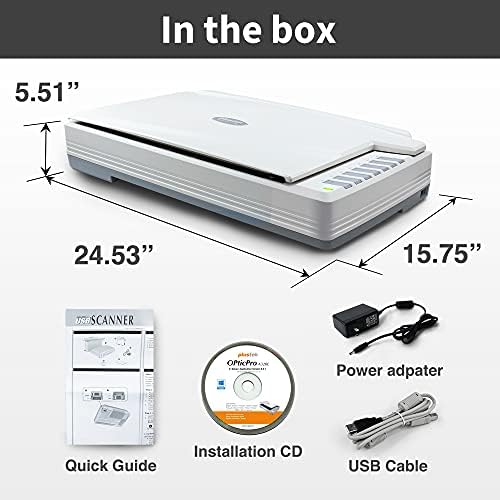
| Item Dimensions D x W x H | 15.75"D x 24.53"W x 5.51"H |
| Item Weight | 7.5 kg |
| Model Name | OpticPro A320E |
| UPC | 783064089388 |
| Unit Count | 1 Count |
| Global Trade Identification Number | 04042485089381 |
| Manufacturer | Plustek |
| Warranty Description | 1 Year Limited Warranty |
| Minimum System Requirements | Supported operating systems: Windows 7/8/10/11, Mac OS X 10.13 to 13.x, LINUX and SANE driver (if required) |
| EU Spare Part Availability Duration | 5 years |
| Connectivity Technology | USB |
| Item Depth Width Height | 15.75"D x 24.53"W x 5.51"H |
| Standard Input Sheet Capacity | 300 |
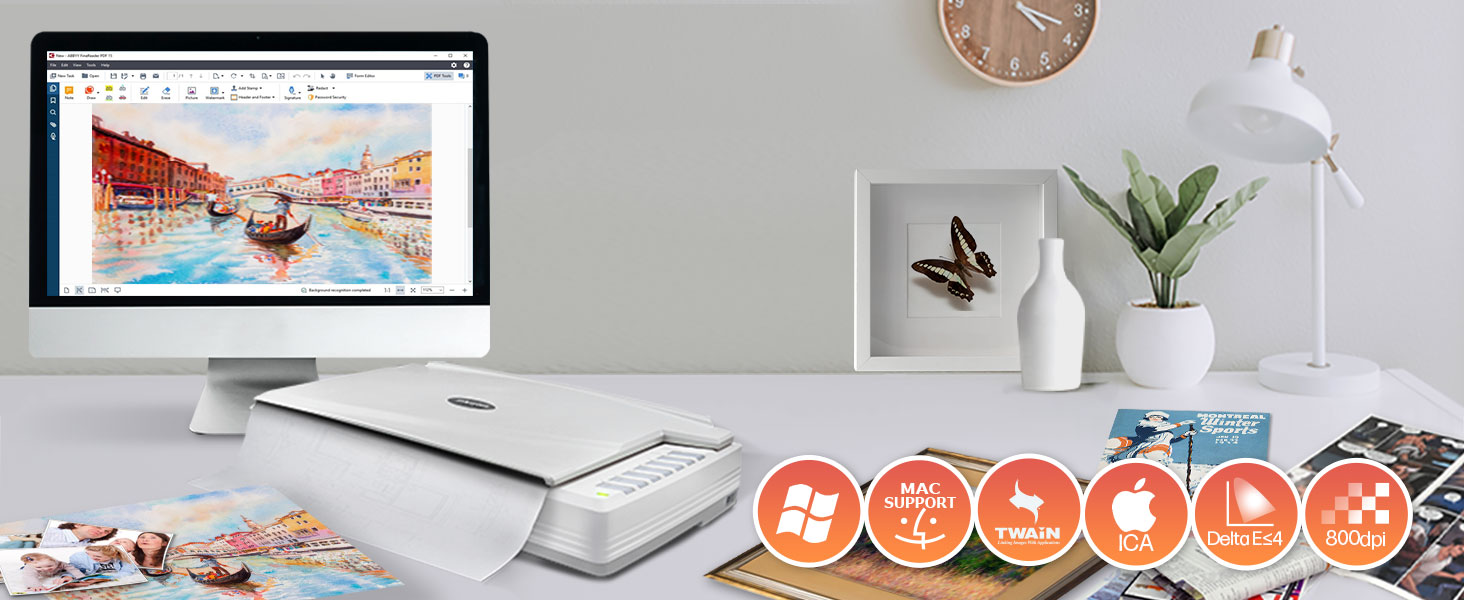
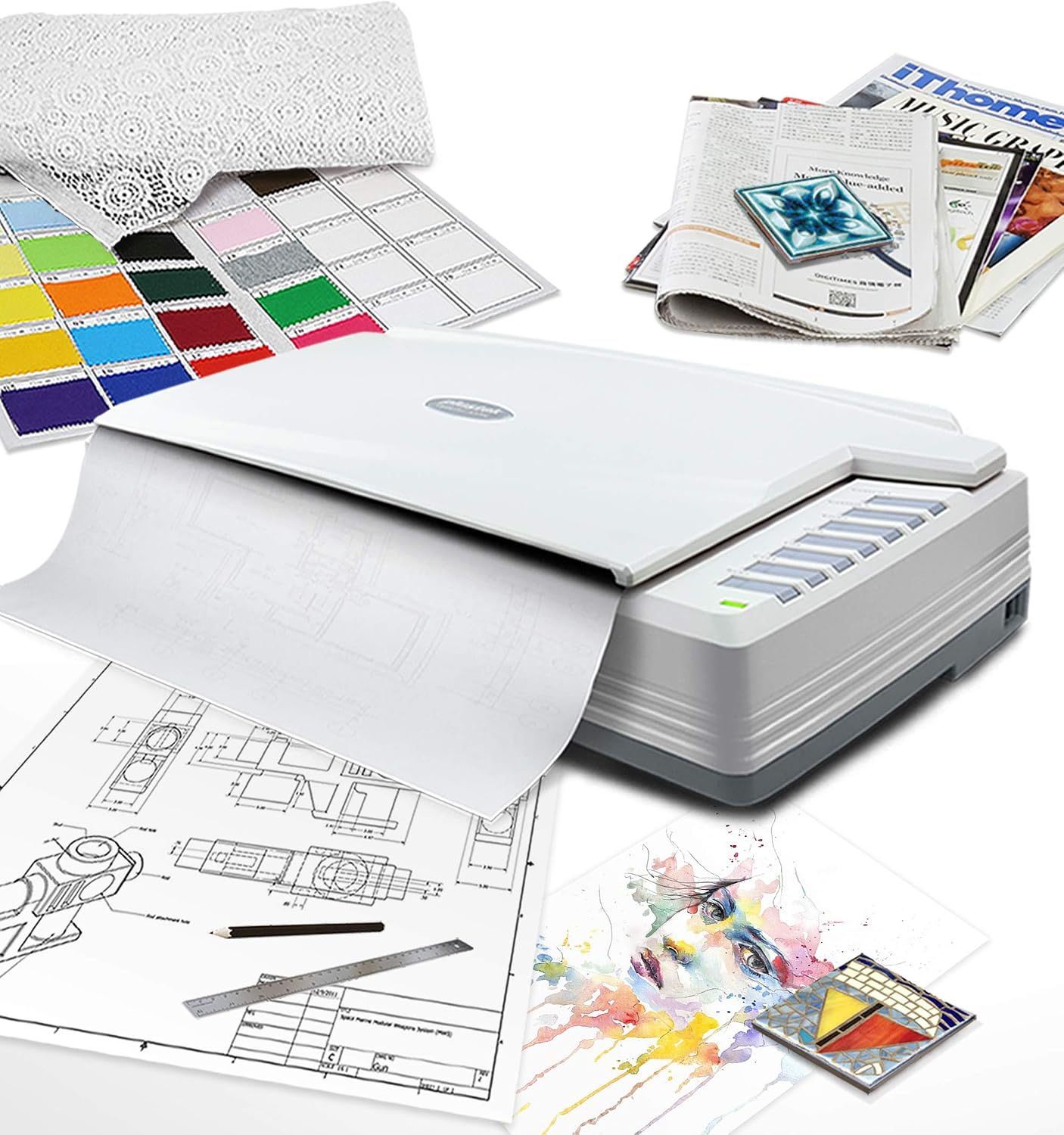
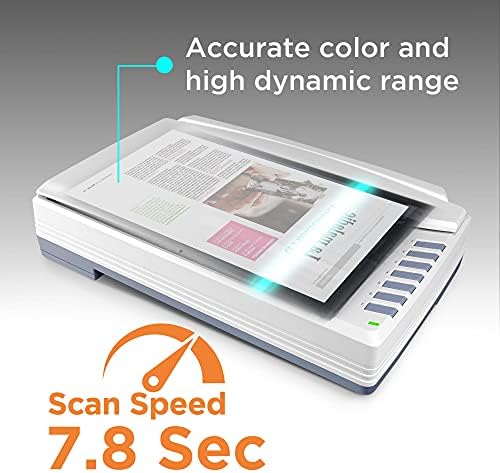
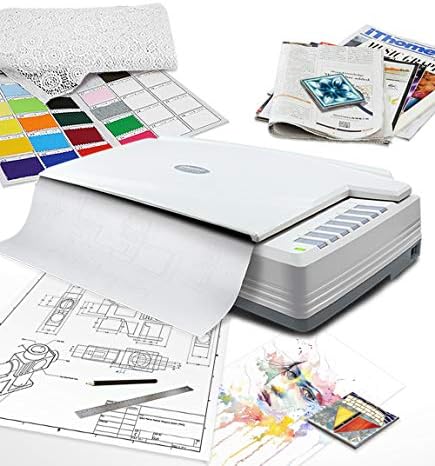
A large-format scanner for graphic arts and textured designs
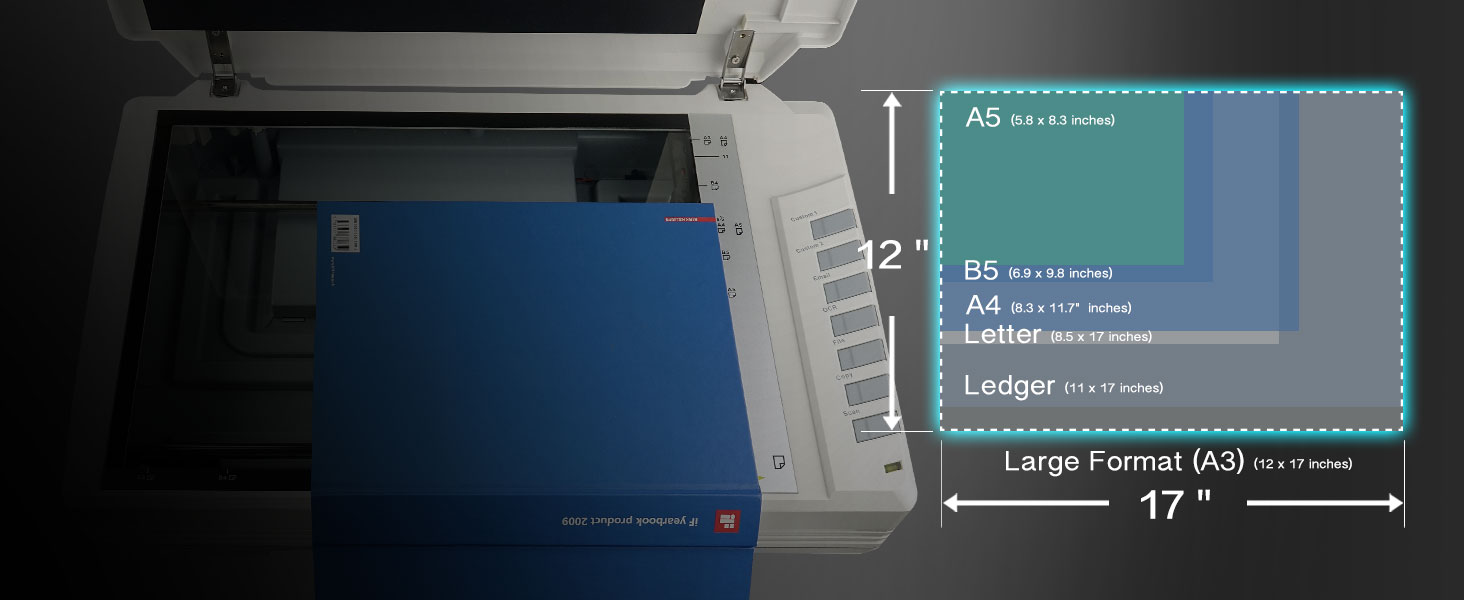
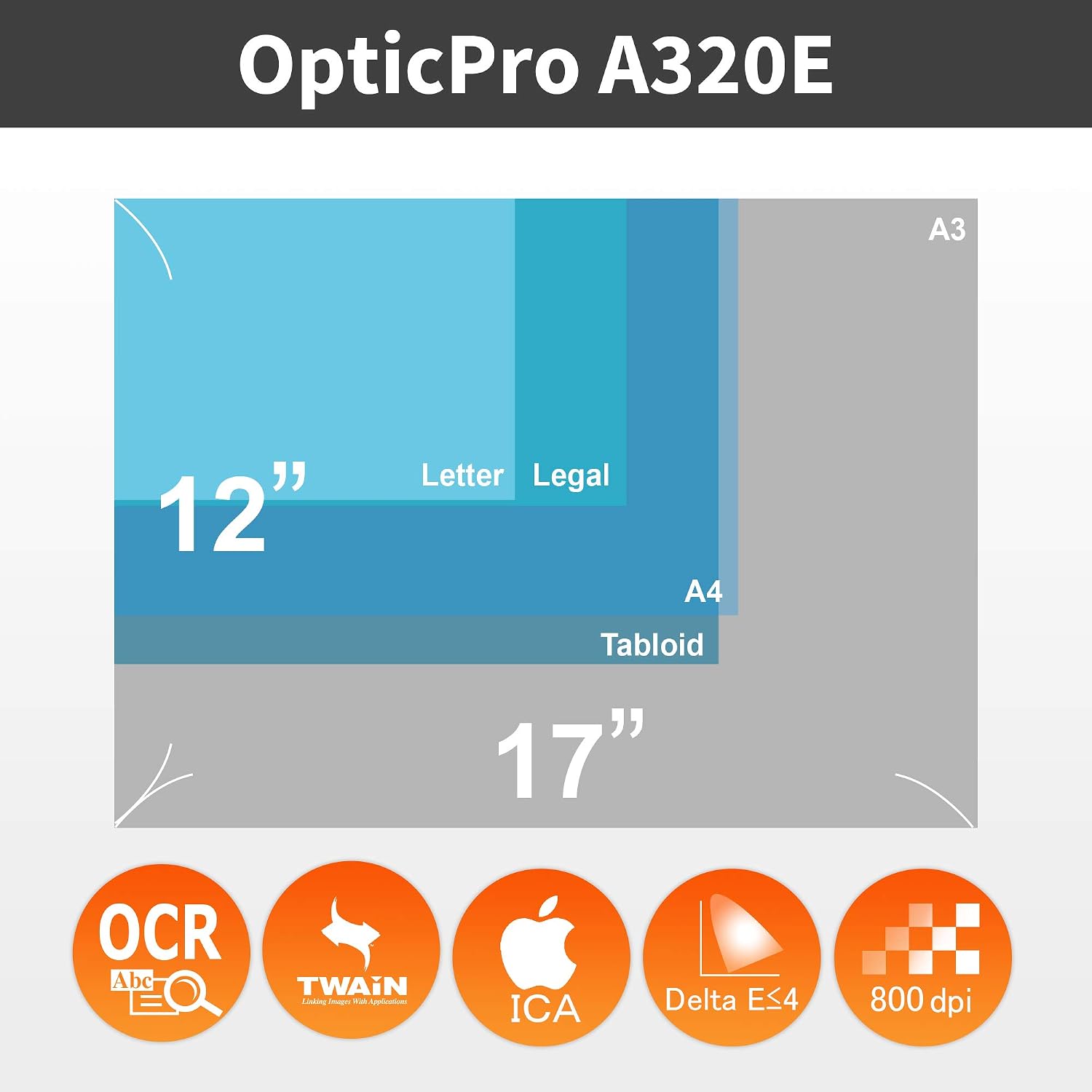
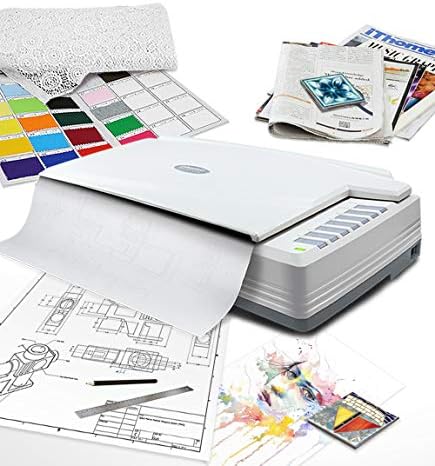
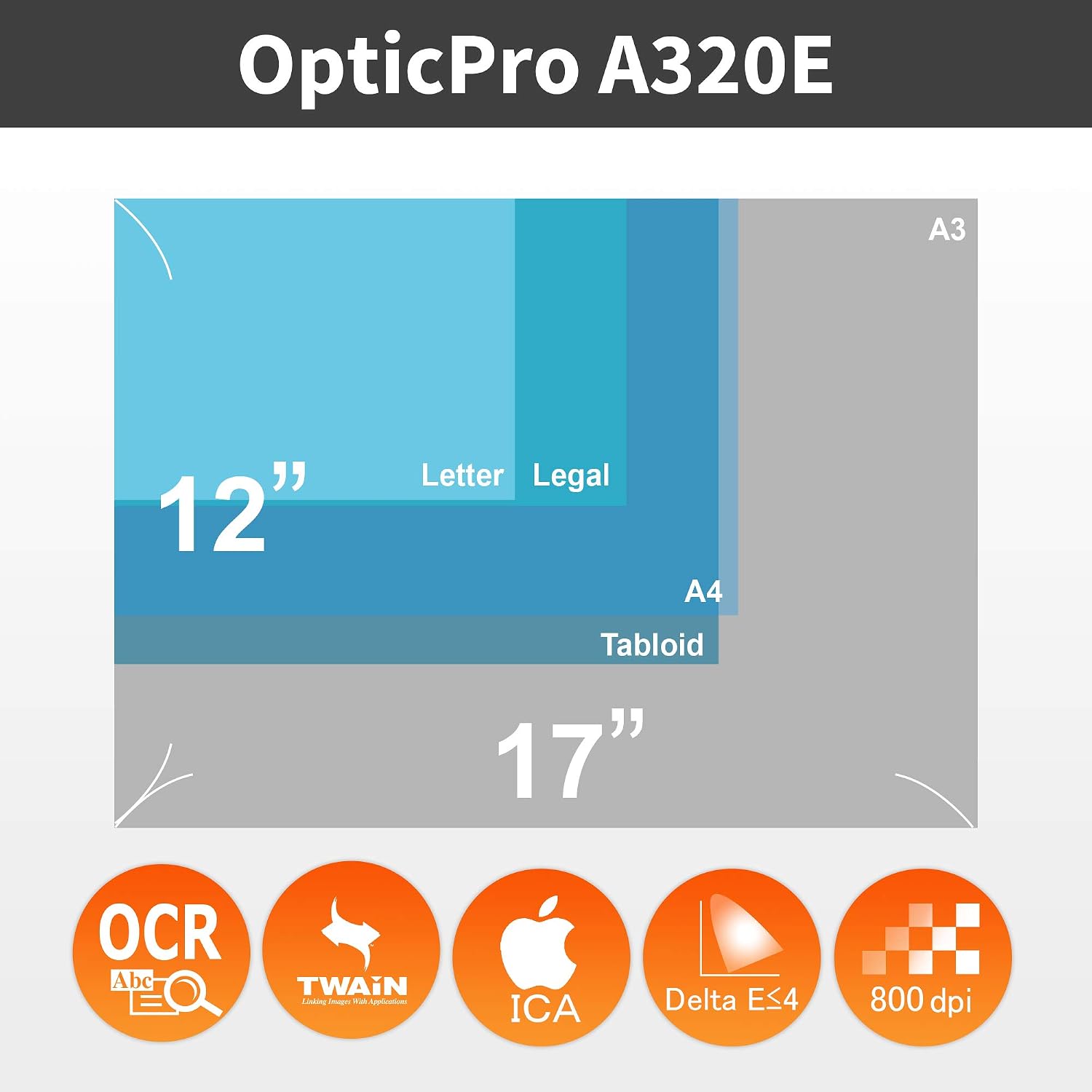
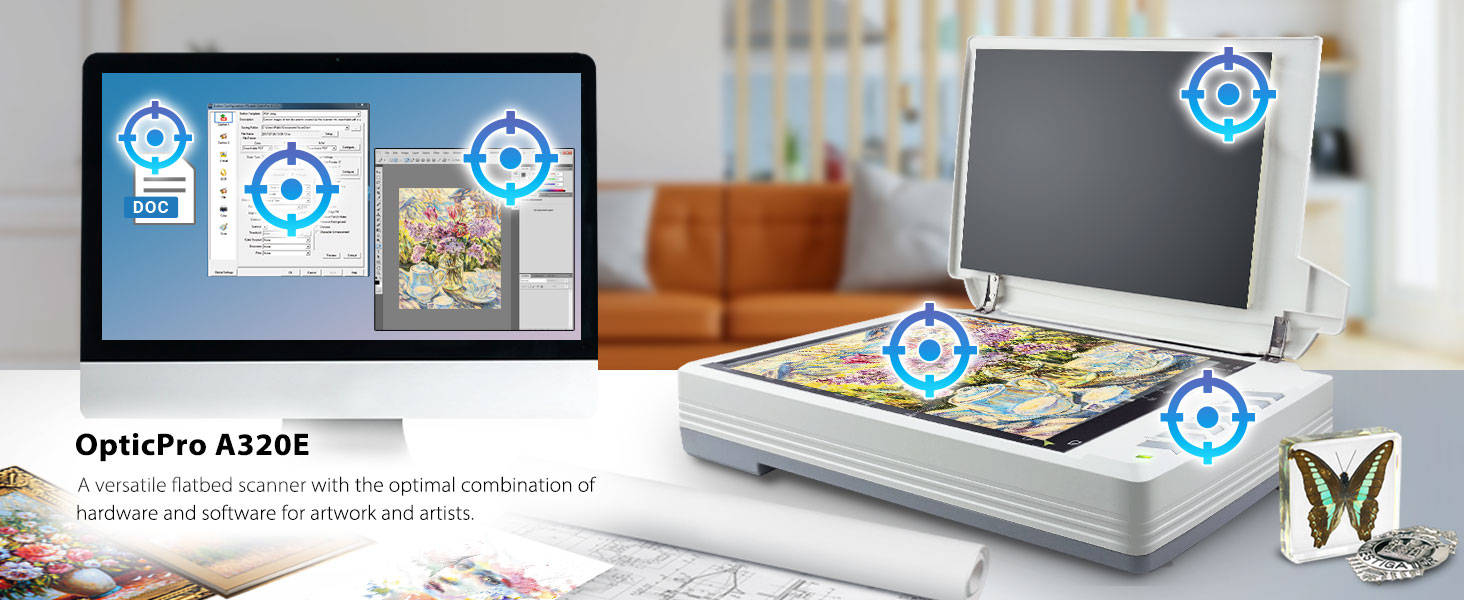
Scan various types and different size originals up to 12" x17" A3 for digitization and preservation.
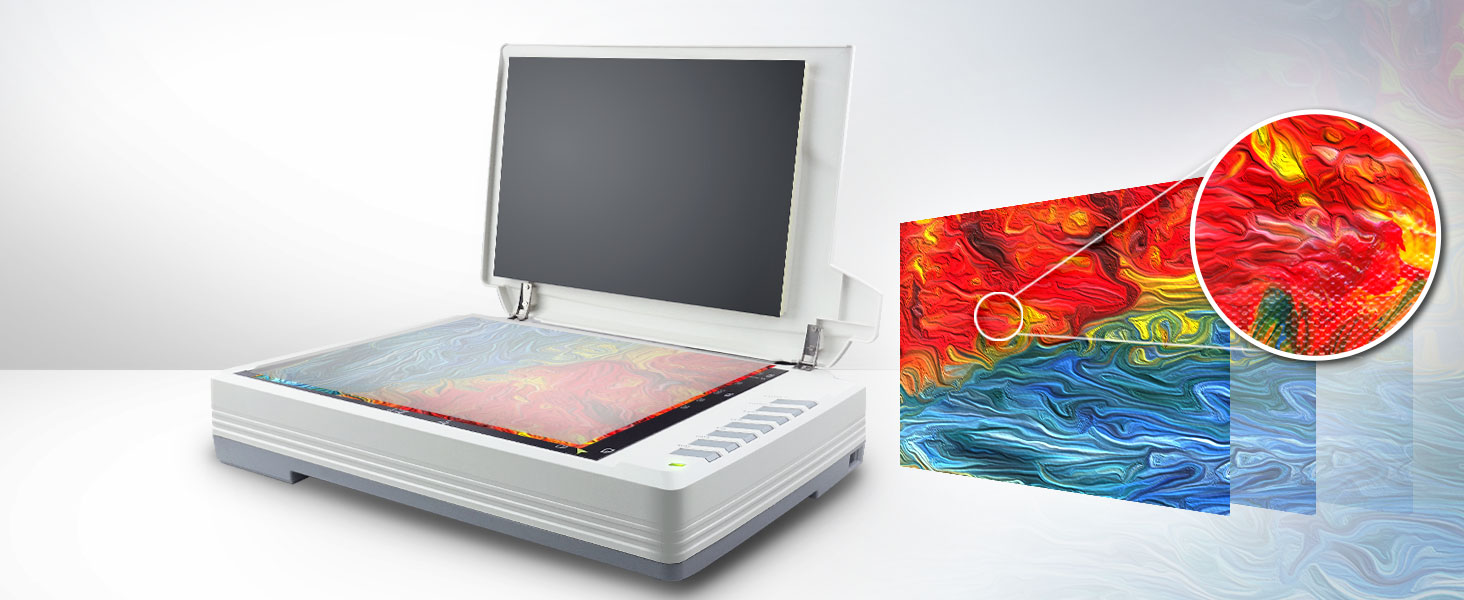
Toshiba CCD image sensor provides high sensitivity and low noise for objects with uneven surface.

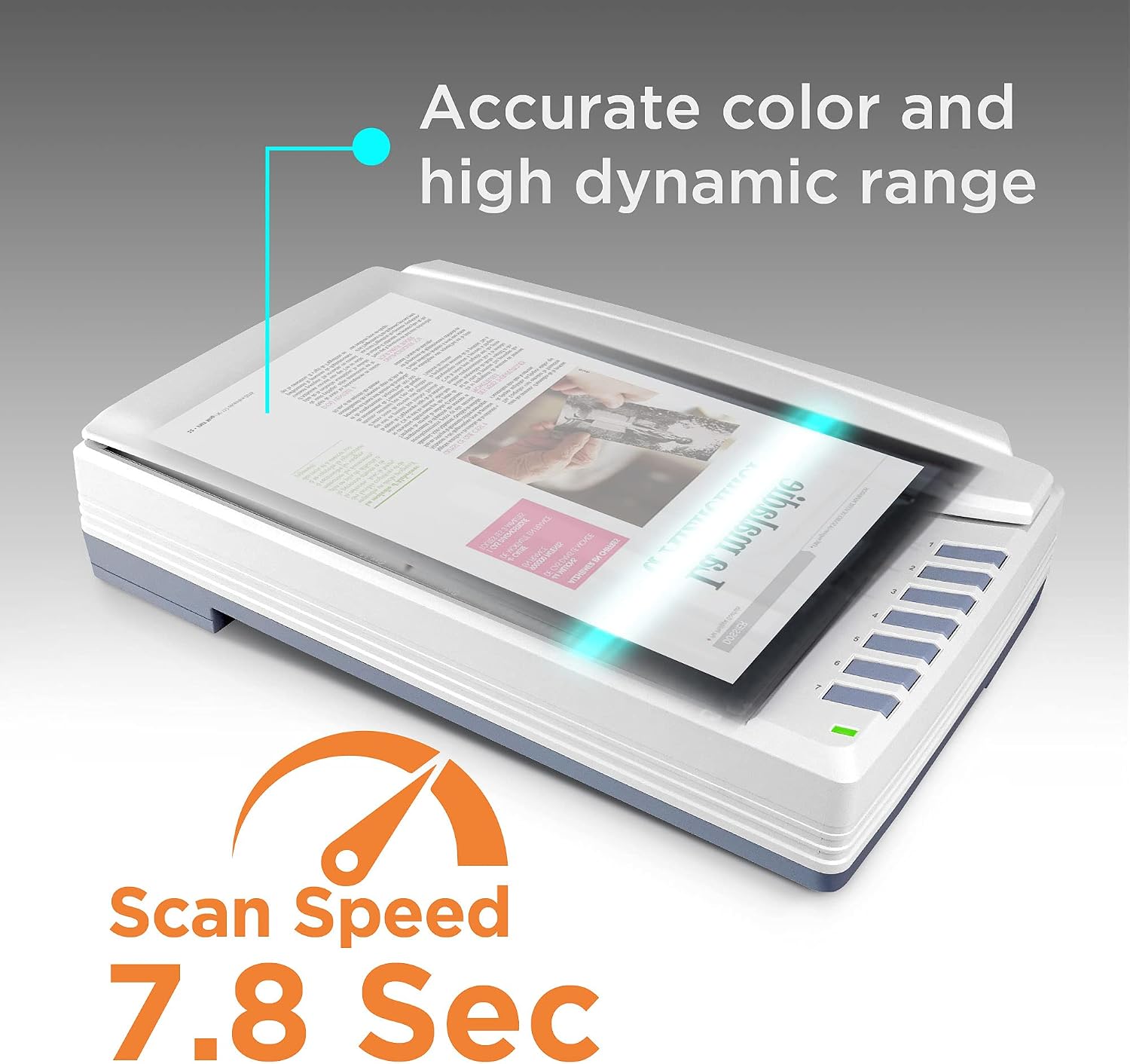
Effortlessly digitize complex profiles and take high-quality scans in just seconds.
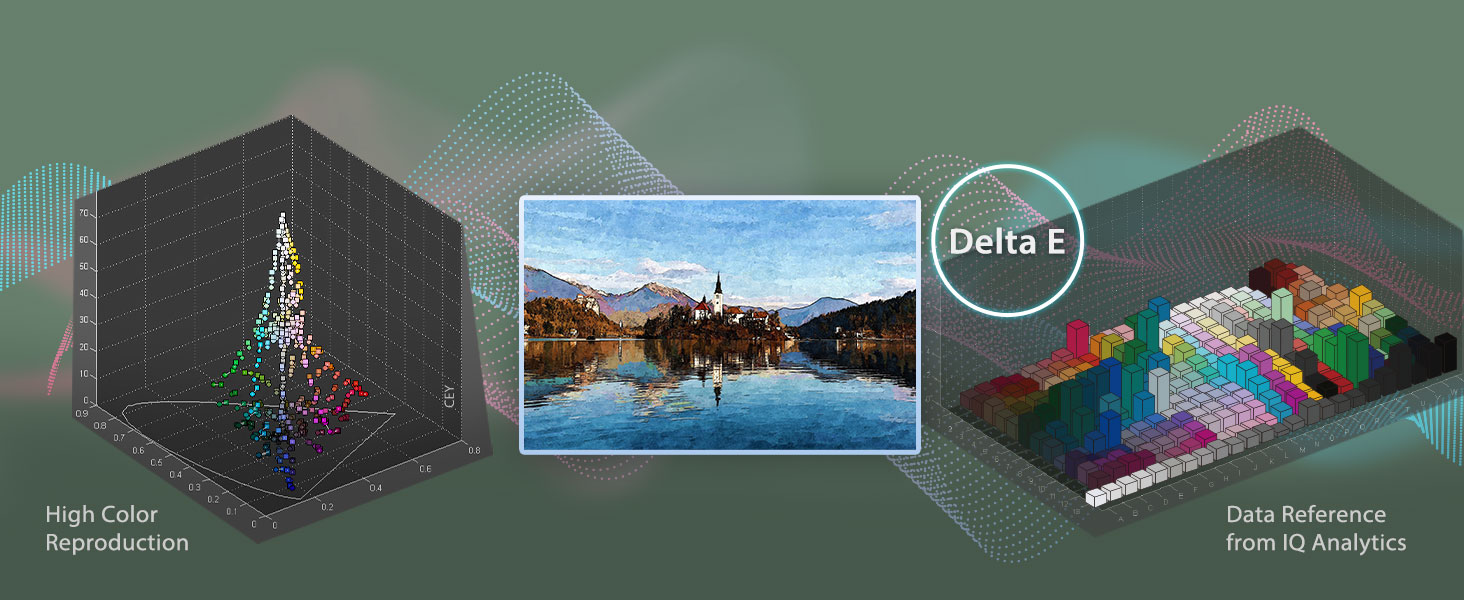
Reproduce colors and shades close to the original image with a low Delta E value.
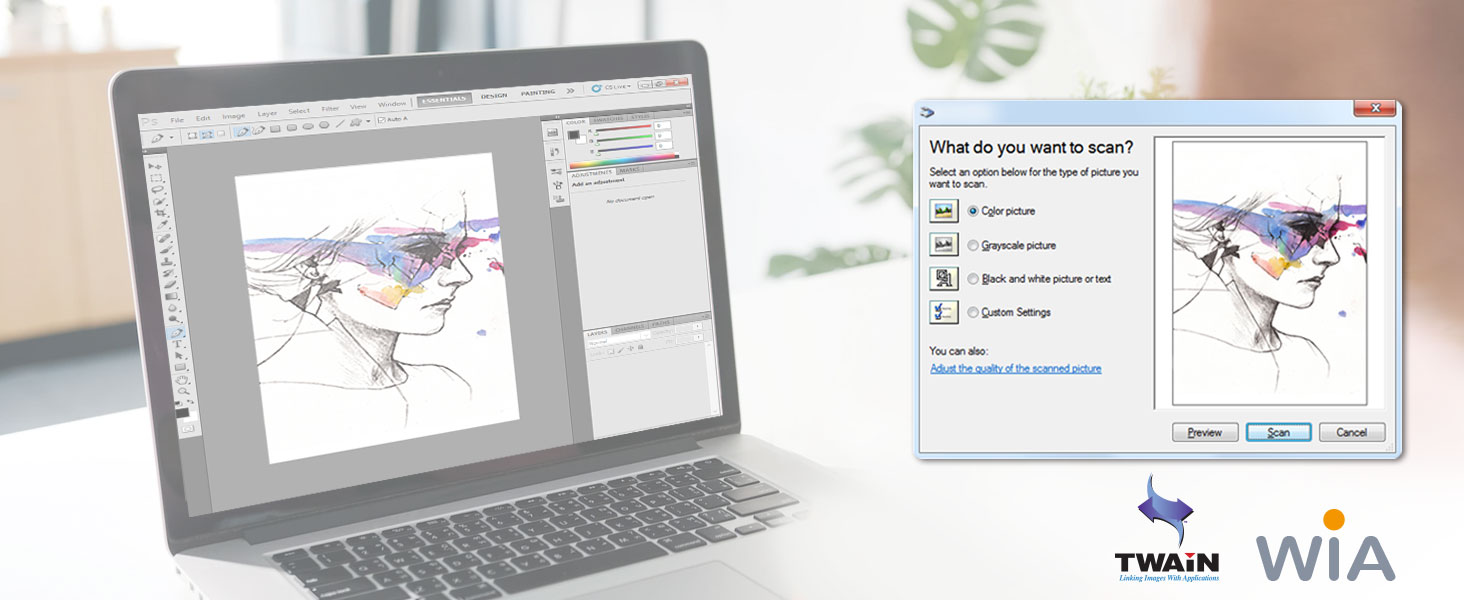
A320E drivers link images with universal applications and make things more compatible in your life.
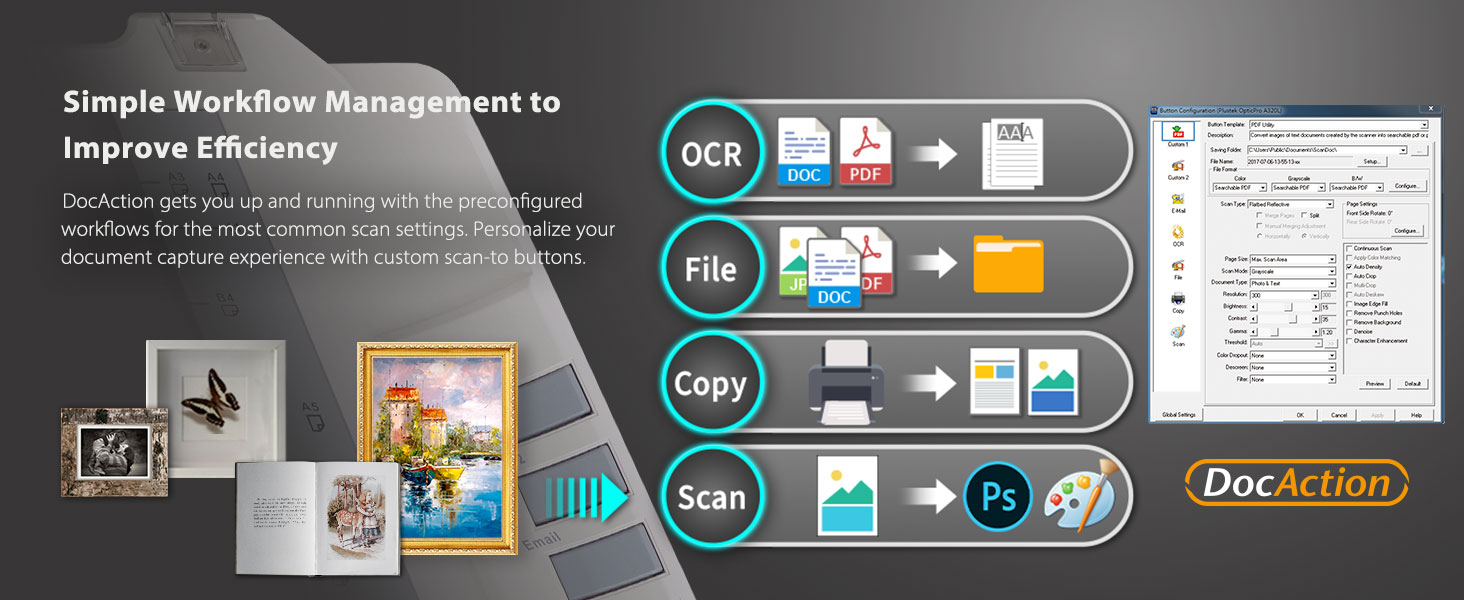
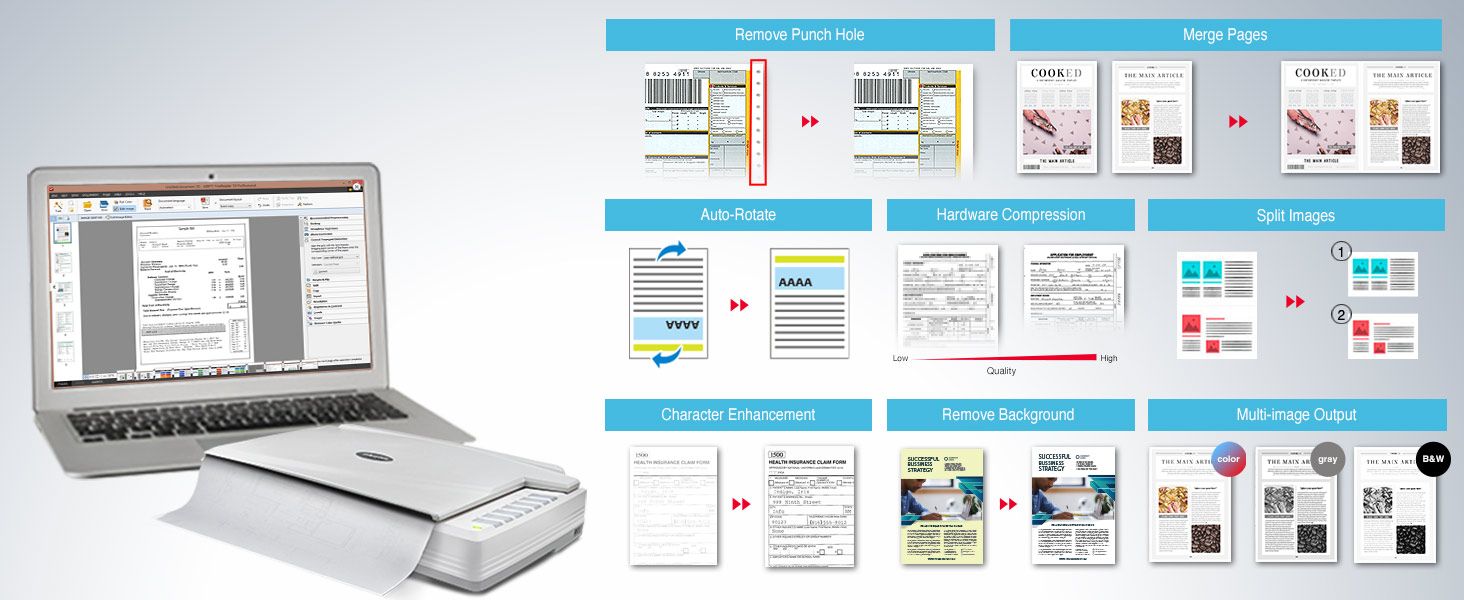
Using image processing techniques, you can automatically adjust images and enhance the quality during scanning to obtain the results more suitable for display quickly and easily.
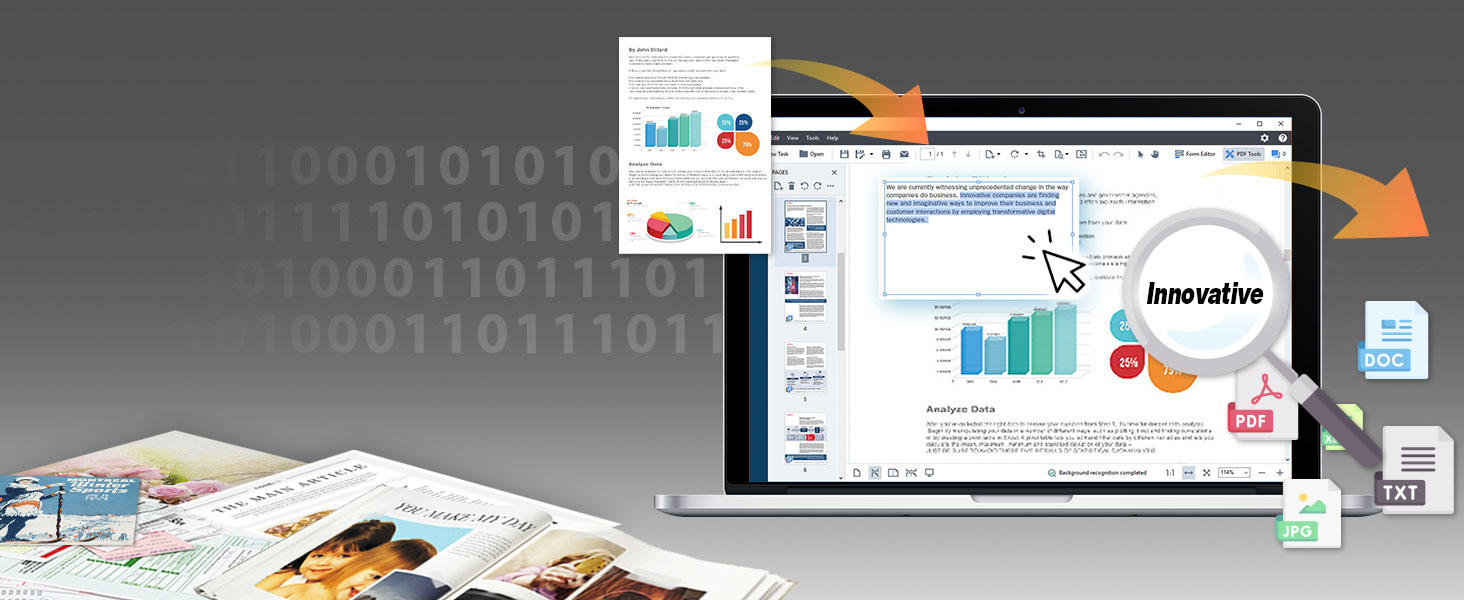
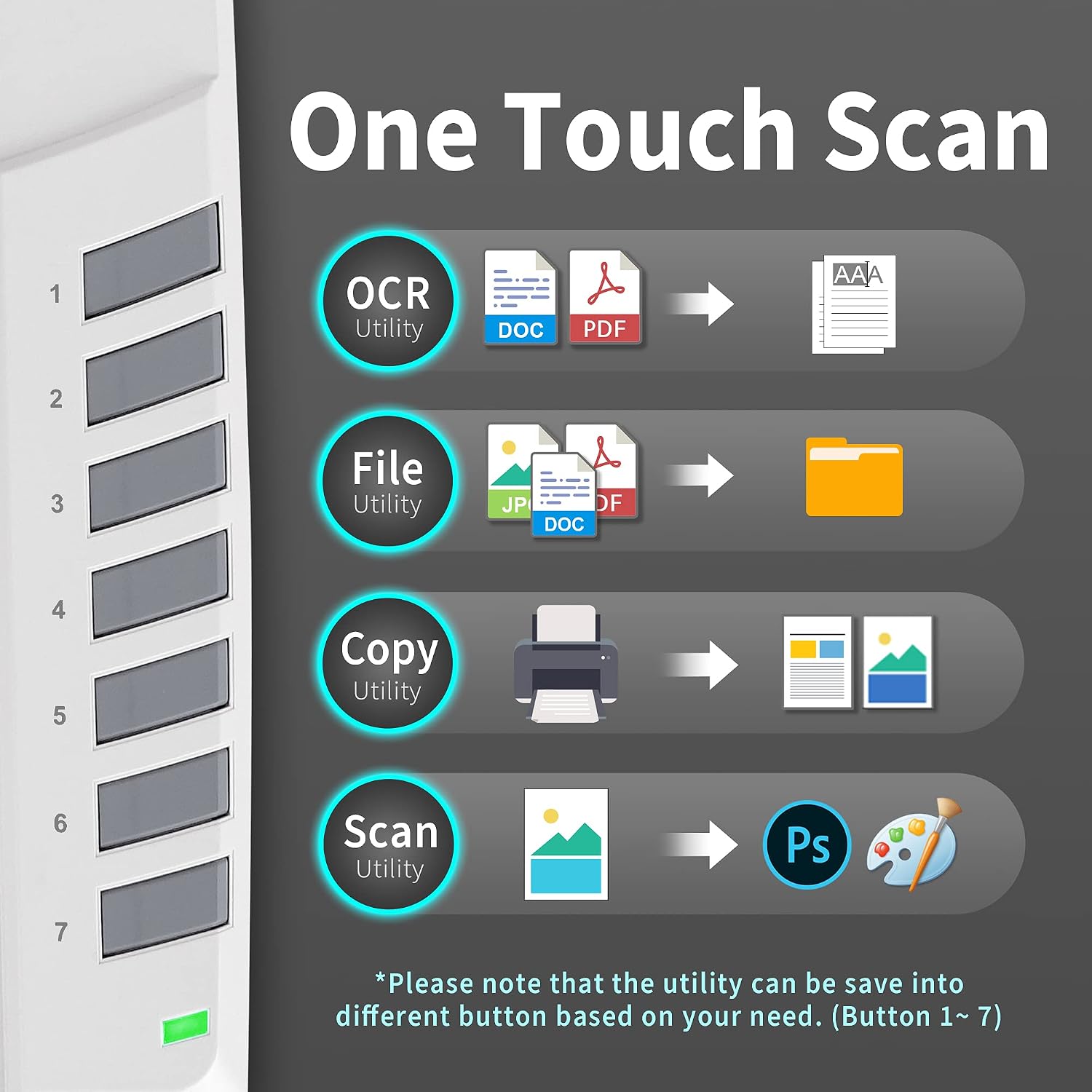
With OCR technology for text recognition and data extraction, A320E can process your scanned images and export to different file formats such as Word, Excel, and searchable PDF for editing purposes.
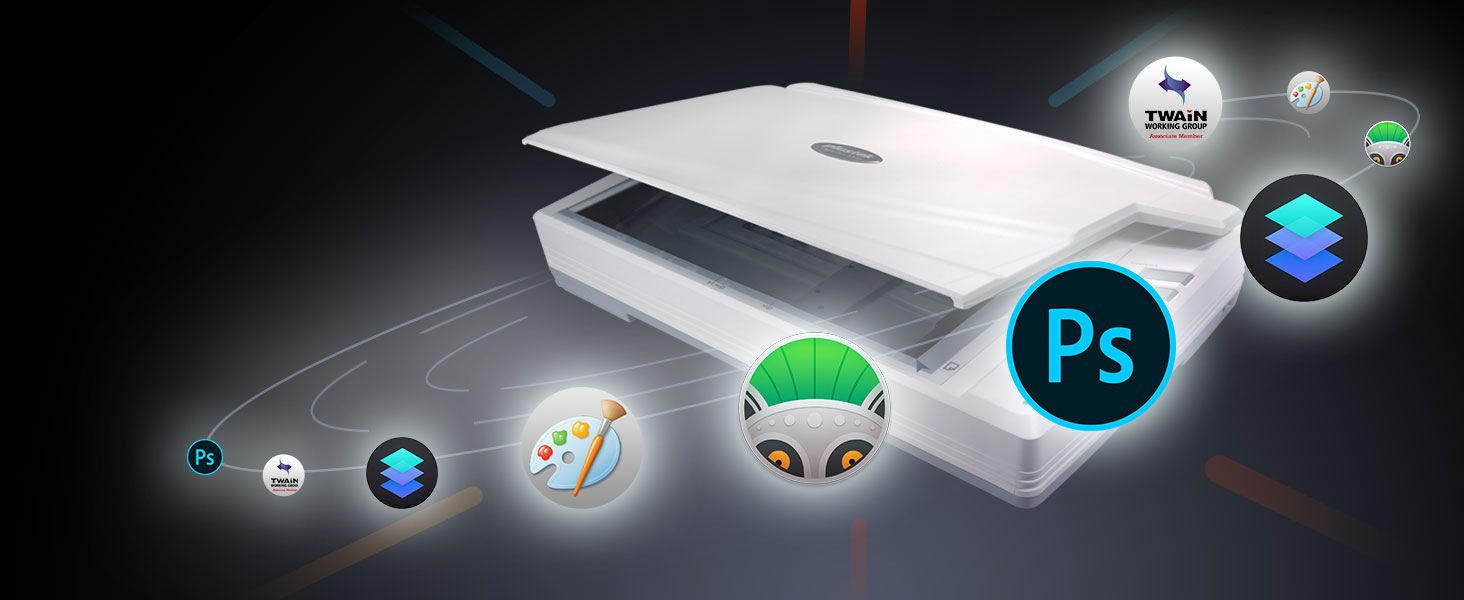
No need for scanning into folders and importing files later. A320E, compliant with TWAIN standard protocal, lets you scan an image directly into the applications where you want to work with the image.
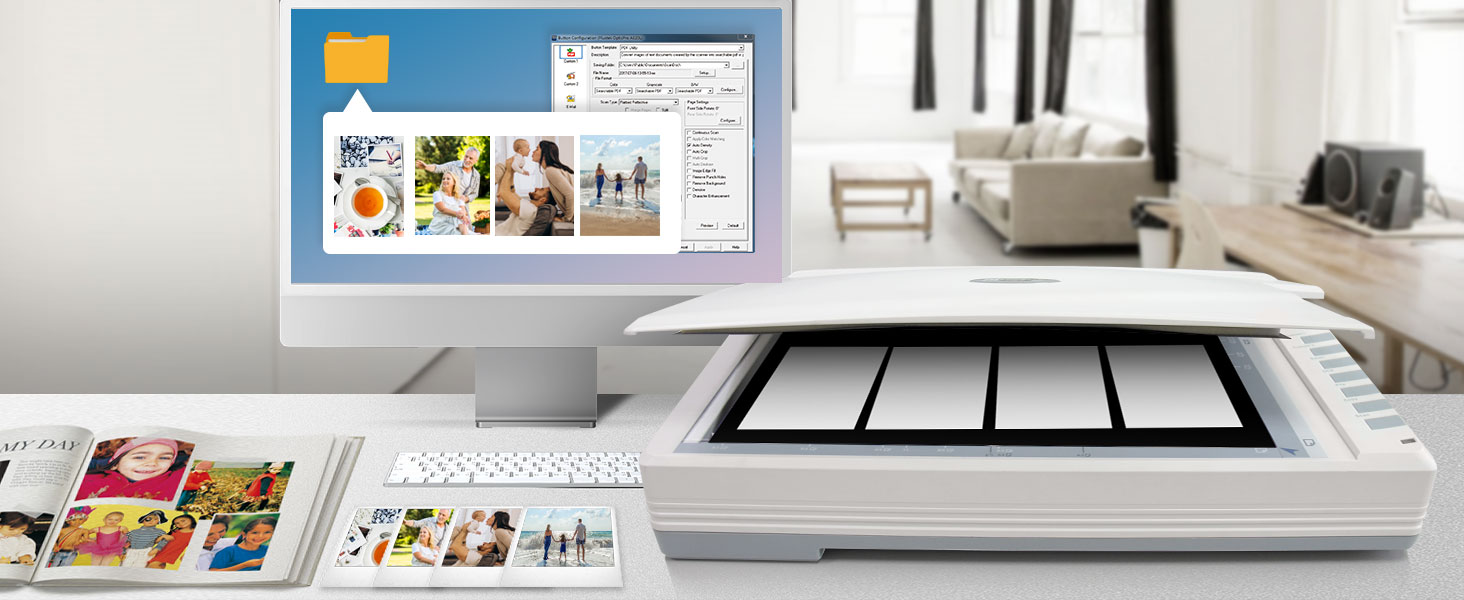
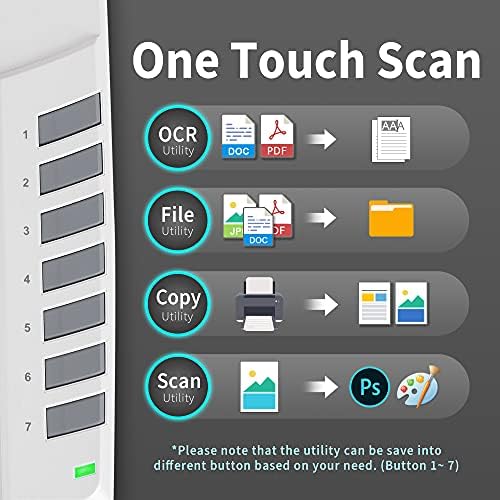
To speed up the process, you can scan several images and documents at once and save into separate files to your computer.
 1 2 3 4 5 6
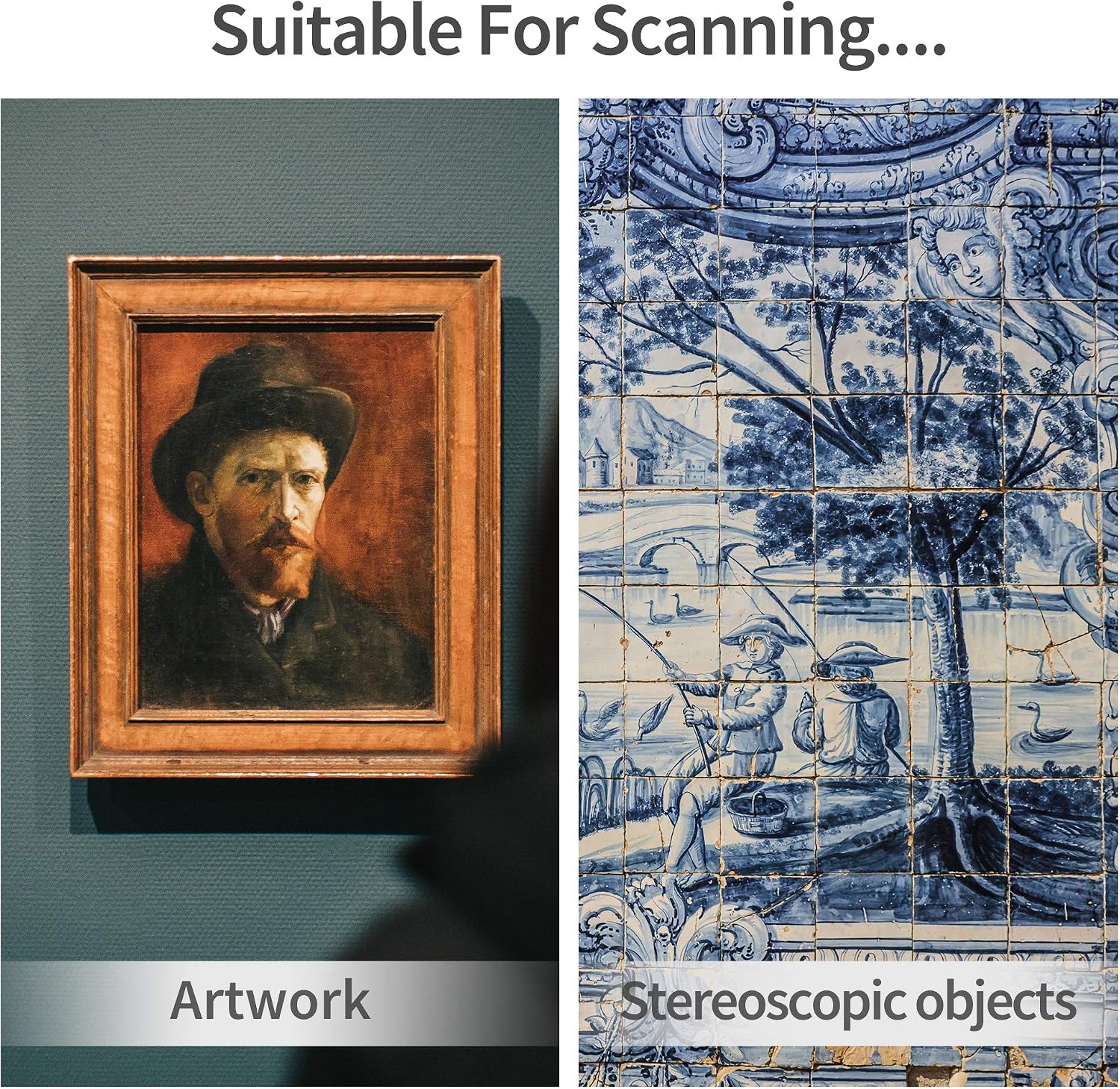
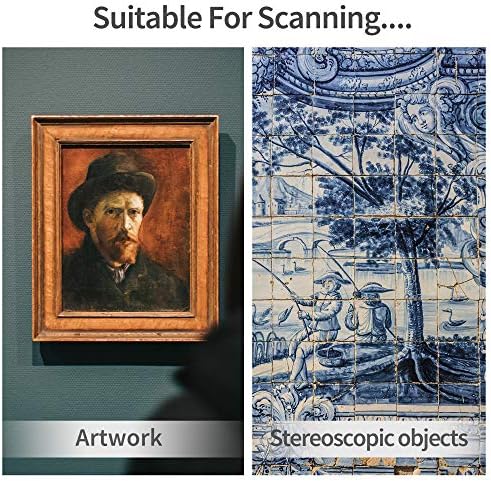
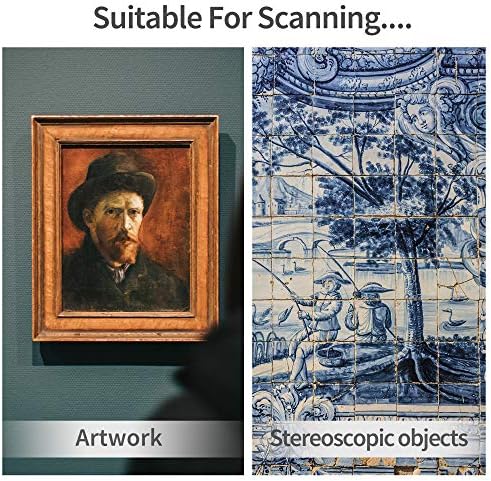
CCD image sensor gives you clean edges, sharp details, and more depth of field. Digitally archive stereoscopic presentations and record three-dimensional information from your artwork effectively.

Like memories, printed photos fade over time and can get lost or destroyed. Scan, digitize, and store old precious photos with A320 so that you can access, share, and reprint them right at hand.
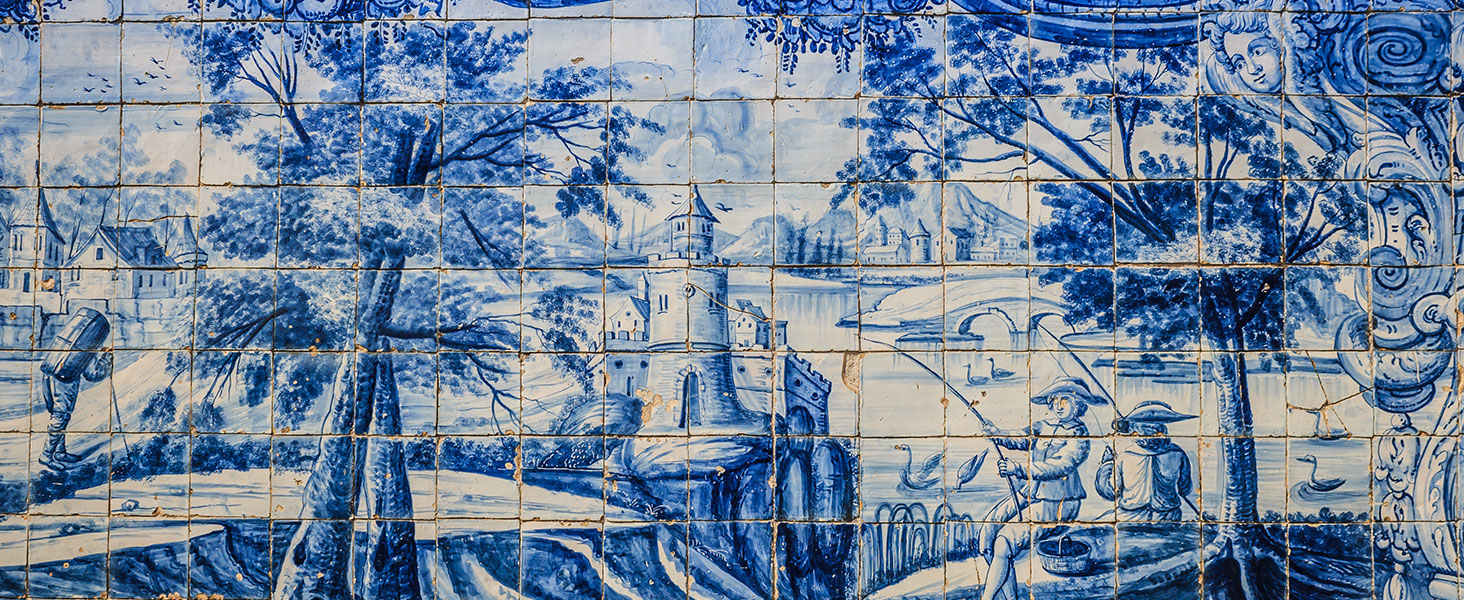
Create a digital art gallery yourself. Convert texture objects of cultural value and document your collections of different materials for protection, long-term storage, and provision of wider access.
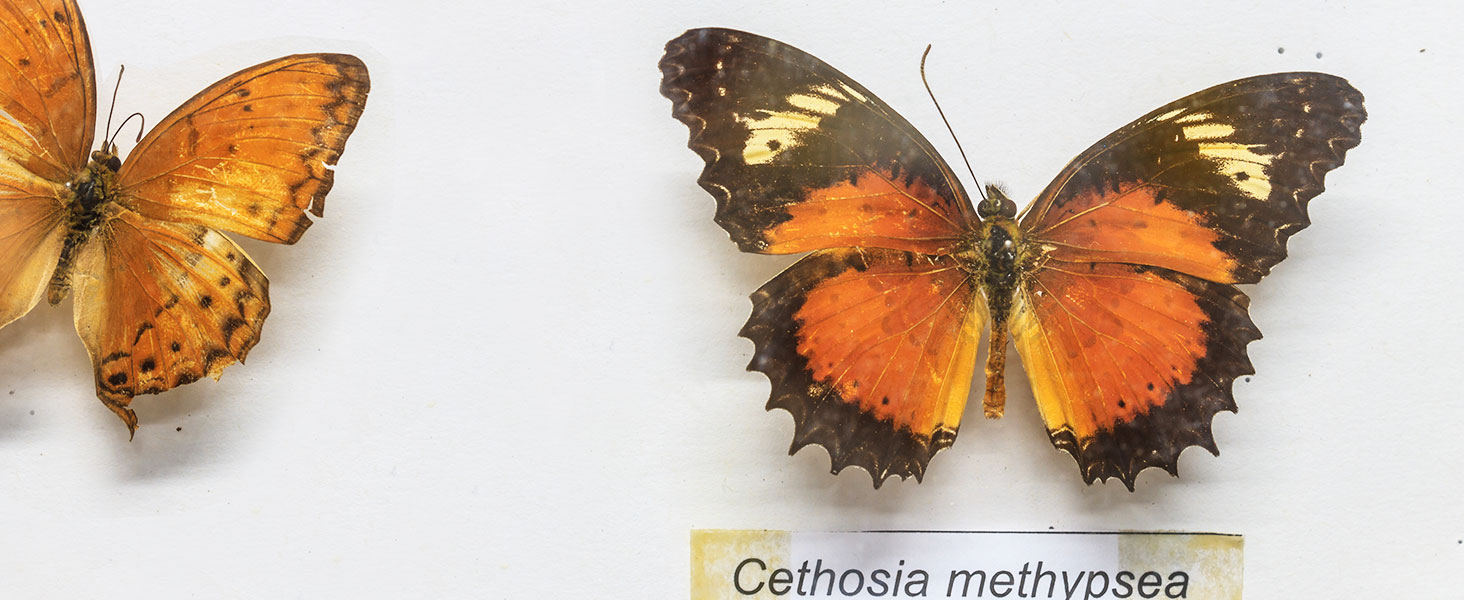
A320E captures larger color ranges and creates the illusion of depth in an image. You can use this scanner as a camera to capture whatever you place on the glass, even away from the surface.

Rather than outsource scanning to a third party, you can do in-house digitization safely with A320E despite the complex objects, be it architect drawing, antique map, vintage poster or fragile fabric.
What is the difference between CCD and CIS?
If you want a scanner that captures larger tonal and color ranges for sharp details, CCD is the clear winner. It has more depth of field with more even and brighter illumination, whereas CIS falls off rapidly. However, CIS is relatively inexpensive.
Why do I need to calibrate my scanner?
Scanners need to be calibrated when first activated. This process keeps the scanned images sharp and colors accurate. It’s recommended you recalibrate it to avoid vertical lines and achieve the best results after using the scanner for a long time.
How can I install A320E driver without a CD-ROM?
Please download the latest driver package for Windows/MacOS from Plustek official website and run the installer following the steps on your screen. For any hardware and software questions, feel free to get in touch with us.
What is the function of scanner buttons on A320E?
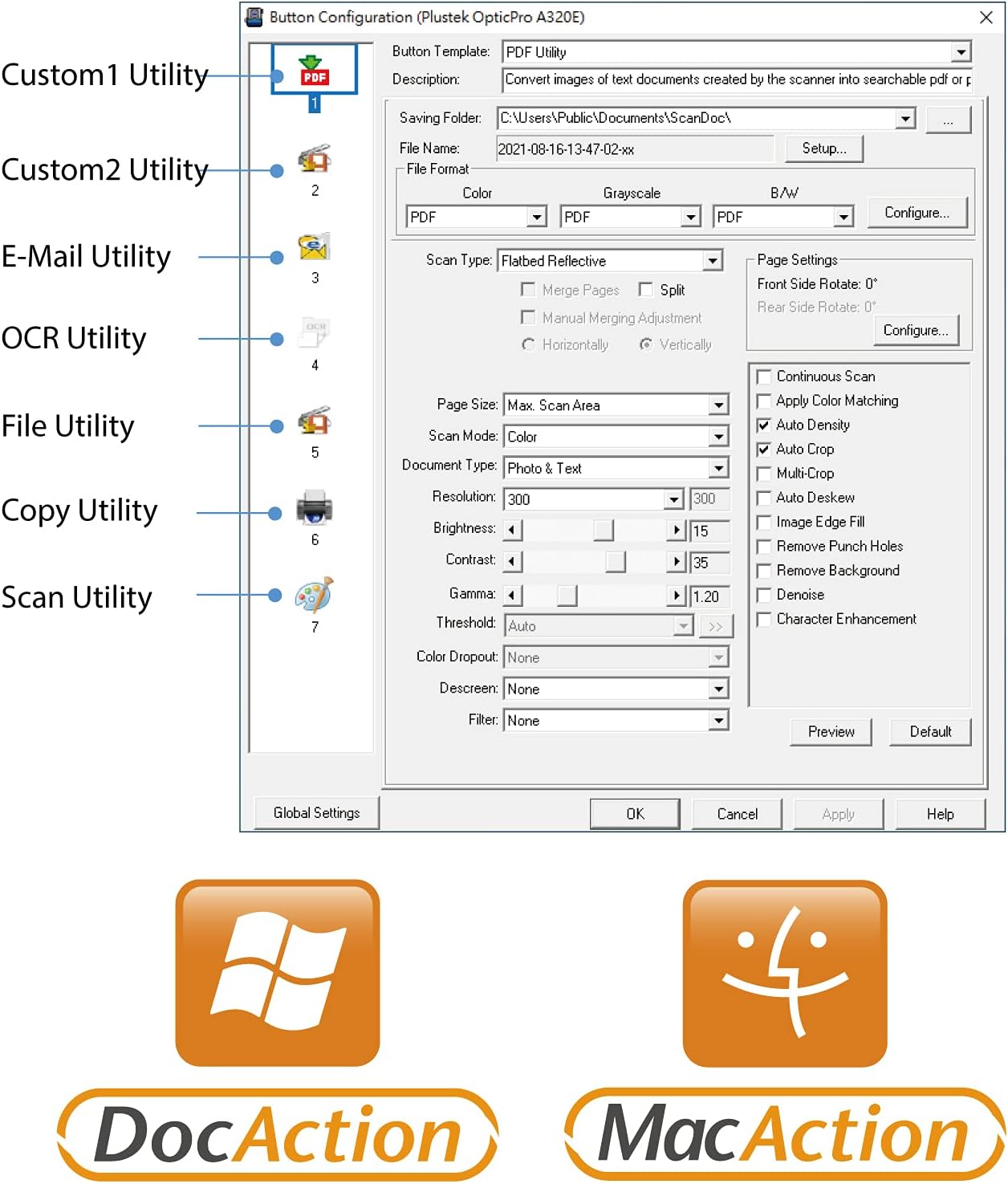
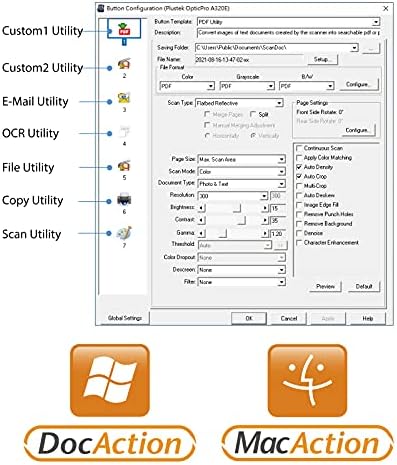
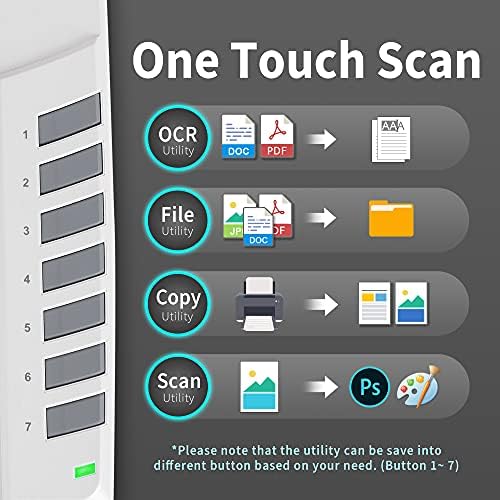
A320E has 7 buttons (Custom 1, Custom 2, Email, OCR, File, Copy, Scan) to help you scan and send image data to a target application with a single press of the button. Configure the buttons based on your needs with DocAction software.
How to scan multiple pages into a single PDF file?
Go to file utility, check "Continuous Scan" and then press "Apply" in the settings of button configuration. If you'd like to learn more, please watch Plustek DocAction tutorials on Youtube and follow the instructions.
loading