




Free worldwide shipping
Free returns
Carbon neutral
Secure payments
| Additional Features | Backward Compatible, Error Correction, external blu ray drive |
|---|---|
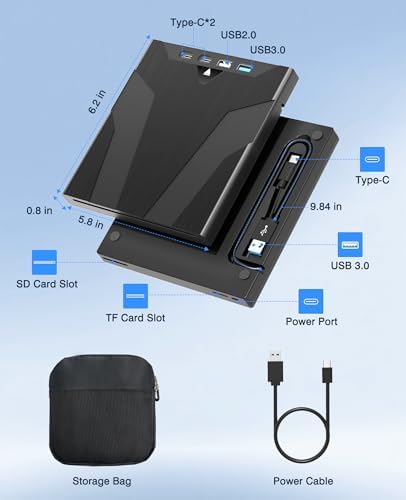
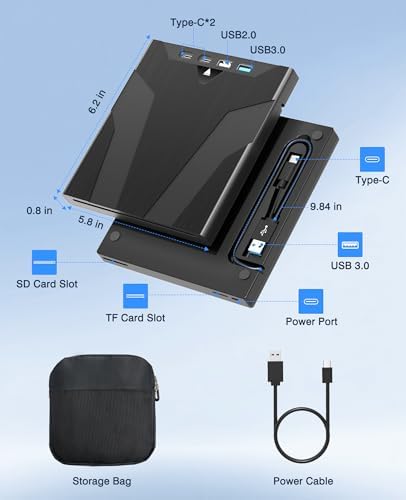
| Hardware Interface | USB 3.0 |
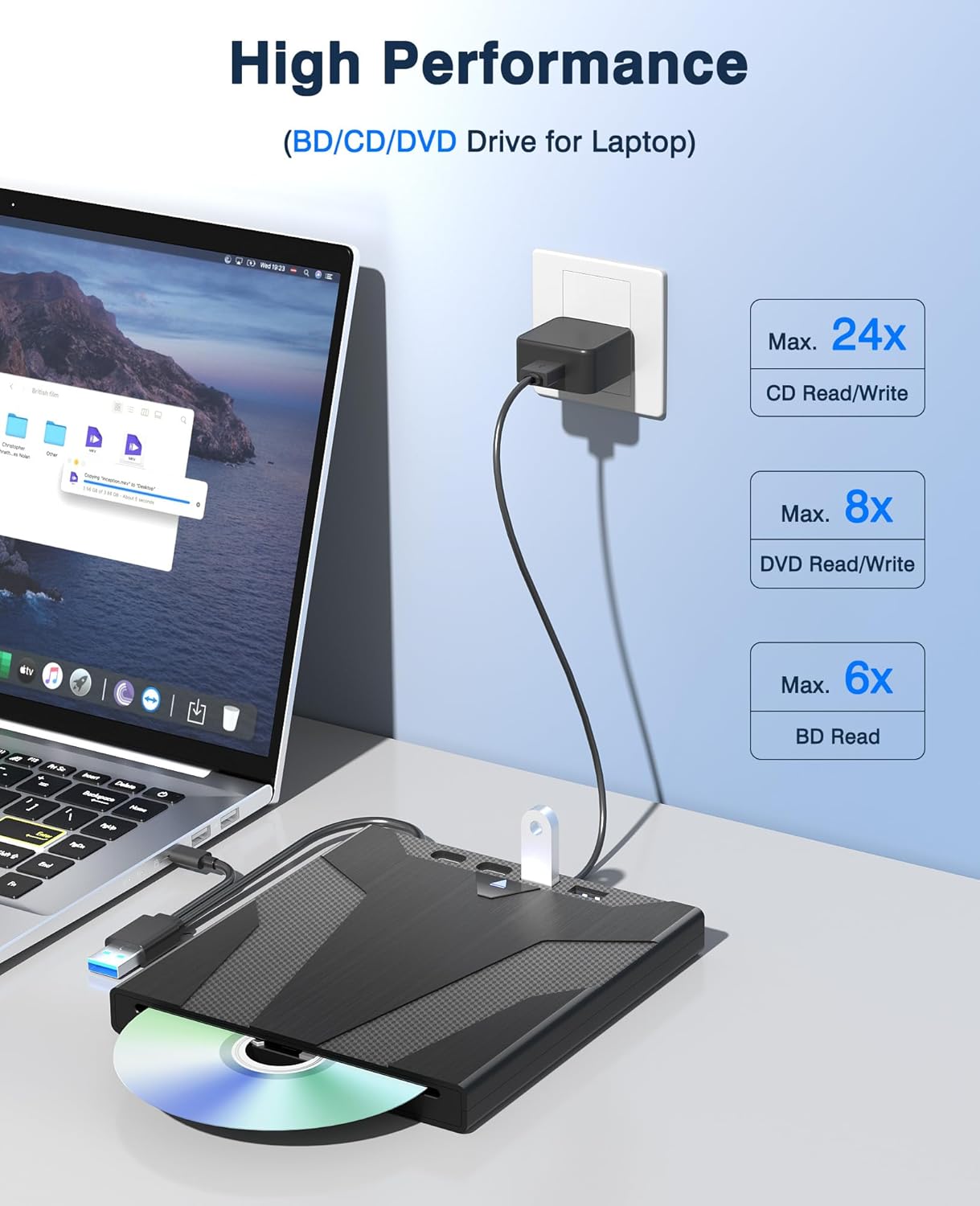
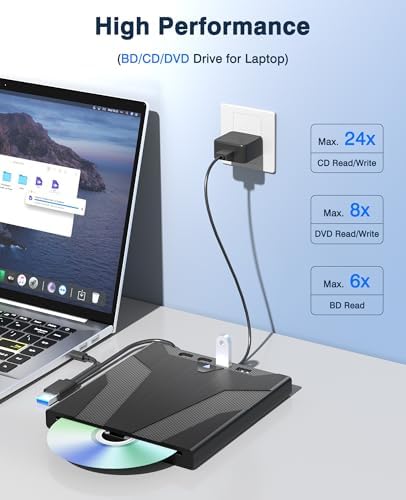
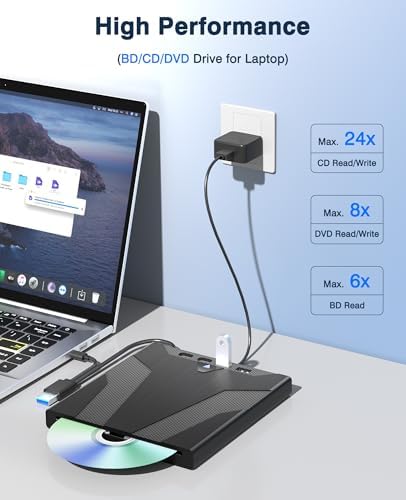
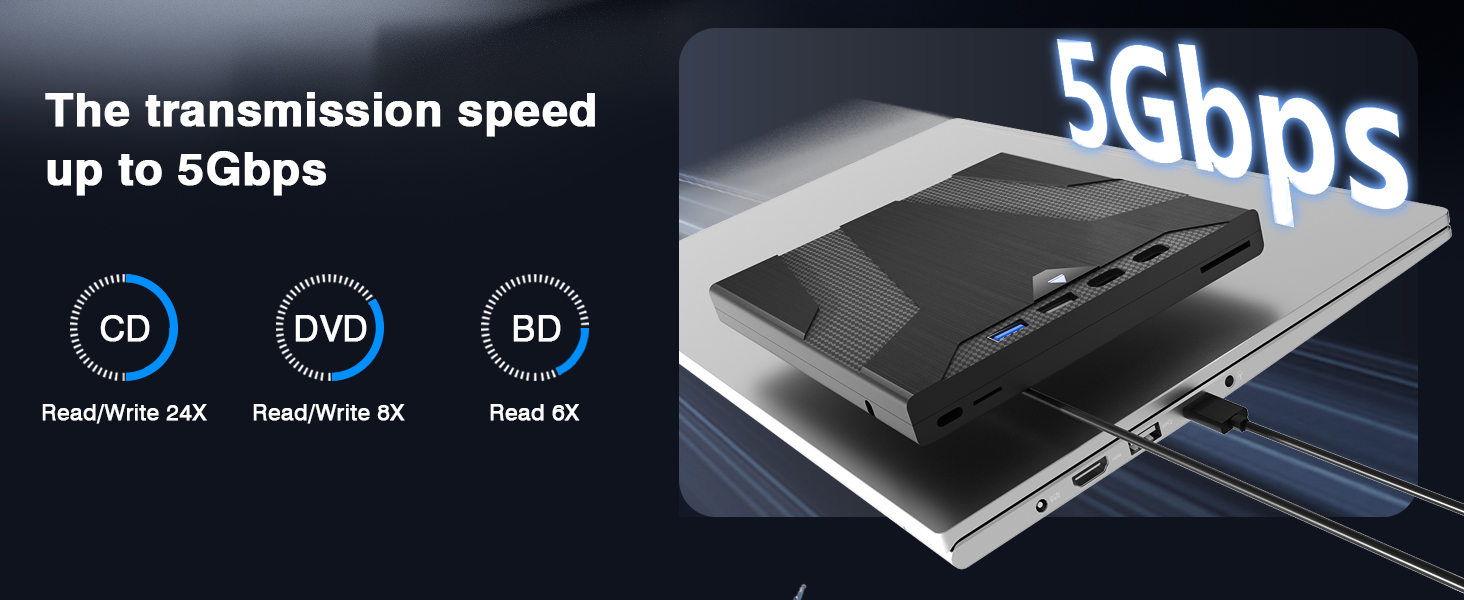
| Optical Storage Write Speed | compatible with DVD-R8X, DVD-R DL4X, DVD-RW4X DVD+R8X, DVD+R DL4X"Above are the maximum speeds.", DVD+RW4X, DVD-RAM5X, CD-R24X, CD-RW10X |
| Optical Storage Read Speed | compatible with BD various (6X), DVD various (8X), CD various (24X)" |
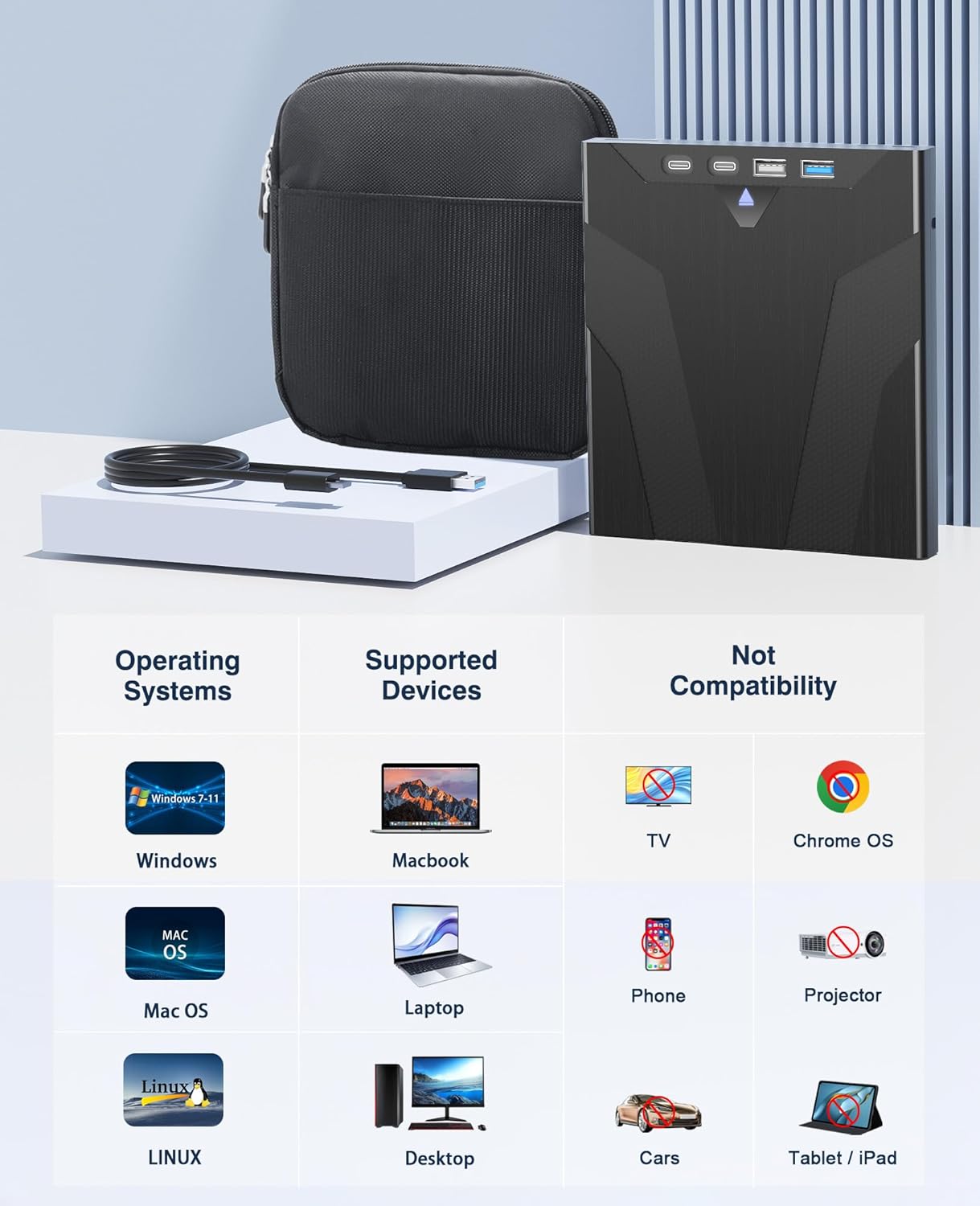
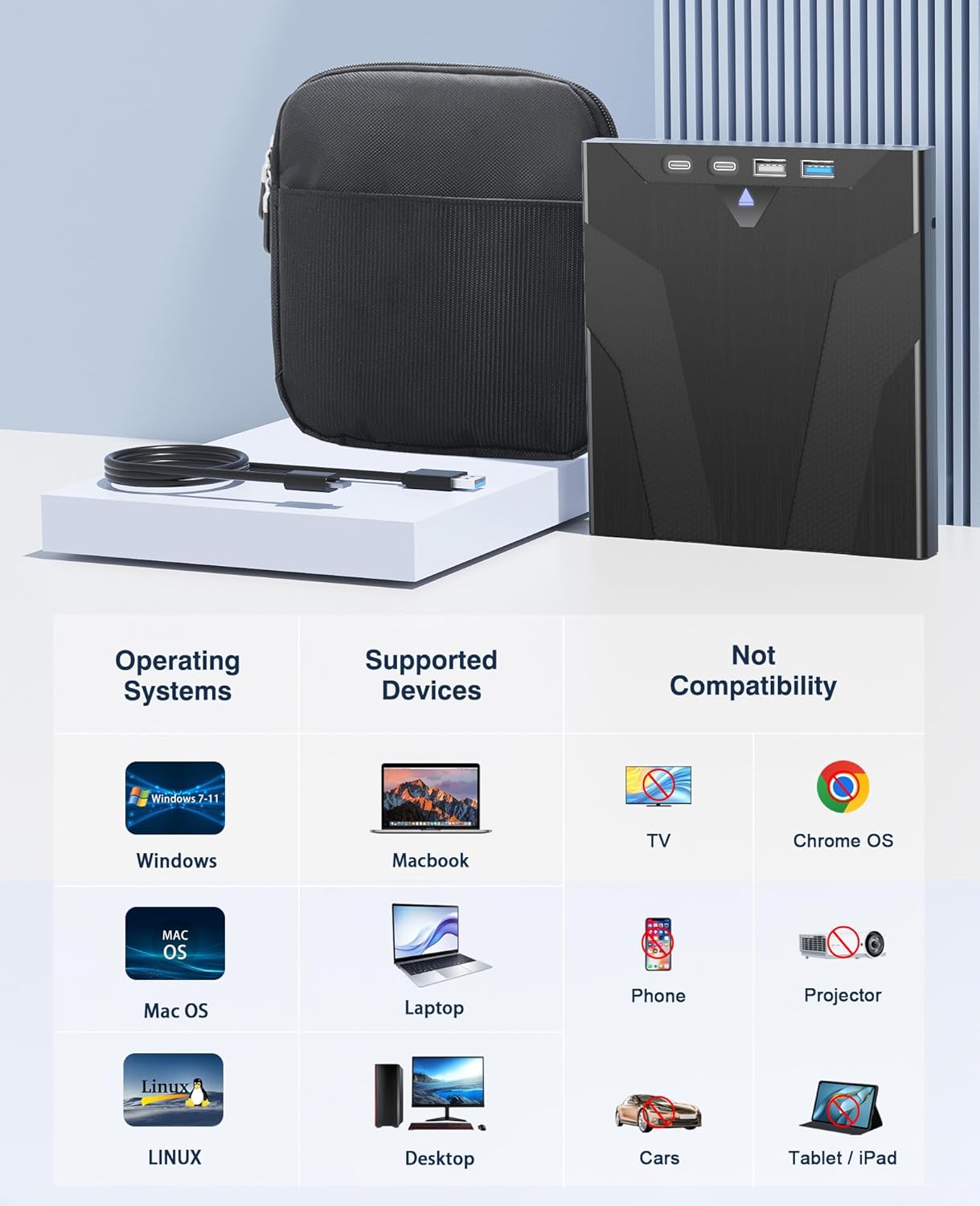
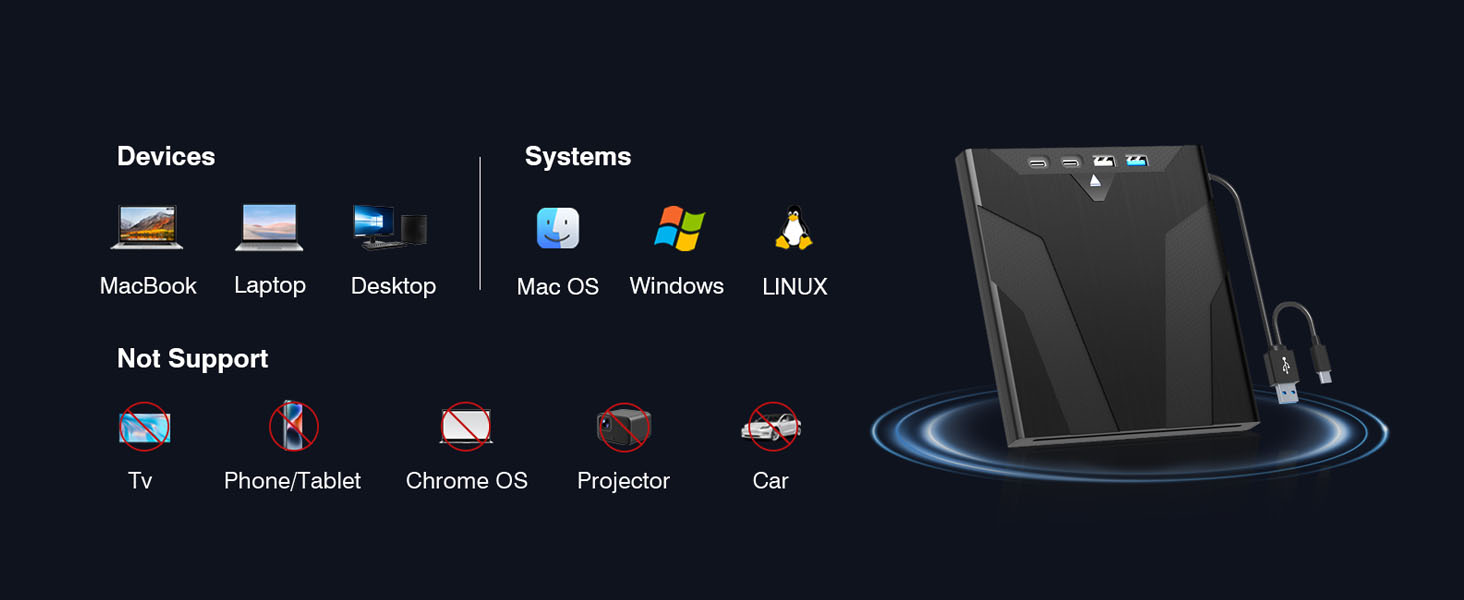
| Hardware Platform | Desktop, Laptop, MacBook |
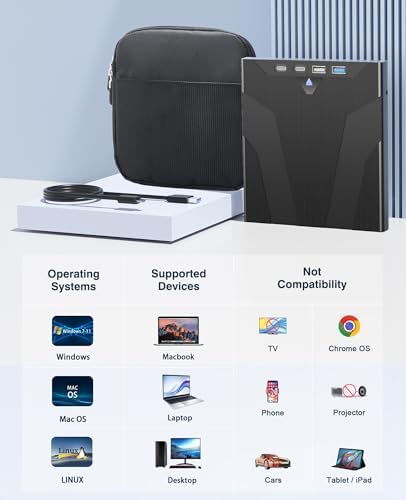
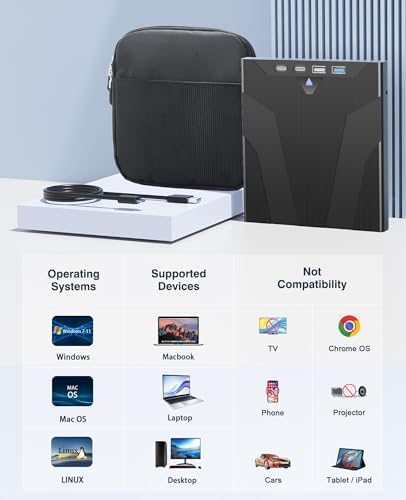
| Compatible Devices | Laptop, PC (Windows 11/10/8/7, Mac OS) |
| Connectivity Technology | USB |
| Data Transfer Rate | 300 megabytes_per_second |
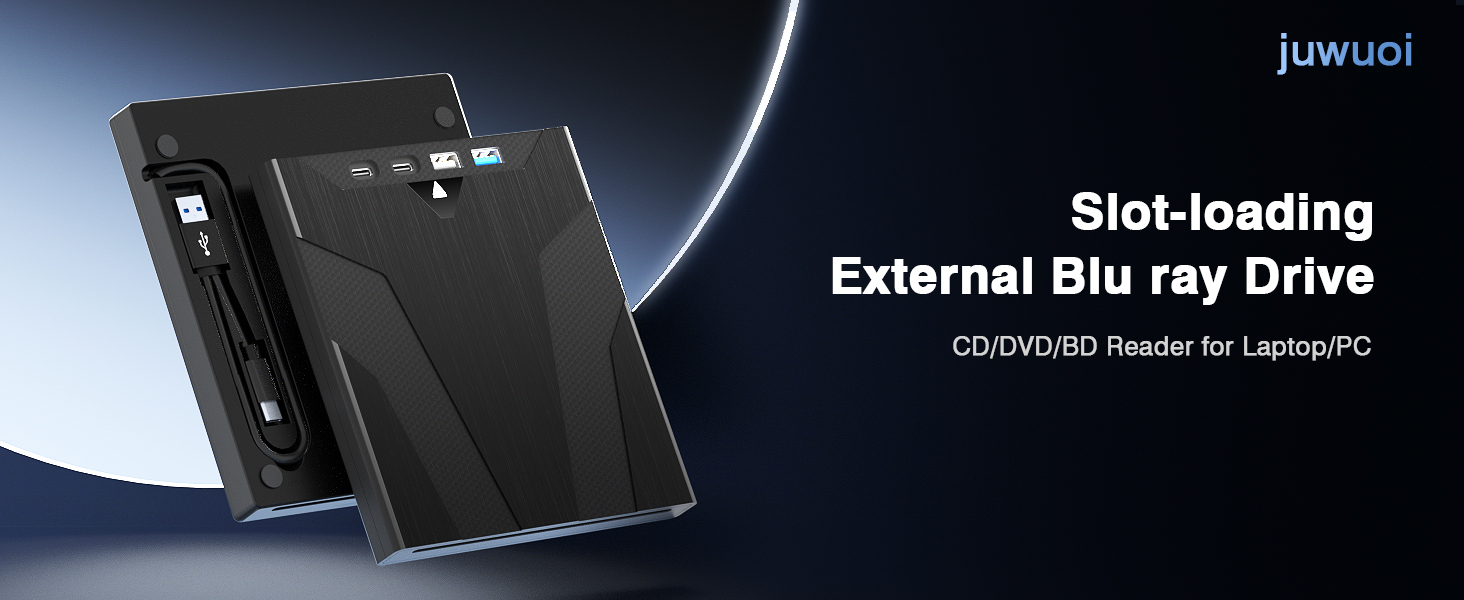
| Form Factor | External Drive, Compact |
| Media Speed | Compatible with DVD-R8x, DVD-R DL4x, DVD-RW4x, DVD+R8x, DVD+R DL4x, DVD+RW4x, DVD-RAM5x, CD-R24x, CD-RW10x |
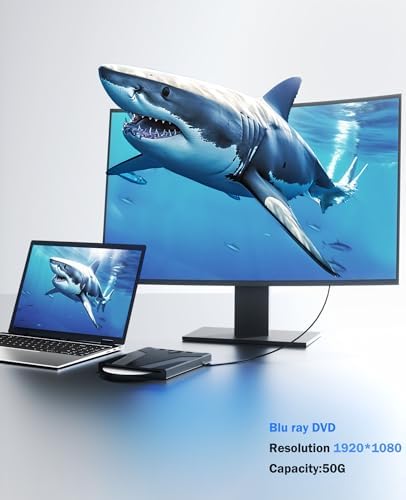
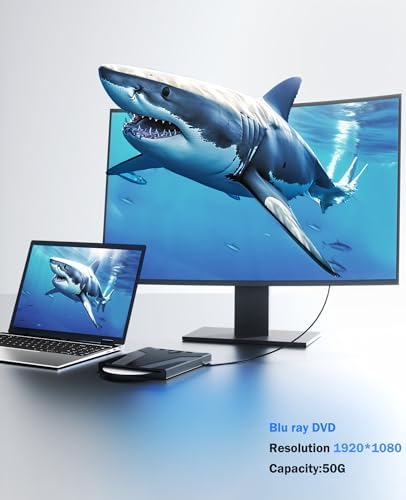
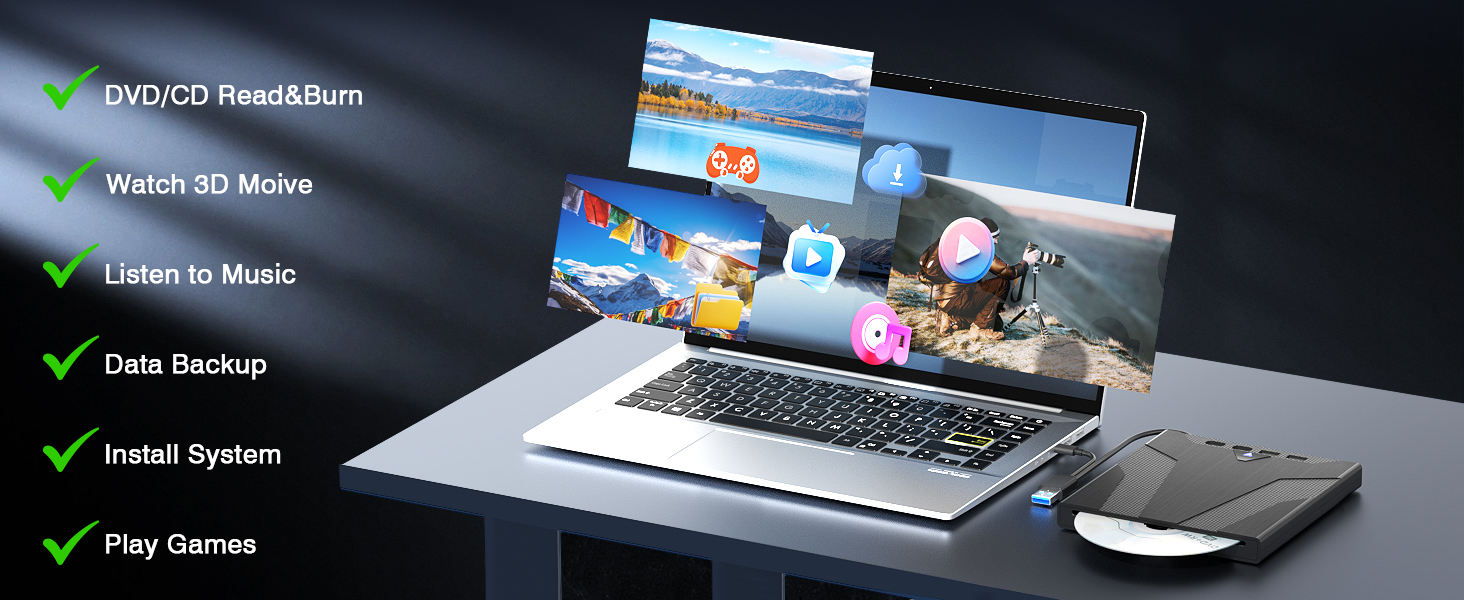
| Specific Uses For Product | home office, entertainment (movie watching) |
| Operating System | Windows, Mac OS |
| Color | black |
| Model Number | XRS-KANGBAO-BAG-XD056-A |
| UPC | 759357095985 |
| Manufacturer | juwuoi |
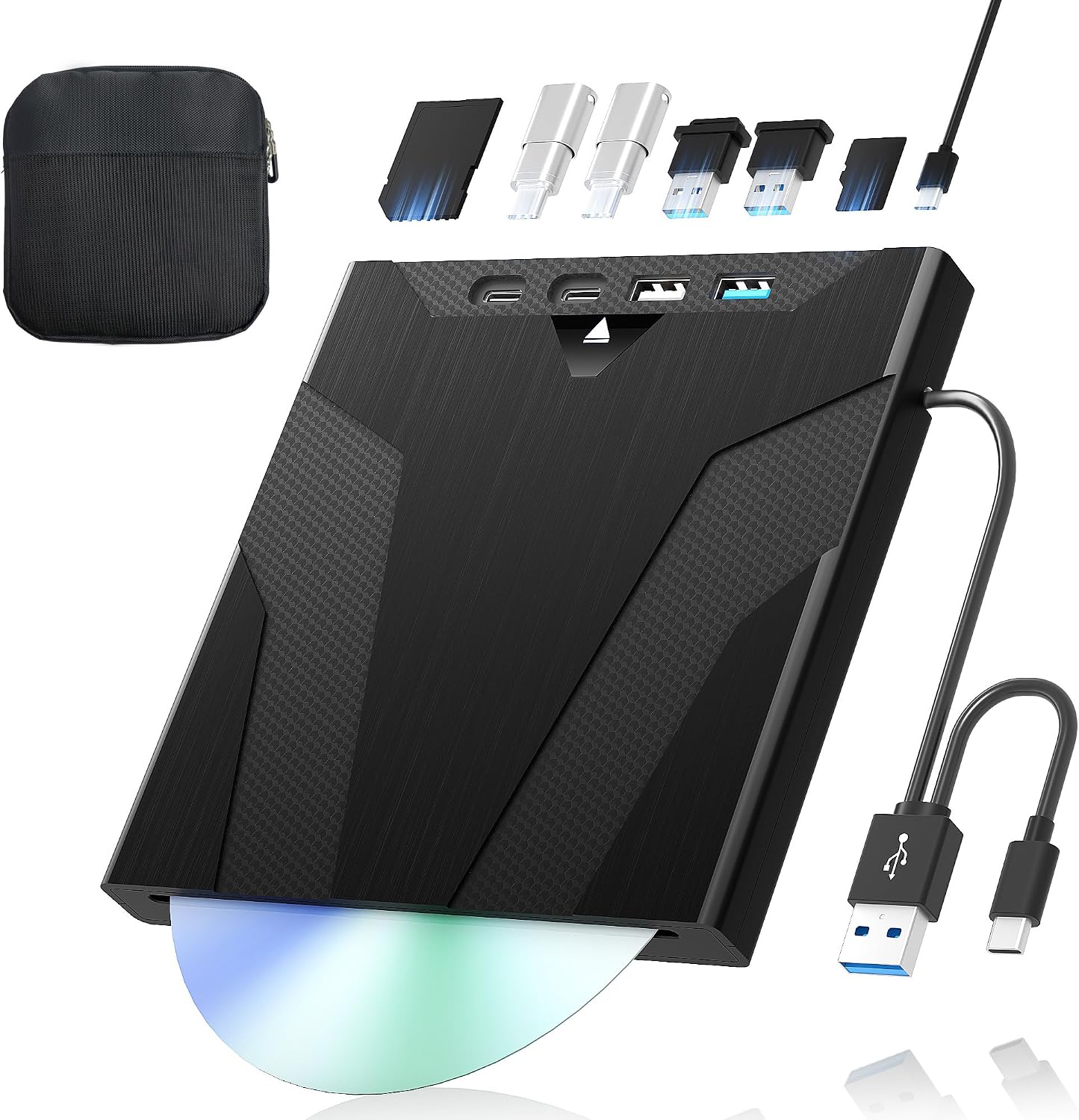
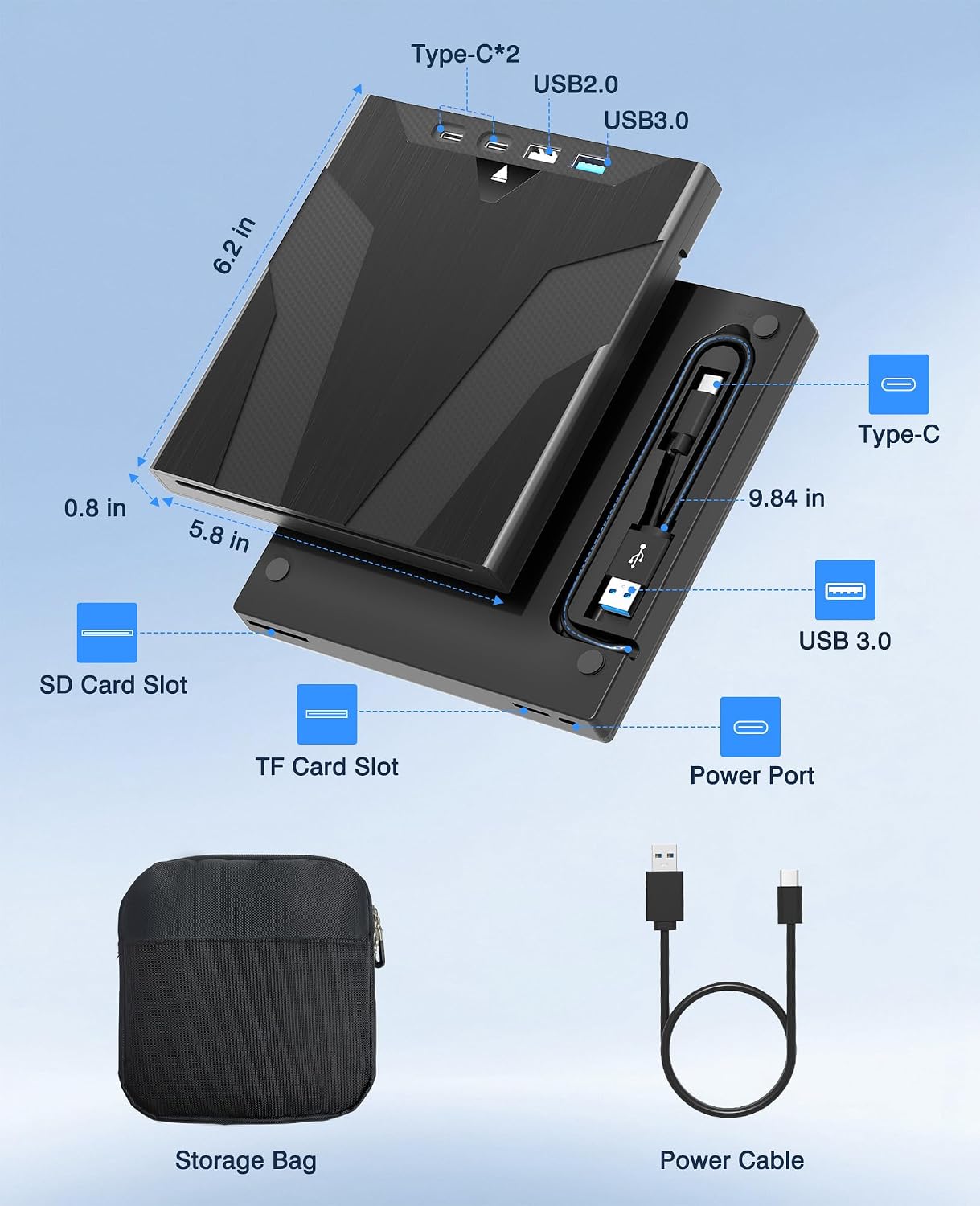
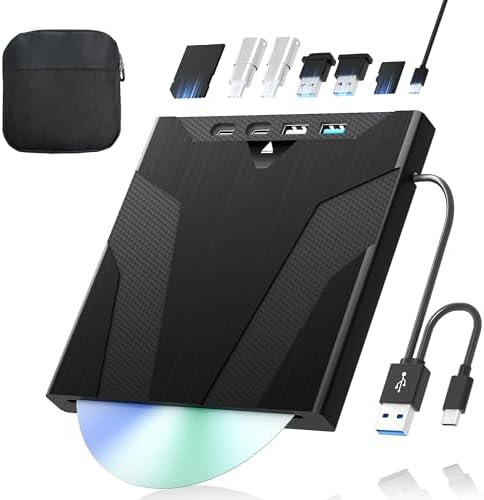
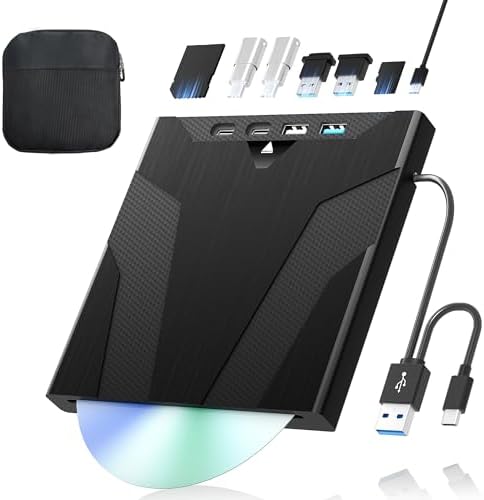
| Built-In Media | 1* External Blu Ray Drive( BD reading, DVD/CD reading and burning ), 1* Power cable, 1* Storage bag |
| Model Name | XRS-KANGBAO-BAG-XD056-A |
| Unit Count | 1 Count |
| Warranty Description | No |
| Special Feature | Backward Compatible, Error Correction, external blu ray drive |
| Optical Storage | compatible with BD various (6X), DVD various (8X), CD various (24X)" |
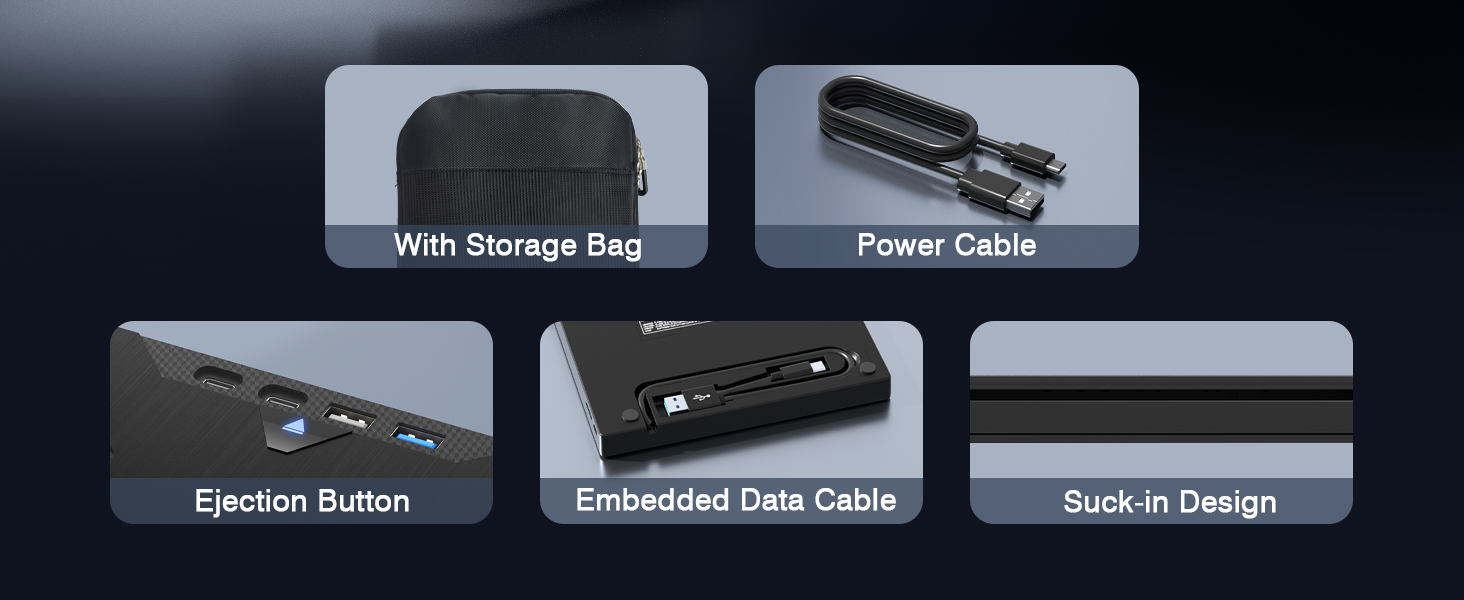
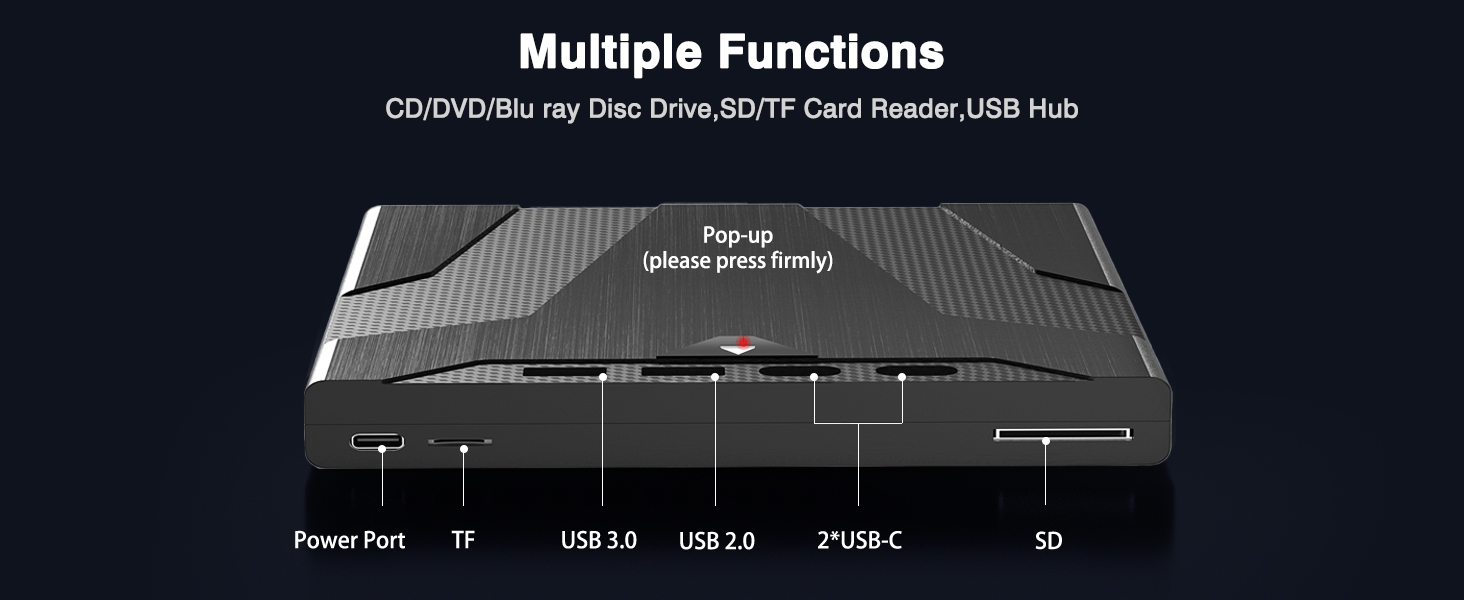
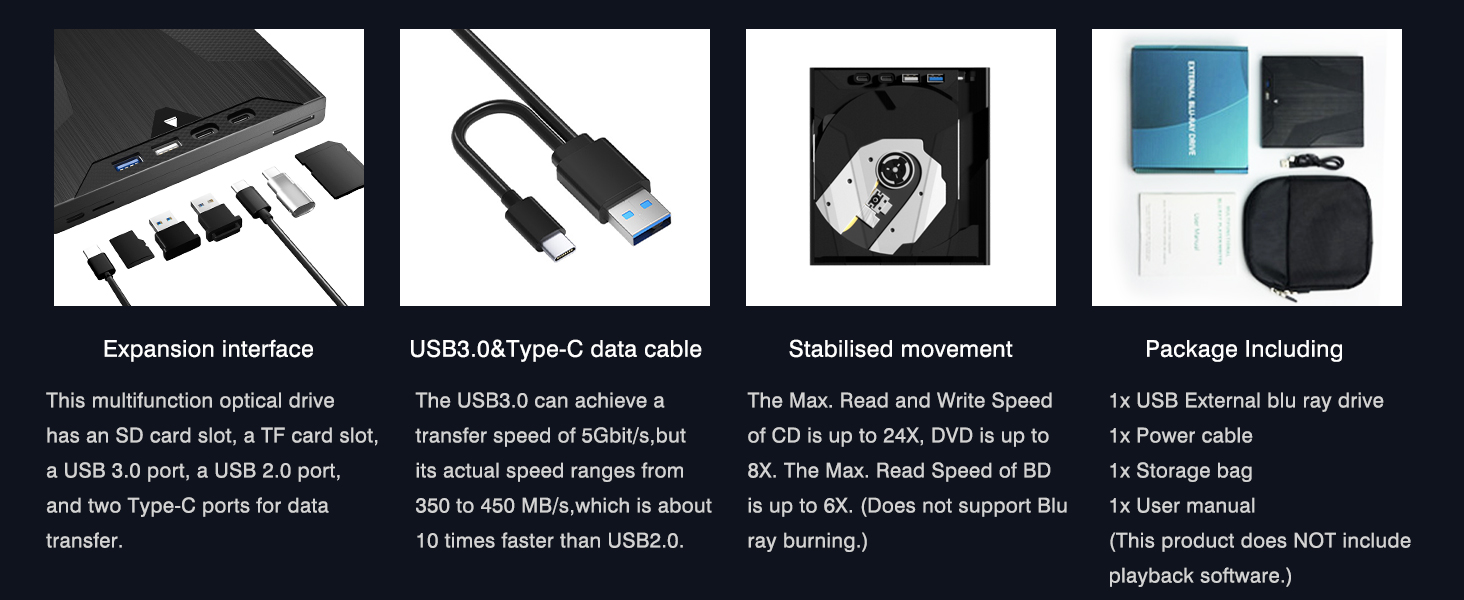
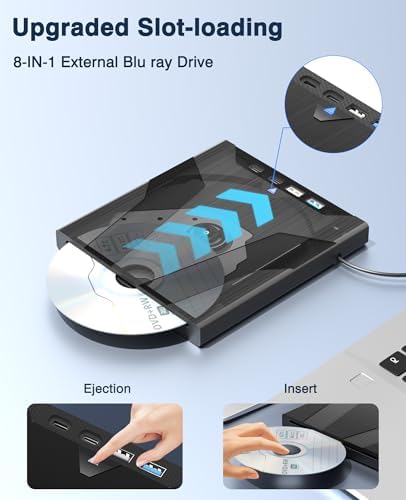
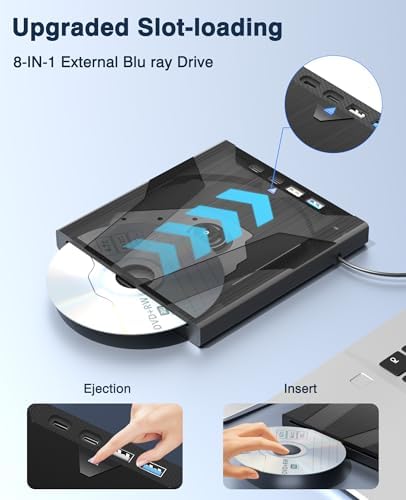
1. Plug the USB connector into your computer's USB port instead of a USB hub, and it will recognize the drive and show the "BD-RE/ROM" folder.
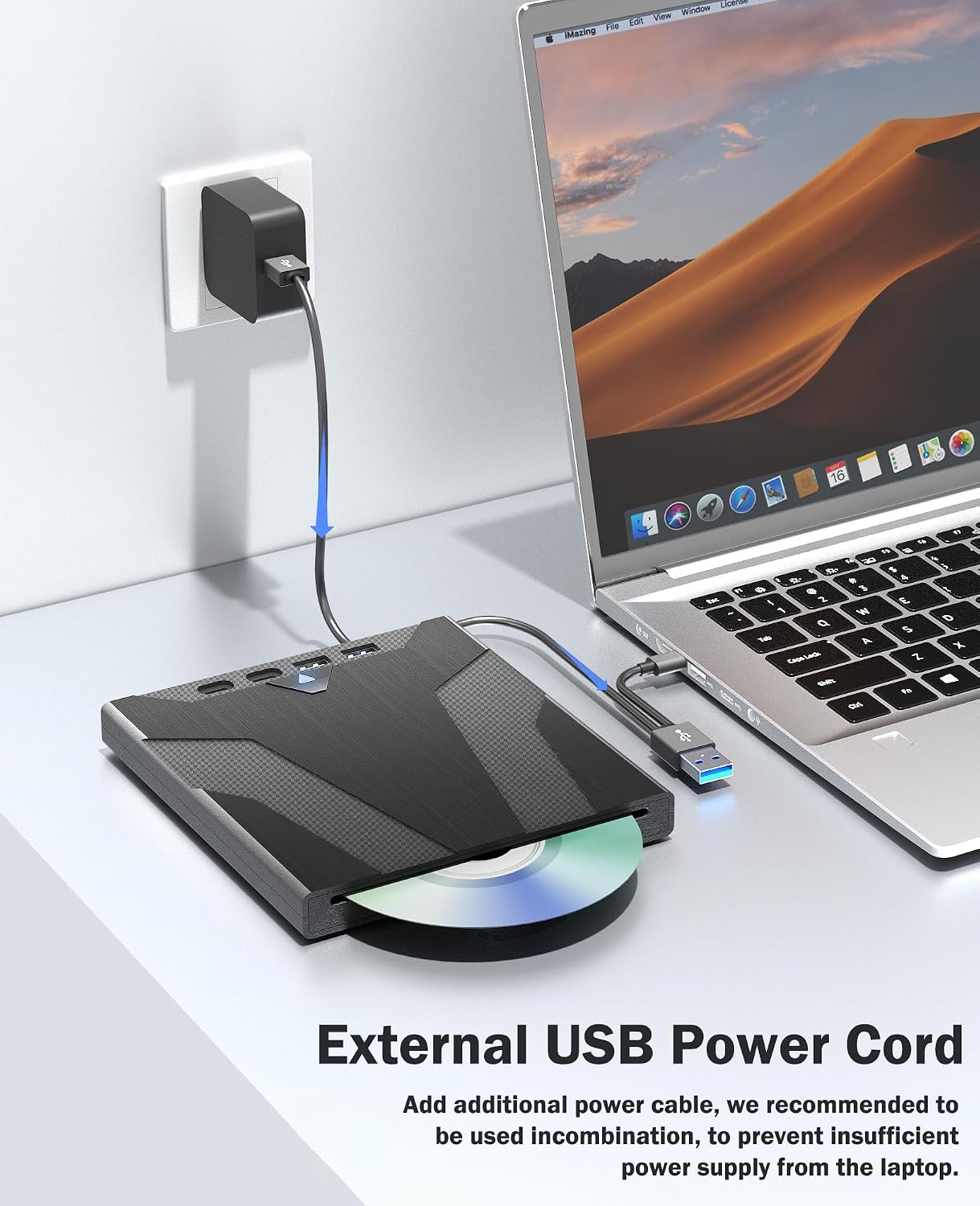
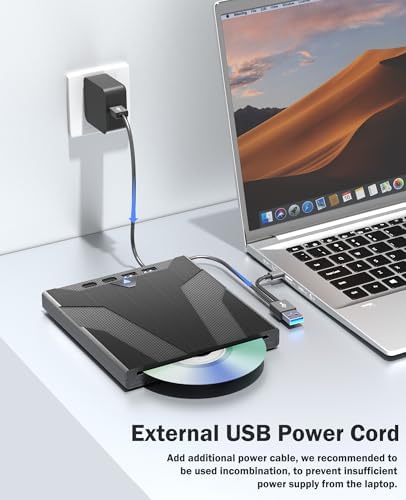
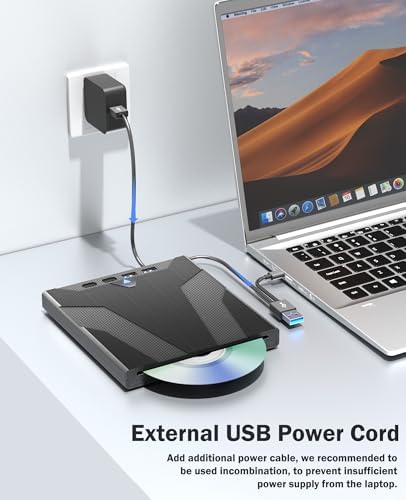
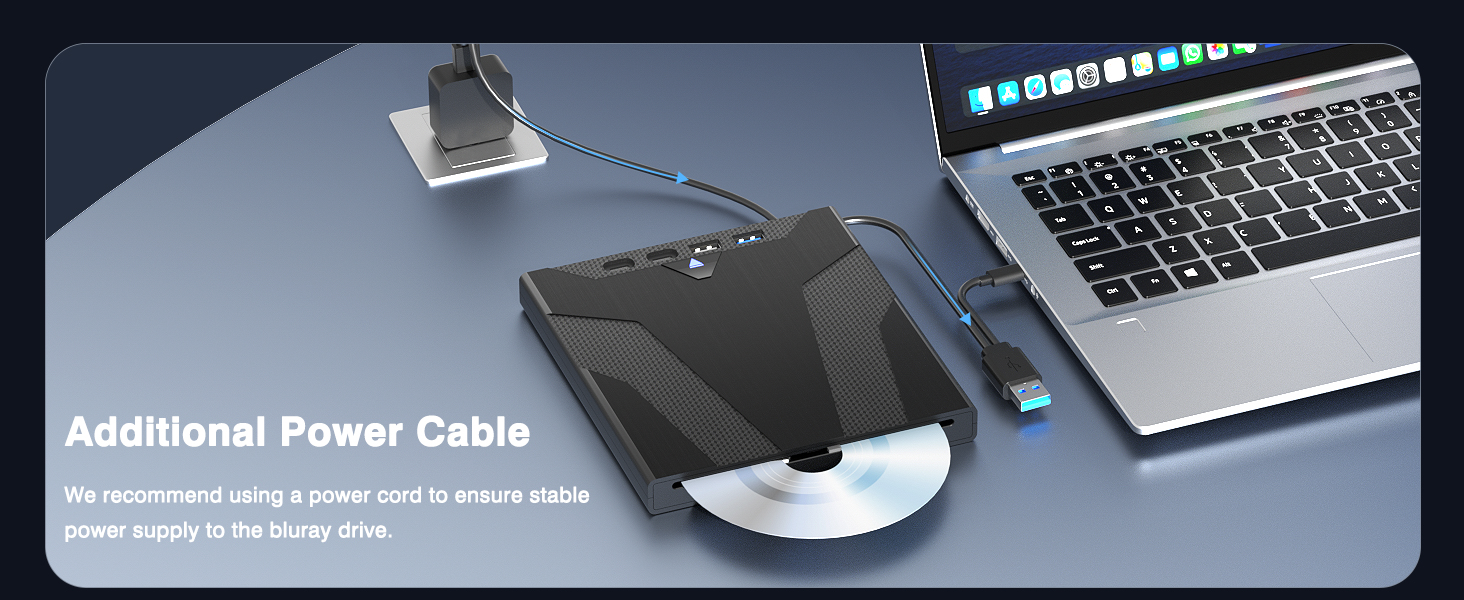
(Suggest using it with the power cable.)
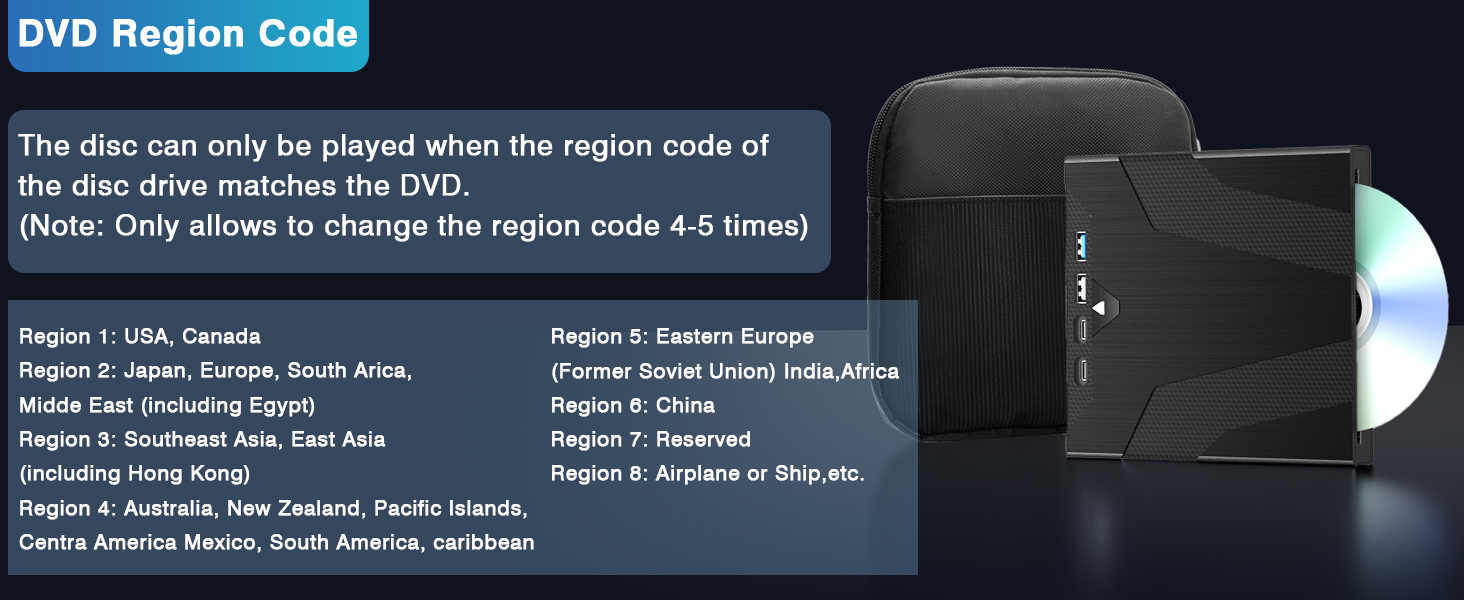
2. Set the region code to Number 1 to play US or CA DVDs. The operating steps are on the last page of the manual.
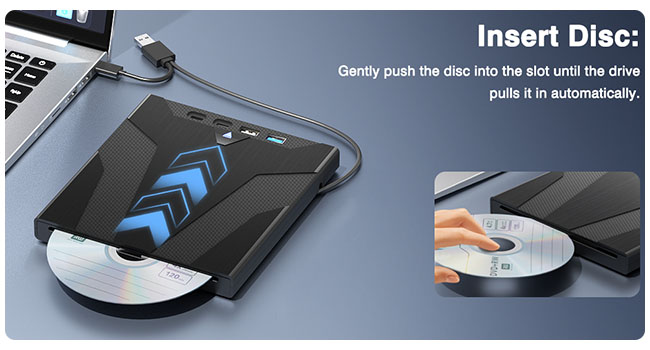
3. Insert your CDs or DVDs, and use a media software.
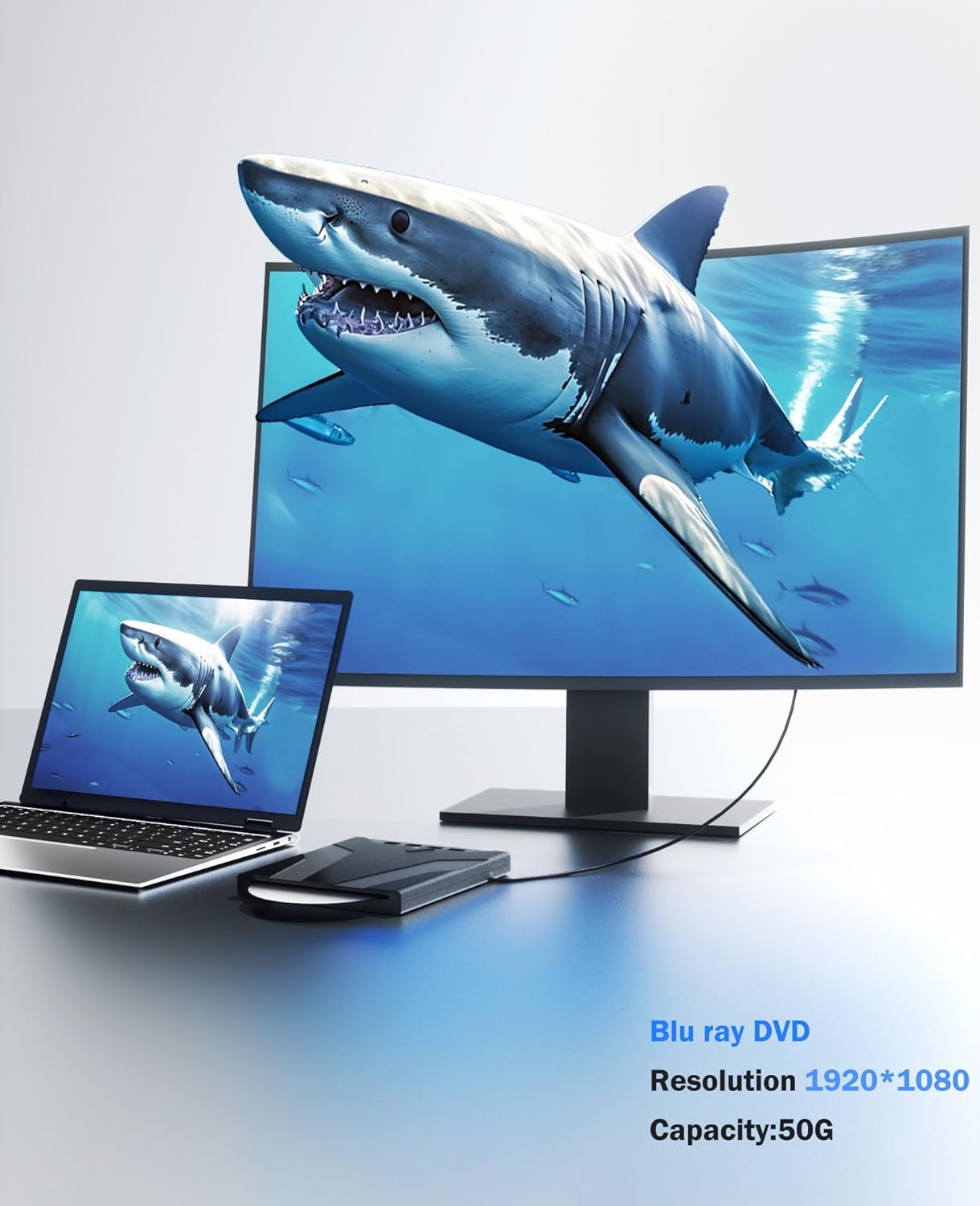
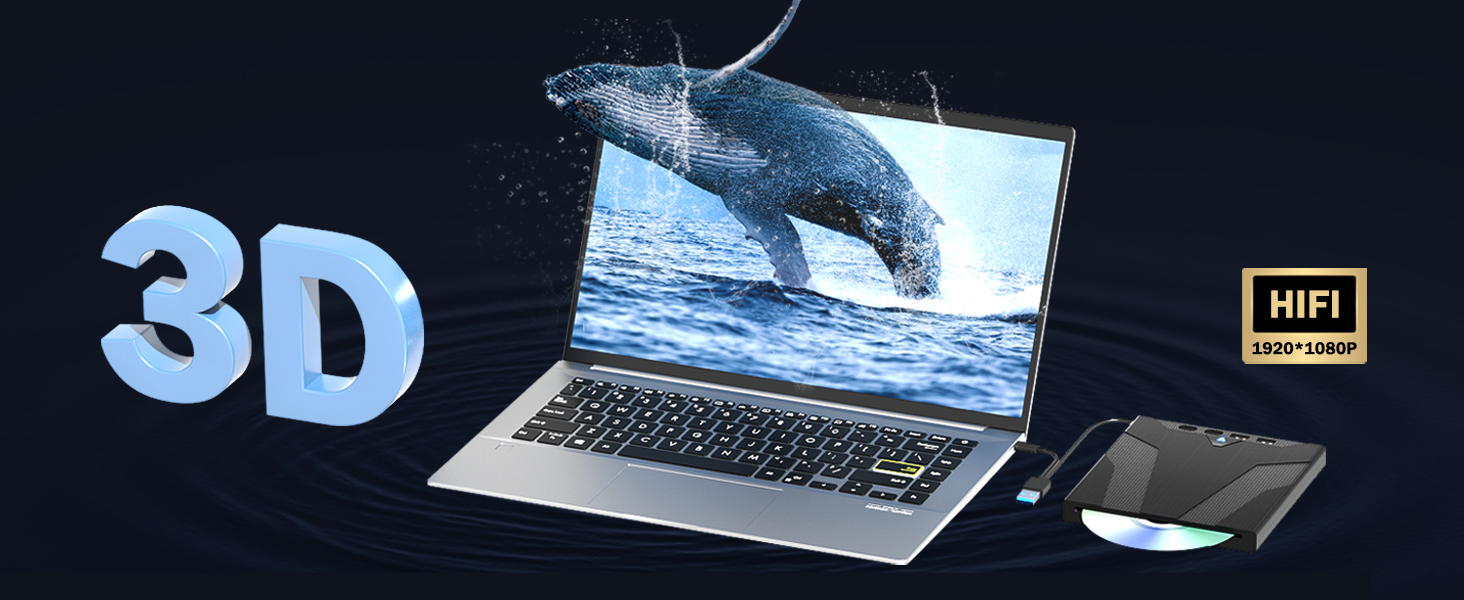
If playing Blu ray dvd, it is necessary to download Blu ray playback software in advance. Such as PowerDVD, Leawo Blu-ray Player or Macgo Blu ray Player, etc.
(Does not support Blu ray disc burning)
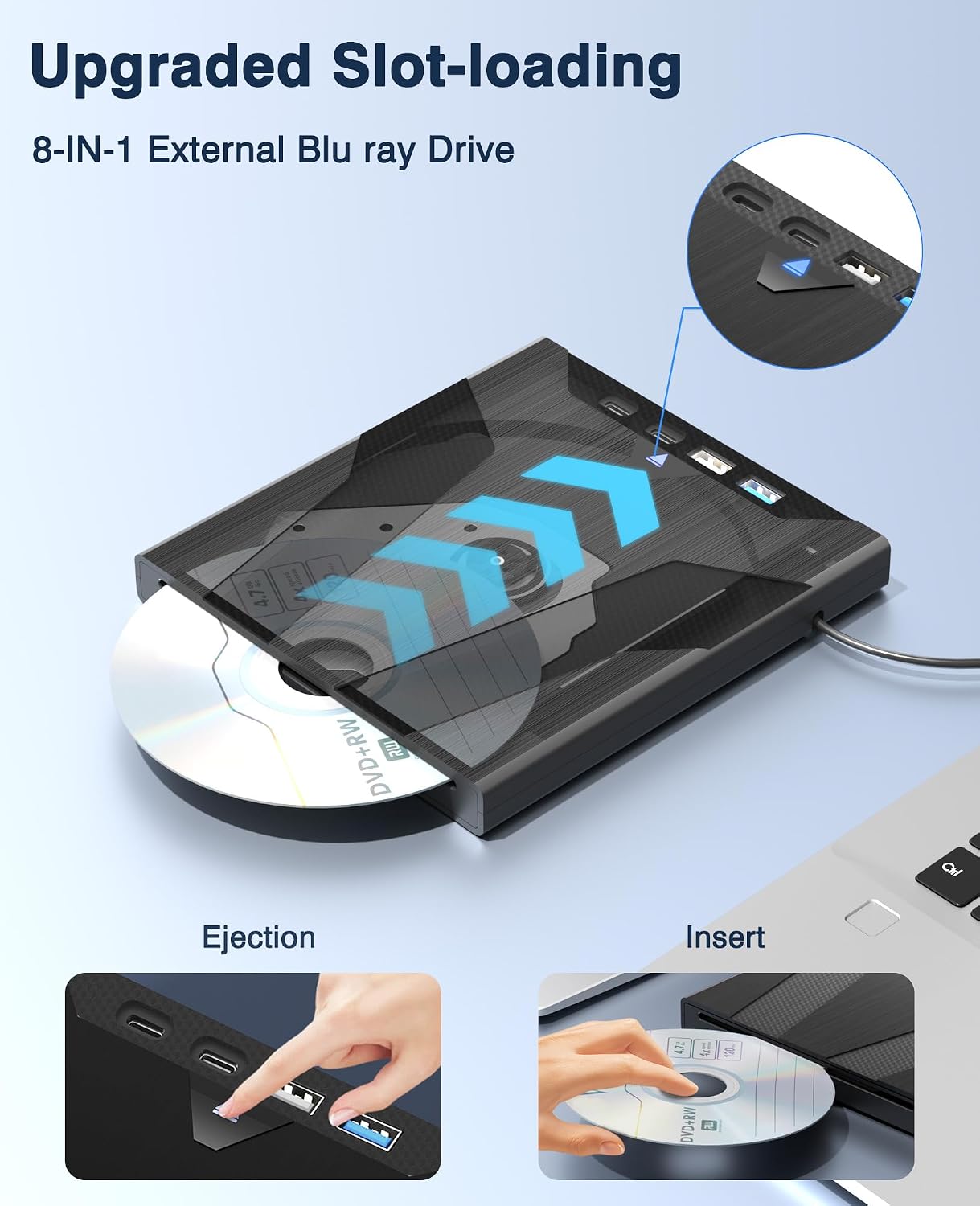
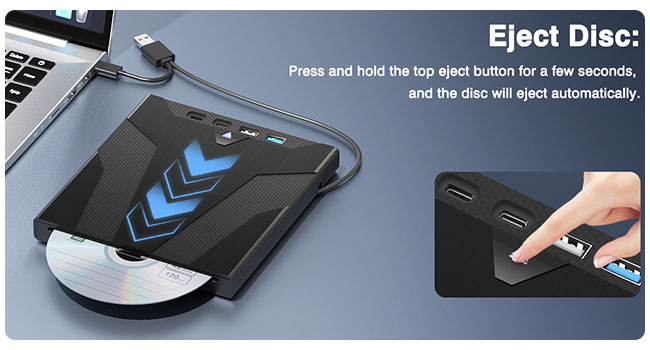
4. Pop up the disc.
1. Pls check if the optical drive is being recognizes by your computer. Do not connect USB extension hub.
For Windows OS: You can see the BD RW icon in Windows Explorer. Use the data cables on the back (bottom) of the optical drive to connect your computer's USB port or desktop computer host. We have a power cord that we recommend using together. Windows 11 requires downloading playback software.
For Mac OS: The Mac OS computer will not display the device icon until the disc is placed in the optical drive and the disc is read successfully.
2. Pls check the Device Manager: If the optical drive displays a yellow exclamation mark or question mark, there may be a driver issue. You need to right-click and select 'Update Driver', or uninstall the driver and restart the computer, then connect the optical drive, and the system will reinstall the driver automatically.
3. Pls check the BIOS settings: Enter the computer's BIOS settings interface to see if the optical drive is disabled. If it is disabled, enable it.
4. Please ensure that the optical drive is clean: As any dirt may prevent it from functioning correctly. It is recommended that a professional optical drive cleaner or cotton swab be used to gently clean the read-write head of the optical drive.
5. Unable to eject disc: Please right-click on the “BD-R” folder, select the "Eject" option, wait a few seconds for recognition, and the disc will automatically eject.
loading